
Team Access and Roles
See what every person on your team can do, give them a role, and change single areas for one person.
Overview
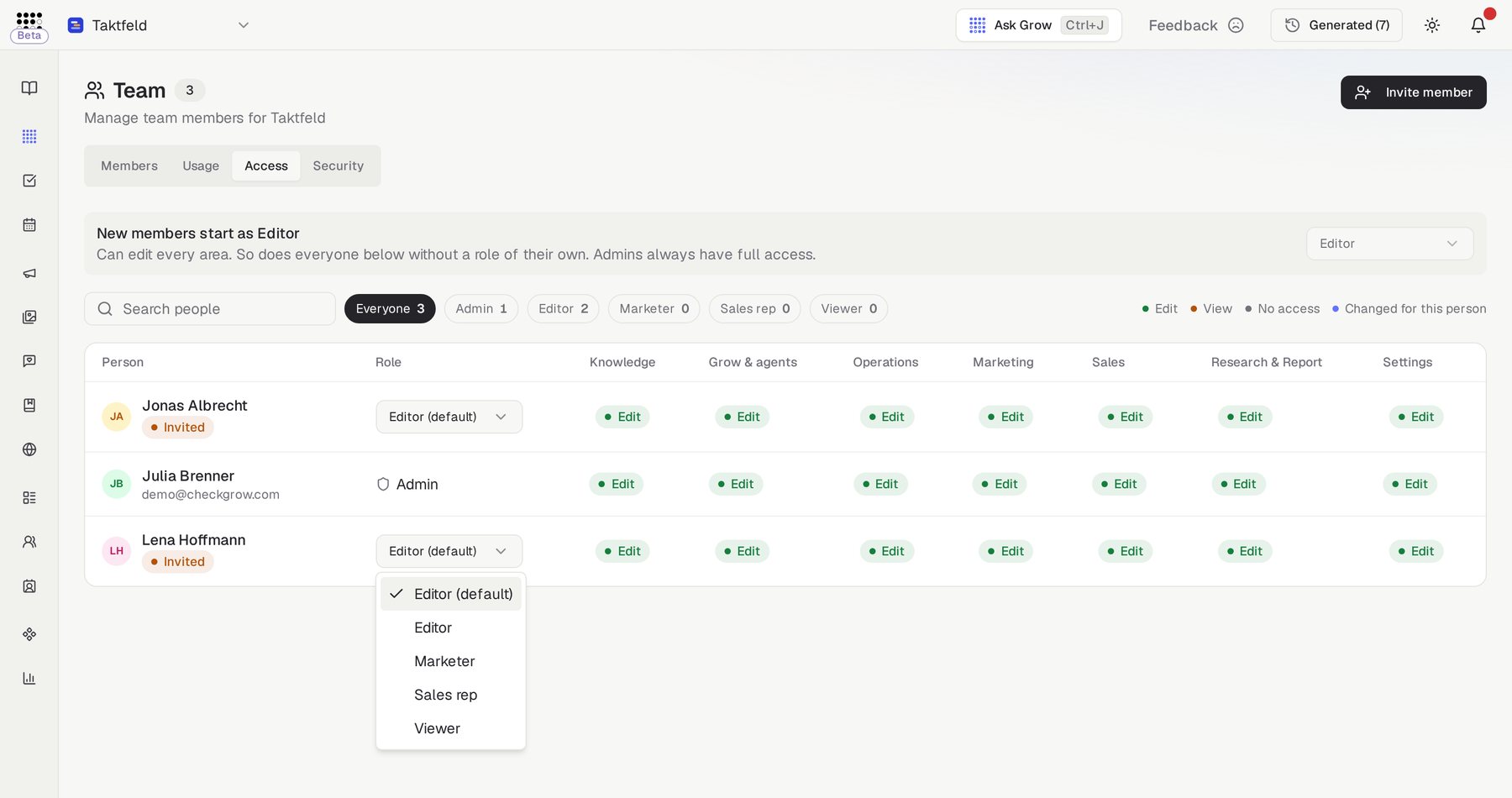
The Access tab on the Team page shows every person in your company against every area of Checkgrow. Each cell says whether that person can edit, only view, or has no access.
You give each person a role, and you can change single areas for one person when the role does not fit.
Company admins only
Only company admins see the Access tab. Admins always have full access, so their rows cannot be changed here.
Roles
There are four roles:
- Editor: can edit every area.
- Marketer: runs marketing and content, sees sales, no integrations.
- Sales rep: runs outreach and lists, sees marketing and research, no integrations.
- Viewer: sees everything and changes nothing, no integrations.
Nothing changes until you choose
Every company starts with Editor as the role for new members, which is what everyone could do before roles existed.
Give someone a role
- Open the Access tab
Select your company, open Team, then the Access tab.
- Pick the role
In the person's row, open the Role menu and choose a role. To have them follow the role for new members again, choose the option marked (default).
- Confirm if asked
If the person had changes made only for them, Checkgrow asks first, because picking a role clears those changes. Click Change role to go ahead.
Change one area for one person
- Click the cell
Click the cell for that person and area, for example Marketing.
- Choose a level per item
For each item in the area, choose Edit, View or No access. The change is saved right away.
- Undo it later
A small dot marks the cell as Changed for this person. Open the cell and use the button that puts them back on their role.
Billing
The billing owner can also switch on Can manage billing for a member from their Settings cell.
Change what new members start as
The bar at the top of the tab shows the role new members start with. Choose another role there. It also applies right away to everyone who has no role of their own, so Checkgrow tells you how many people that affects before saving.