
Session Security
Sign team members out of every device and set session limits for your company: a maximum session length and an inactivity timeout.
Overview
Company admins control how long sign-ins to Checkgrow last. You can sign any member of your team out of every device at once, and you can set two limits for your whole team: a maximum session length and an inactivity timeout.
The limits apply only to your team. Other companies on Checkgrow are not affected, and nothing changes until you set a limit.
Takes effect everywhere
Signing someone out ends their sessions on every device and browser, not just the one they are using. Every sign-out is recorded in the audit log.
Who needs it
Use these controls when you need to:
- Sign out a colleague whose laptop or phone was lost or stolen.
- End every session of an account you suspect is compromised.
- Meet a security or compliance policy that limits how long a session may stay open, or requires sign-out after inactivity.
- Offboard someone who is leaving your team.
Company admins only
Only company admins can sign out members and change the session limits. Team members do not see these options.
Sign a member out of every device
- Open the Team page
Select your company, then open Team and stay on the Members tab.
- Choose the member
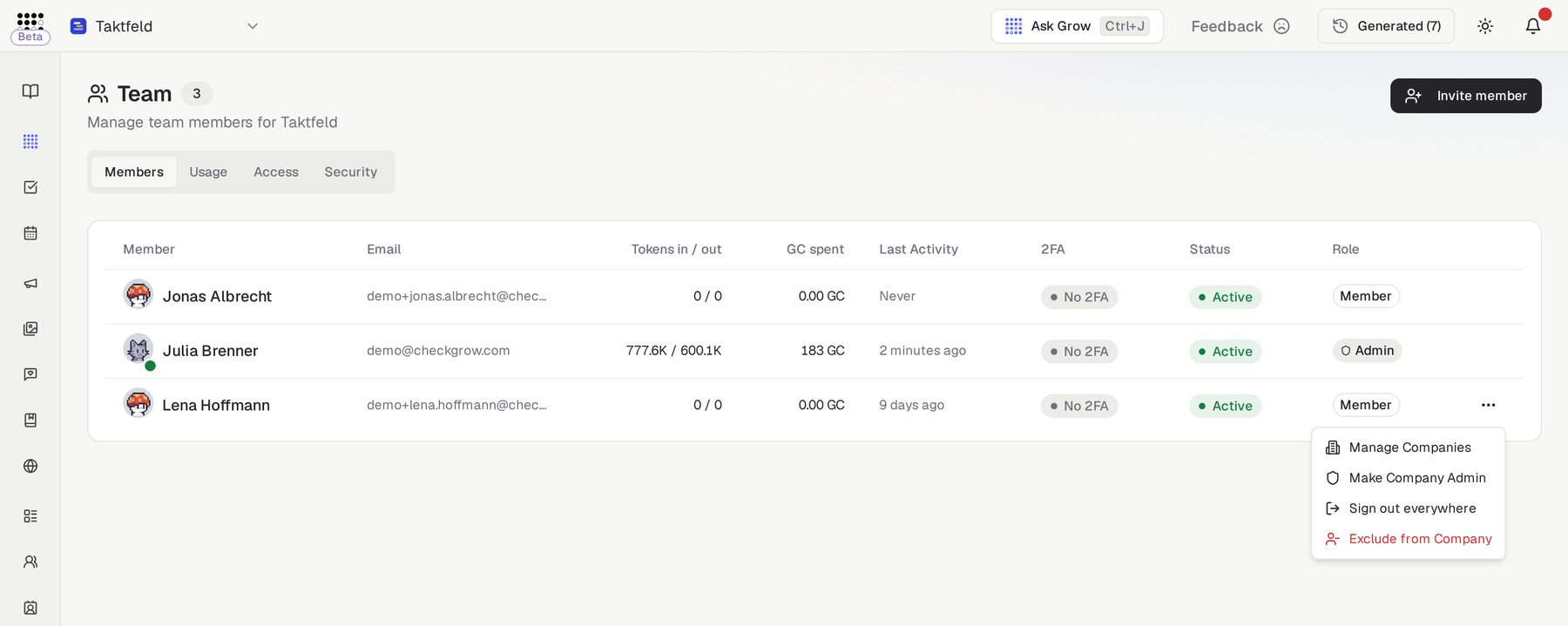
Click the ⋯ menu at the end of the member's row, or click the member to open their details panel.
- Sign them out
Click Sign out everywhere, then Sign out to confirm. The member must sign in again on every device. Their access to your company does not change.
Removing someone from their last company
When you use Exclude from Company and it was the person's only company, they are also signed out of every device. People who still belong to another company keep their sessions there, and lose access to your company's data straight away.
Set session limits for your team
- Open the Security tab
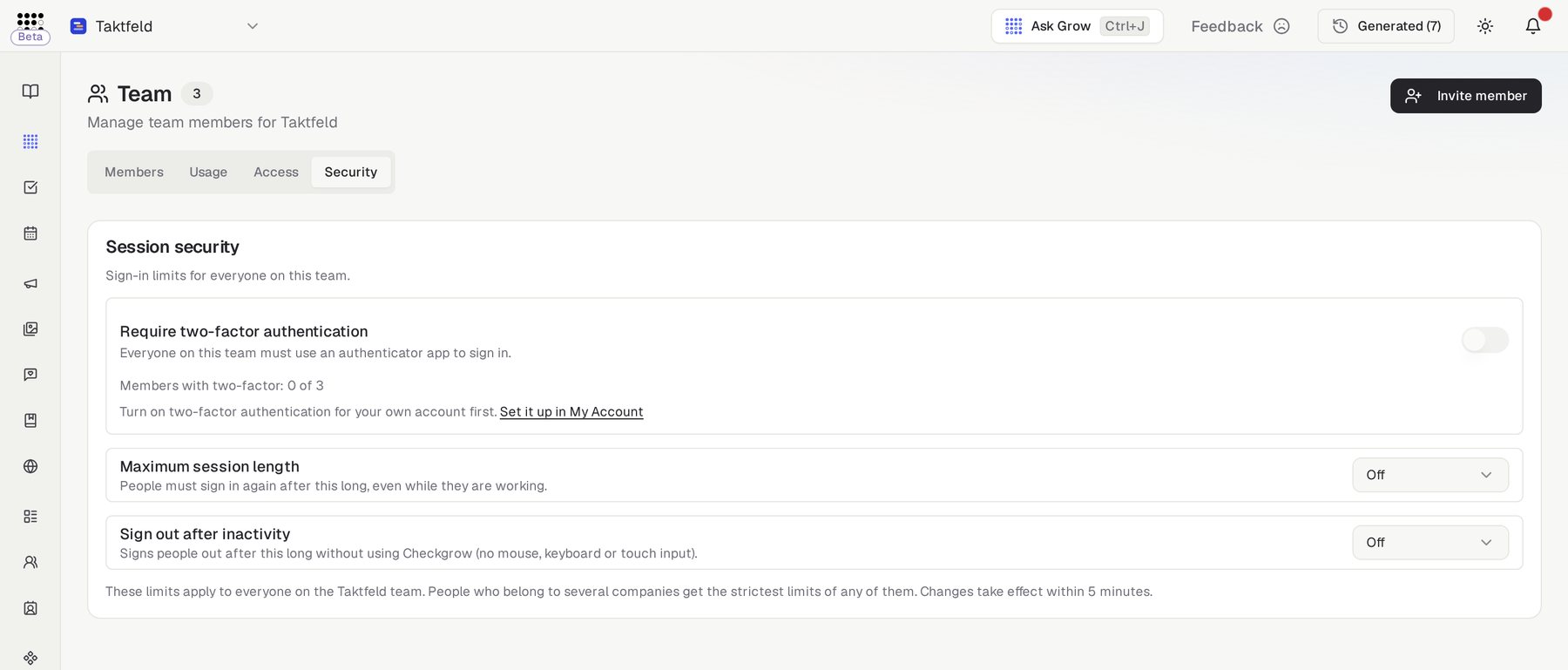
Open Team and choose the Security tab.
- Set the maximum session length
Under Maximum session length, pick 12 hours, 24 hours, 7 days or 30 days. After that time, people must sign in again, even while they are working.
- Set the inactivity timeout
Under Sign out after inactivity, pick 15 minutes, 30 minutes, 1 hour, 4 hours or 8 hours. People are signed out after that long without mouse, keyboard or touch input in Checkgrow.
Saved instantly, applied within 5 minutes
Each change saves as soon as you pick a value and applies to everyone on your team within 5 minutes. Choose Off to remove a limit.
Common questions
Do people get a warning before an inactivity sign-out?
Yes. A notice appears one minute before the sign-out. Moving the mouse or pressing a key keeps them signed in. After an inactivity sign-out, the sign-in page explains what happened.
What if someone has Checkgrow open in several tabs?
All tabs on the same browser share one inactivity clock, so working in one tab keeps the others signed in too.
What if a person belongs to several companies?
A sign-in is not tied to one company, so the strictest limits of all their companies apply. For example, if one company sets 30 minutes of inactivity and another sets 8 hours, the person is signed out after 30 minutes.
What happens on a device where Checkgrow is closed?
Checkgrow also ends sessions on its servers, so a laptop that was closed past the limit asks for a new sign-in when it is opened again.
Can I sign myself out of every device?
Yes. Sign Out in your account menu ends your sessions on every device, not only the one you are using.