
Billing and payment history
Review company payments, tax amounts and available billing documents.
Overview
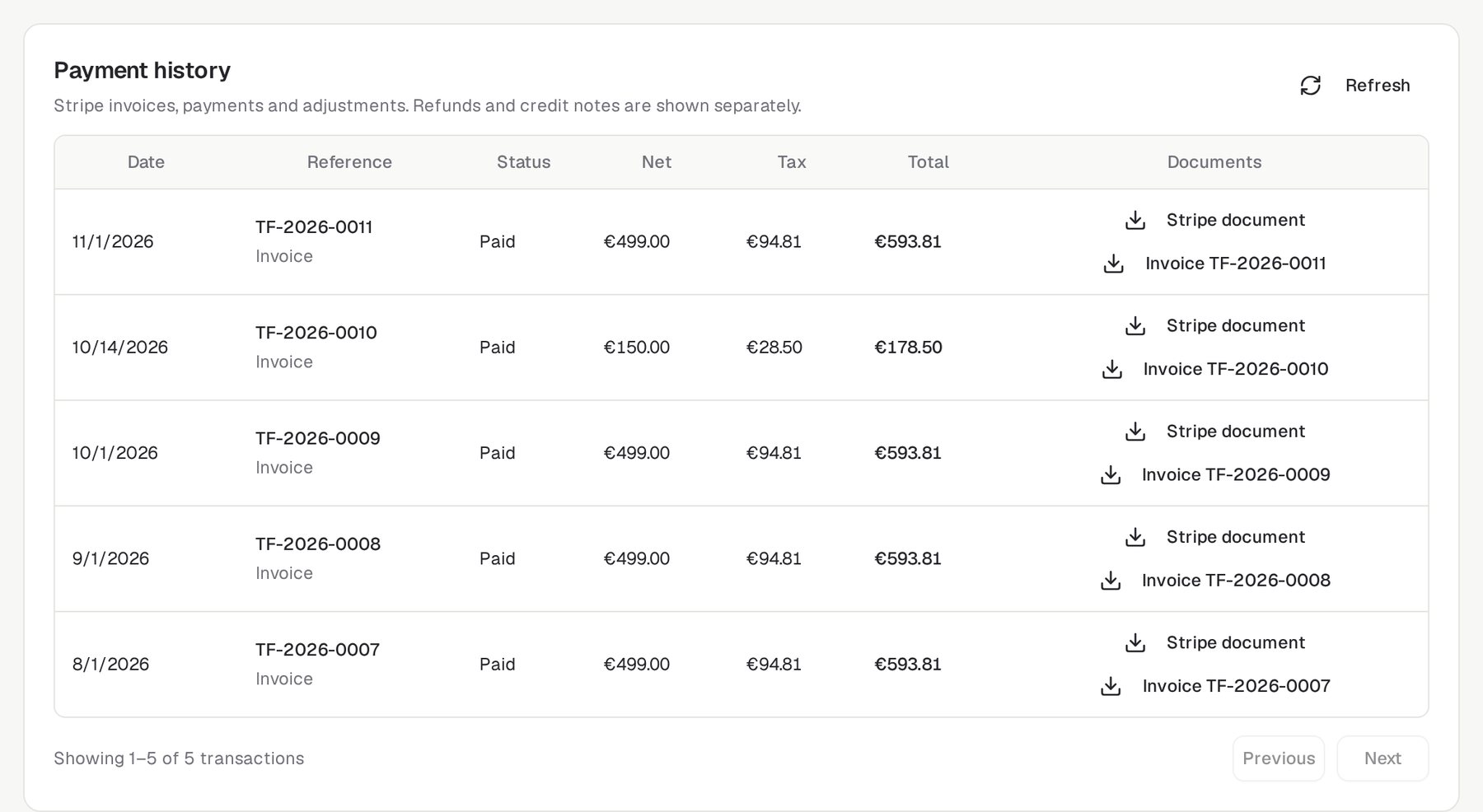
Payment history shows your company's synchronised Stripe invoices, payments and adjustments. Each entry includes its date, reference, status and total, with net and tax amounts shown separately when available.
Payments and credits are different records
Payment history records billing activity. Your company credit balance and GC usage remain separate: refreshing this list does not charge your company or grant credits.
Who needs it
Use this view when you need to:
- Check whether a company payment has succeeded.
- Understand the net, tax and total amounts recorded for a transaction.
- Find an available invoice or payment document.
- Review refunds and credit notes separately from payments.
Billing access required
Company administrators and authorised billing managers can view company payment history. Ordinary team membership alone does not grant billing access. Platform administrators can also review it when supporting your company.
How to use it
- Open Billing
Select the correct company, then open My Account → Billing. Find the Payment history card.
- Review a transaction
Check its Reference and Status, then compare Net, Tax and Total. Refunds and credit notes have their own entries.
- Browse or refresh
Use Previous and Next to browse more records. Click Refresh to reload the list. On a small screen, scroll the table sideways to see all columns.
Documents and common questions
How do I open a document?
In the transaction's Documents column, click Stripe document when available. An Invoice button with an invoice number appears separately when a local fiscal invoice has been delivered.
Why is a document not available yet?
A transaction may not have a document available. Local fiscal invoices depend on activation of the accounting integration and successful delivery. Stripe documents are separate and are not automatically copied into local invoice storage.
How are taxes shown?
Displayed plan prices exclude applicable taxes. Stripe calculates tax at checkout. Payment history shows the amounts recorded for each transaction; older invoices are not recalculated. A dash means the historical net or tax amount is not available.
What if the history is empty or cannot load?
Click Refresh. An empty history means no transactions have been synchronised into this view yet, not that your company has never paid. Existing invoices remain available in Stripe. If the problem continues, contact your company administrator or Checkgrow support.
Company documents stay private
Document access is checked for your company. Local invoice download links expire quickly; if a link expires, open the document again from Payment history.