
Company Profile
Your company's identity record — filled by the website scan and kept fresh by hand, per-field AI or chat.
Overview
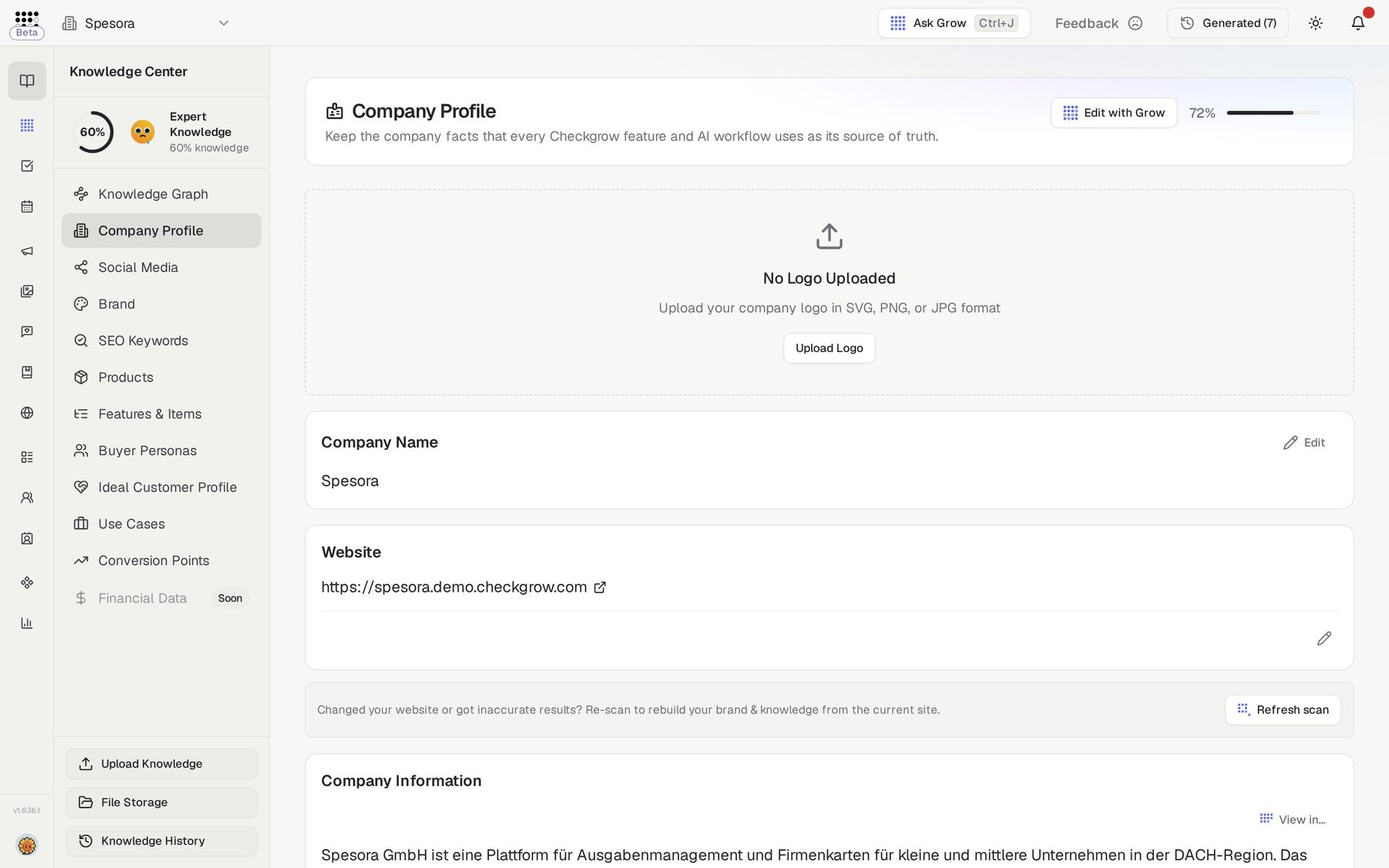
Company Profile is your business's identity record: logo, Company Name, Website, Company Information, Company Vision, Company Offer, social and contact links, addresses, founding year, legal name, VAT, countries, Industry, Segment and Market. It is filled automatically by the website scan when you onboard, then kept up to date by you.
This page is the base company context for every AI feature — the AI Assistant, AI Agents, the campaign builders, creative generation and competitor and website analysis all start from what's written here.
Update it once, use it everywhere
Every AI workflow reads your Company Profile as its base context. Correct a value here once, and every assistant chat, agent run and campaign brief uses the new information immediately.
Who needs it
Keep the Company Profile accurate if you are:
- Setting up the platform — reviewing what the onboarding scan found and filling the gaps.
- A marketer — the company description, offer and vision shape every AI-written campaign and post.
- Rebranding or repositioning — a stale profile means the AI keeps describing the old company.
- An admin — renaming the company is admin-gated, so ownership of this record sits with you.
Every save on this page is recorded in Knowledge History and recalculates your Knowledge Score, so changes are always traceable and reversible.
How to use it
- Fix a value by handClick the pencil icon on any card, edit the text and save. The change is logged in Knowledge History straight away.
- Fill a blank with AI CheckEmpty fields show an AI Check button. Click it and the AI drafts the field from your website and existing knowledge — review the result and keep or adjust it.
- Refine a filled field with GrowFilled fields have an edit button with the Grow icon. Click it, describe the change — for example "Update the description to focus on..." or "Remove the part about..." — and click Apply.
- Edit through GrowClick Edit with Grow at the top of the page. Grow opens with your request ready, proposes the changes and waits for you to confirm.
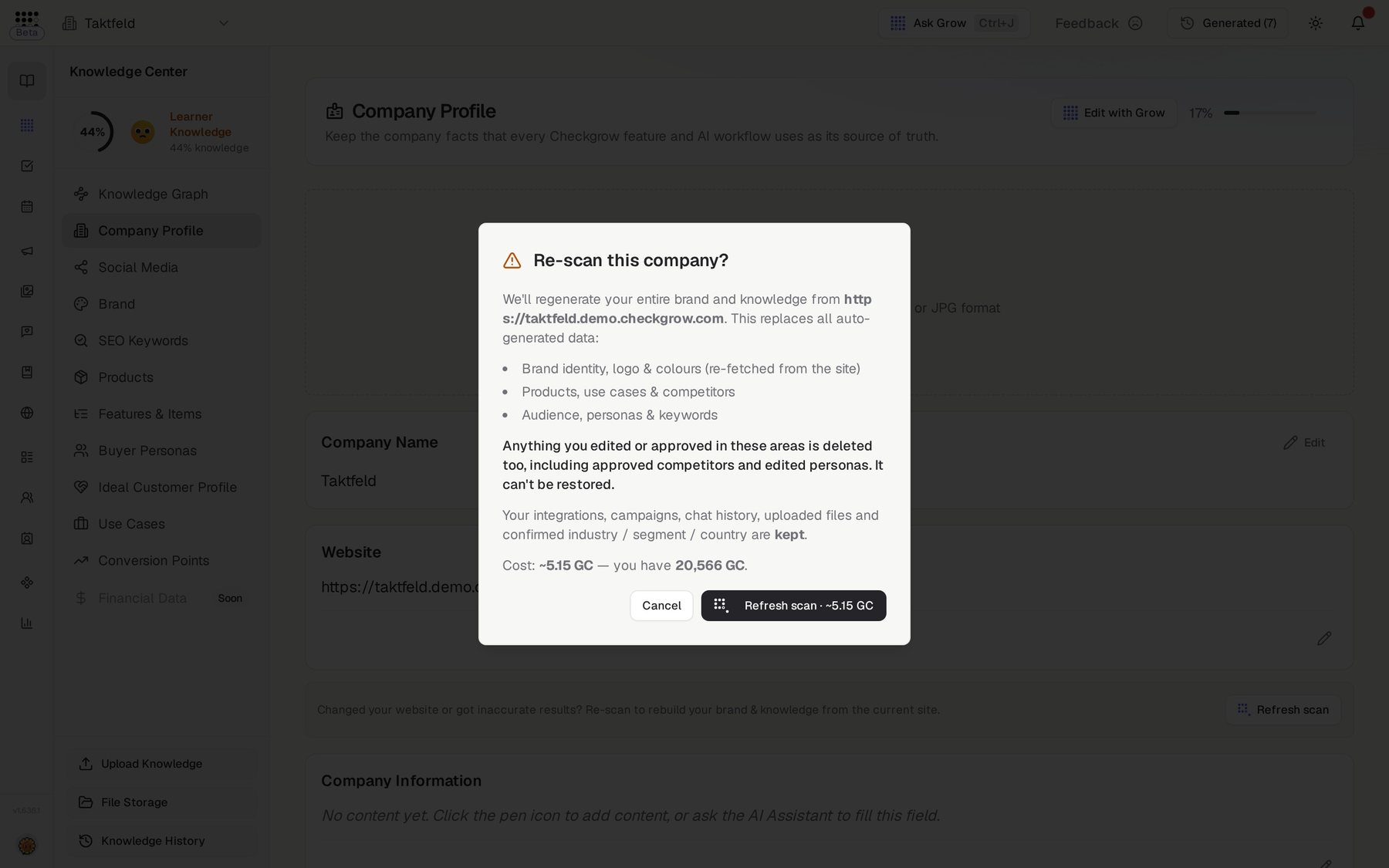
- Rebuild everything with Refresh scanClick Refresh scan below your website. The "Re-scan this company?" window lists what gets rebuilt — brand identity, logo and colours; products, use cases and competitors; audience, personas and keywords — and what is kept. It also shows the estimated cost before you confirm.
The website scan, in detail
What the first scan fills automatically
The onboarding website scan populates Company Profile plus Brand, Products, Use Cases, Buyer Personas, Features & Items and the Media Library. Pages show loading skeletons while their section is being enriched, and the sidebar donut reads "Enriching...".
When to use Refresh scan
Use Refresh scan after a major website update, a rebrand or a product launch. It rebuilds three areas: brand identity, logo and colours; products, use cases and competitors; and audience, personas and keywords.
A refresh deletes what the scan built before rebuilding it, including competitors you approved and buyer personas you edited. Those can't be restored afterwards, so copy anything you want to keep first. Your integrations, campaigns, chat history, uploaded files and confirmed industry, segment and country are kept.
After the profile: add conversion URLs
The bottom of the page prompts "Add your main conversion URLs" with a Go to Conversion Points button. Setting up Conversion Points gives your campaigns real destinations to drive traffic to.
Related features
Brand — logo versions, colors, typography and tone of voice
Conversion Points — the URLs your campaigns drive traffic to