
Connected Sources
Sync folders from Google Drive, SharePoint and OneDrive, Confluence and Notion, watch each sync as it runs, and see what every document changed.
Overview
Connected sources keep the folders where your team already writes in sync with the Knowledge Center. Pick the folders, spaces or pages once, and Grow reads every document in them, keeps each one in the Library, and checks again for changes on its own.
You can connect Google Drive, SharePoint and OneDrive, Confluence and Notion. Access is read-only: nothing is ever changed or deleted at the source.
Your knowledge only changes when you say so
Synced documents are always searchable in the Library, so Grow uses them when it writes. Your company knowledge fields change only through updates you review. When a document you already synced changes, it is read again and the changes come to you for review, unless Propose updates from changed files is off.
How to connect a folder
- Open SourcesGo to Knowledge Center, then Sources. Click Connect a source and pick one. You can also click Add knowledge and choose Connect a folder.
- Sign inFor Google Drive click Continue with Google, for SharePoint and OneDrive Continue with Microsoft. For Confluence and Notion, sign in with the provider, or open Other ways to connect and paste a token.
- Pick what to syncIn Folders (Spaces for Confluence, Pages for Notion), tick a folder to include everything inside it. Use the arrow to open a folder and pick single files instead.
- Save and watch it runClick Save and sync. The window stays open and shows the sync as it happens: looking for files, which document it is reading, and how many are done.
Already connected?
A connected source stays in Connect a source, marked connected. Open it to add folders or to see its files.
See what each document did
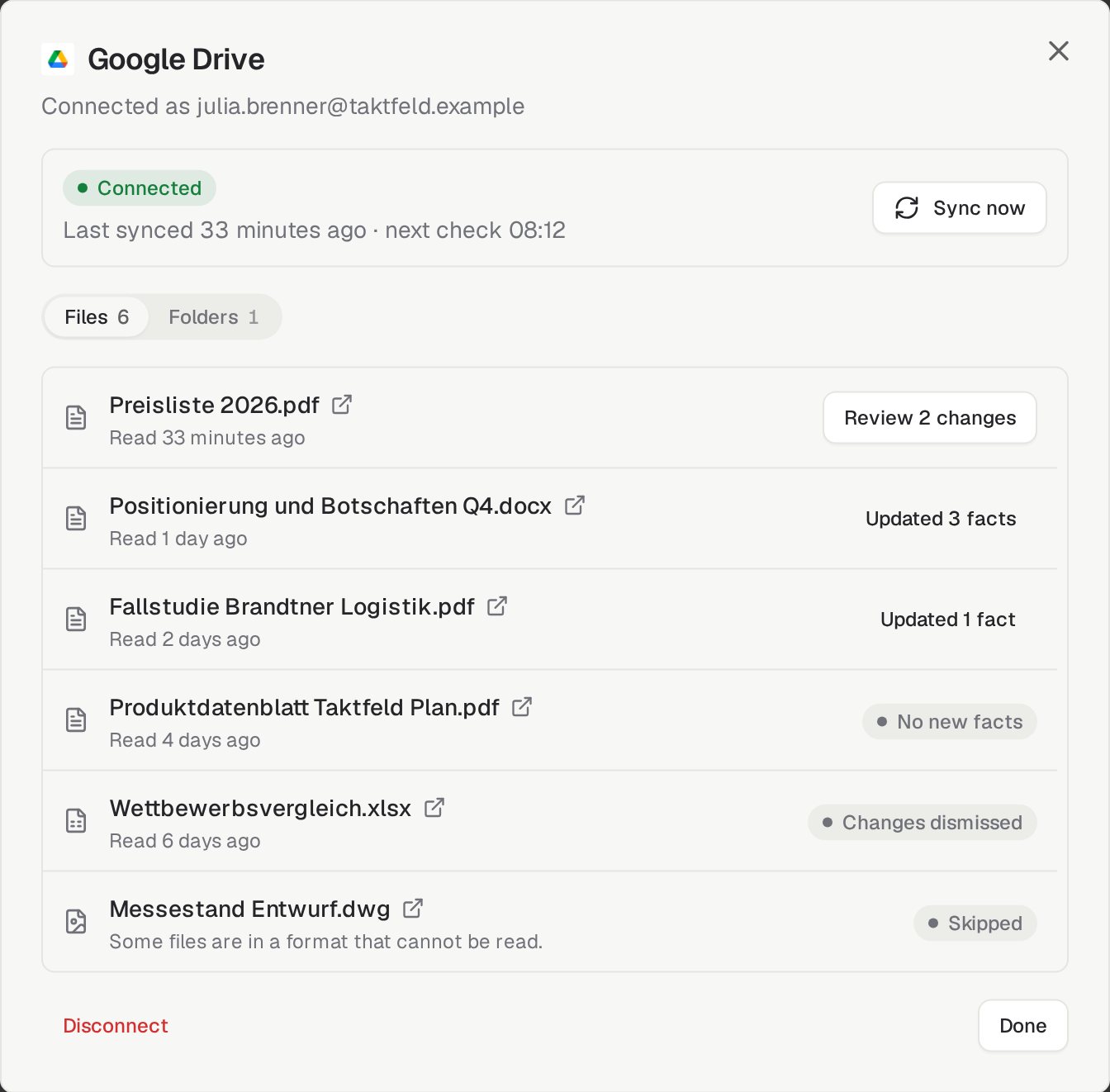
The Files view lists every synced document. Click a document's name to open the original in a new tab. Under the name you see when it was read, or why it could not be read. On the right you see what it did to your knowledge:
In Library
Finding changes
Review changes
Updated facts
Failed or Skipped
Sources check for changes on their own every few hours. Click Sync now to check straight away.
Proposed updates
A synced document that changes is read for facts about your company, and the changes come to you for review. The review marks a change as a conflict when it disagrees with what is saved, such as a new price, when two of your documents disagree, or when someone edited the field by hand. It also lists facts the new version no longer states as Possibly outdated, so you can edit or remove them. When a file is deleted at its source or from the Library, the facts only that file taught open a review of their own, also marked Possibly outdated. Check them, change what is no longer true, then click Mark as checked. In Folders, switch on Propose updates from changed files to have new documents read for facts too, or switch it off to keep every document in the Library only.
Reading a document for changes uses Grow Credits. Keeping it in the Library only uses a small amount.
Good to know
- Google Drive reads Docs, Sheets, Slides, PDFs and Office files. SharePoint and OneDrive read PDFs and Office files. Confluence reads pages, Notion reads pages and databases.
- In Notion, share each page or database with the integration, or it cannot be read.
- Long PDFs, including scanned ones, are read too; very long files take longer.
- Click Disconnect to stop syncing. Files already in the Library stay unless you choose to remove them.