
Knowledge History
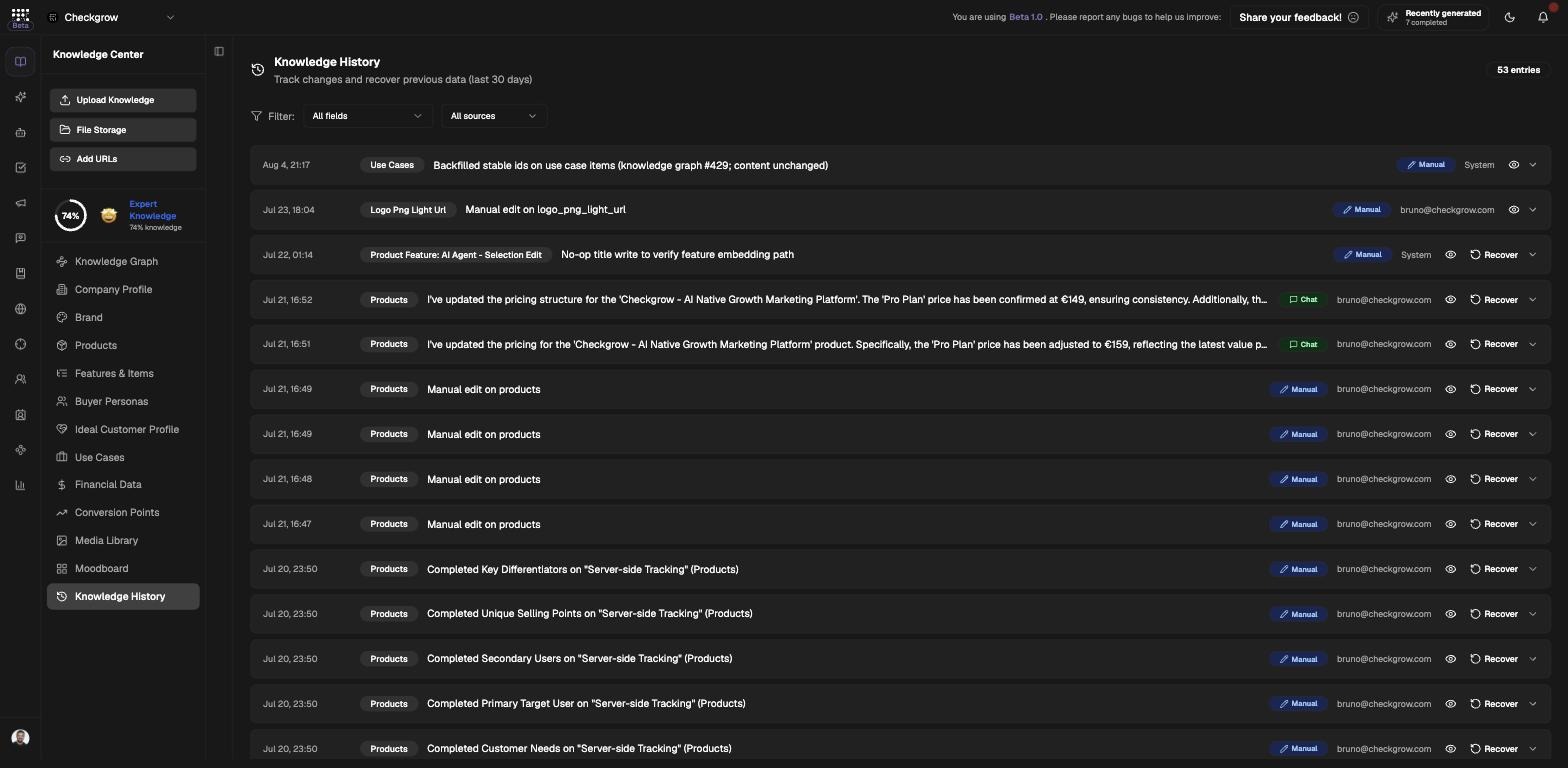
The 30-day audit log of every knowledge change — compare previous and new values, see who changed what, and recover with one click.
Overview
Knowledge History is the audit log of your Knowledge Center: "Track changes and recover previous data (last 30 days)". Every change records the field, the action, the previous and new values, a summary, who made it (a teammate's email or System), a source badge, and the date — covering the last 30 days, up to 500 entries.
Because every field save across the Knowledge Center lands here, you can always see what changed, when, and by whom — and roll it back.
The safety net for every knowledge edit
Manual edits, AI scans, chat edits, file imports — and even node deletions in the Knowledge Graph — are all archived here. Field changes stay one Recover away for 30 days. Items deleted by a scan refresh or from the Knowledge Graph can't be restored here.
Who needs it
Knowledge History earns its keep the moment something looks wrong:
- Admins — audit who changed what across the Knowledge Center, human or AI.
- Anyone who ran an AI edit — compare the previous and new values, and undo a rewrite that went too far.
- Teams refreshing their website scan — check which fields the scan overwrote.
- Knowledge Graph cleaners — see what was deleted from the graph.
History covers the last 30 days. If a value matters long-term, do not rely on history as a backup beyond that window.
How to use it
- Filter to the change you care aboutUse the All fields and All sources filters to narrow the log — for example, only Chat edits, or only changes to a specific field.
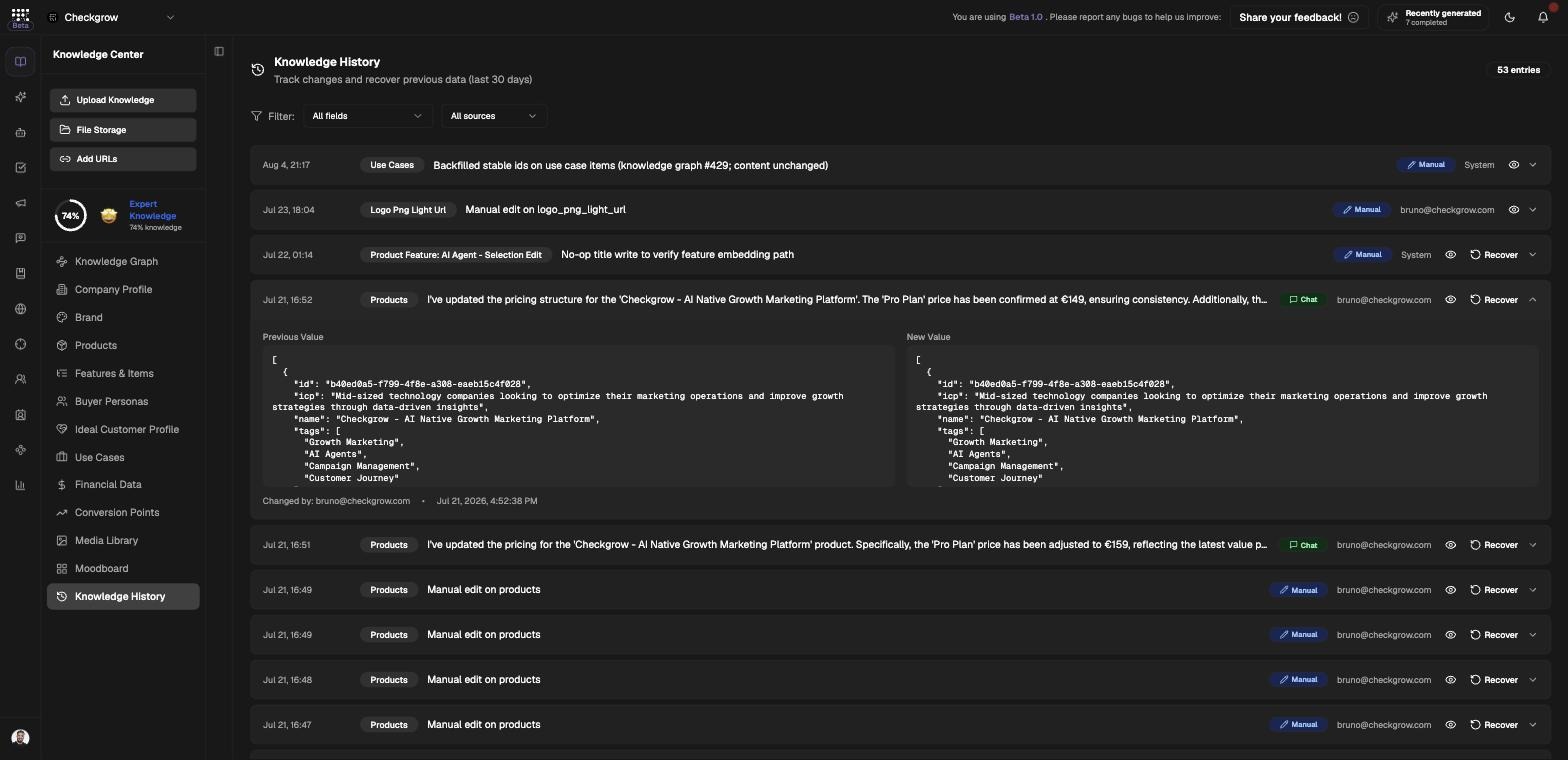
- Expand and compareClick an entry to expand it into side-by-side "Previous Value" and "New Value" panels, so you can see exactly what changed.
- Inspect long valuesFor large fields, click the eye icon to open the full value in a dialog instead of squinting at a truncated preview.
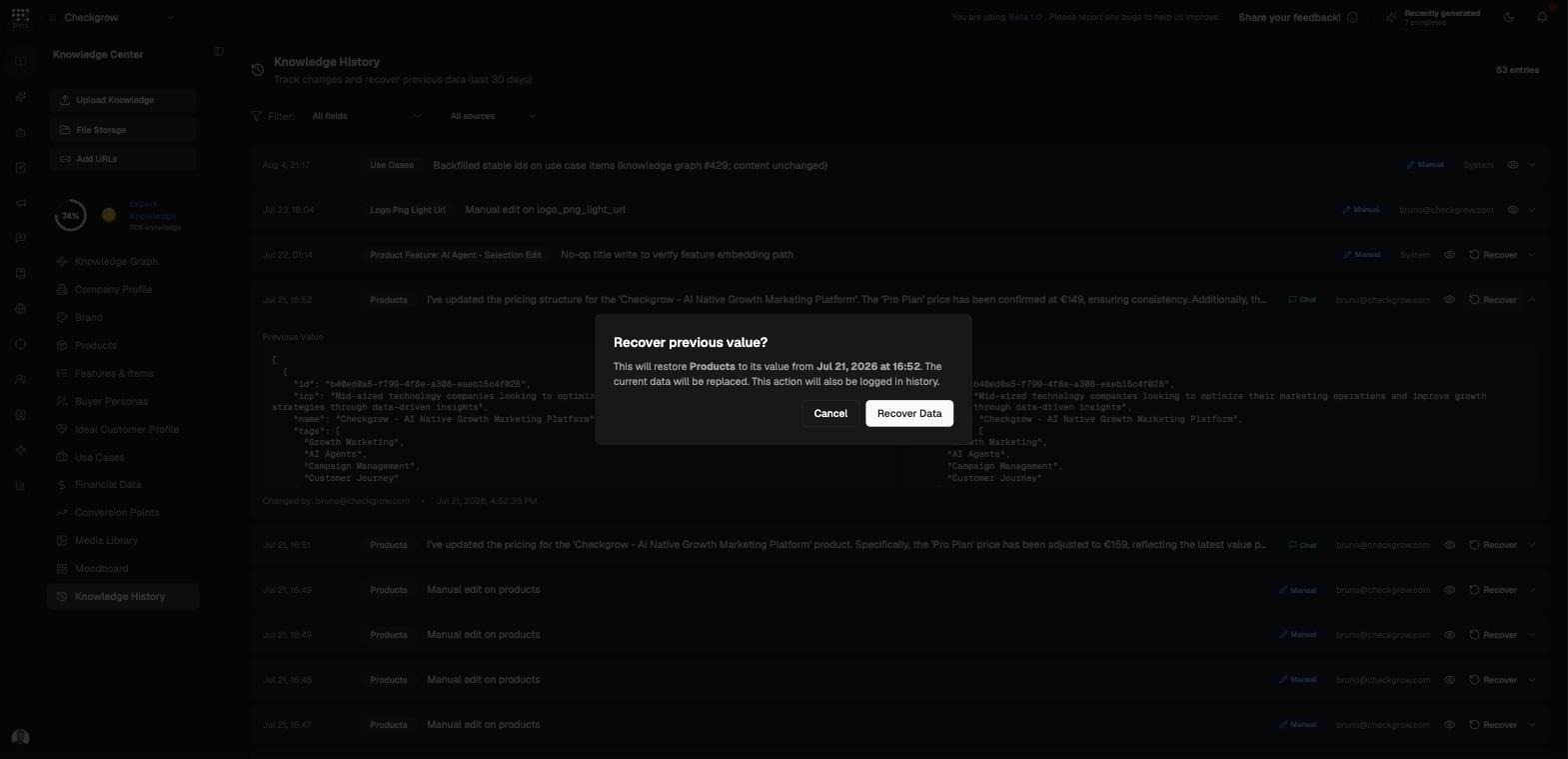
- Recover the previous valueClick Recover. The dialog "Recover previous value?" explains that the field will be restored to its value from that date, the current data replaced, and the recovery itself logged in history. Confirm with Recover Data — a toast confirms the field was recovered successfully.
Understanding the source badges
Every entry carries a badge telling you where the change came from:
Manual
File Upload
AI Scan
Chat
Recovery
Related features
Knowledge Graph — deletions from the graph are archived in history