
Knowledge Graph
Explore everything the platform knows about your company as one interactive map.
Overview
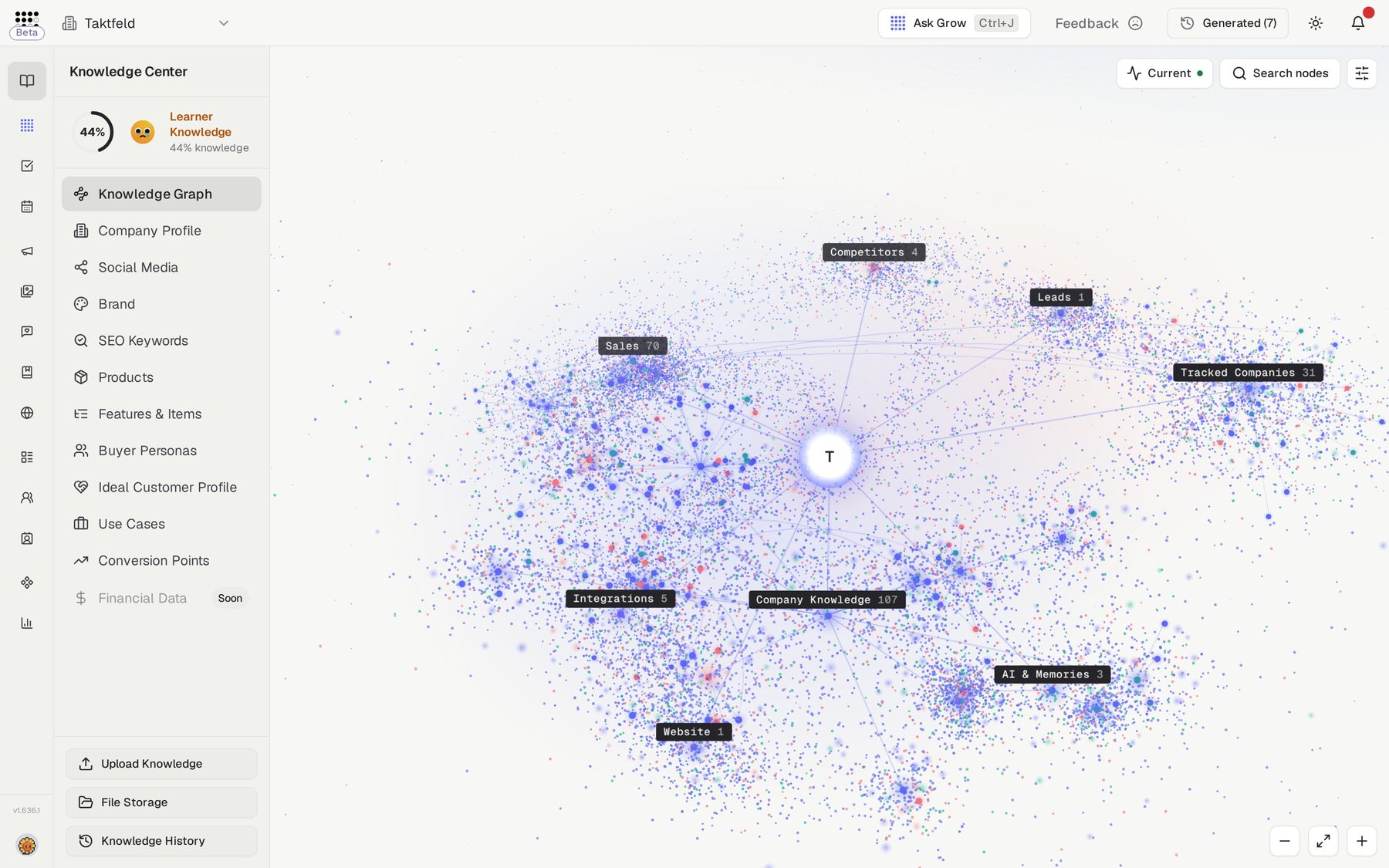
The Knowledge Graph is a full-screen map of everything the platform knows about your business. Your company sits at the centre, with nine labelled hubs around it — from Company Knowledge and Campaigns to Leads and Competitors. Each hub shows how many items it holds, and every product, persona, campaign and contact is a connected point on the map. It is the visual layer on top of your Knowledge Center: the same data that fuels Grow, AI Agents and your campaigns, drawn in one place you can pan, zoom and search.
One map of everything
Every node you see is live knowledge the AI uses. Spot a gap or an outdated item on the map, fix it at the source, and every AI workflow uses the corrected context immediately.
Rolling out gradually
The Knowledge Graph is being rolled out gradually. If you don't see it in your sidebar yet, it's coming to your account.
Who needs it
The Knowledge Graph is useful whenever you need the big picture instead of a single page:
- Founders and managers who want a health check of how complete the company's knowledge base is.
- Marketers tracing which personas and products a campaign targets and promotes.
- Sales teams following the connections between tracked companies, leads and sales activity.
- Anyone cleaning up — finding stale or duplicate knowledge items and removing them safely.
If your graph is still sparse, a banner reads "Your knowledge constellation is forming…" with shortcut buttons — Complete Company Knowledge, Add competitors and Connect accounts — that take you straight to the pages that grow it.
How to use it
- Explore the mapOpen Knowledge Graph in the Knowledge Center sidebar. Drag to pan, use the Zoom in and Zoom out buttons or your scroll wheel, and click Fit view to frame the whole map. The controls are in the bottom-right corner.
- Search for a nodeClick Search nodes and type at least two characters into "Search your knowledge universe…". Pick a result and the camera flies straight to that node.
- Filter to what mattersOpen Filters and toggle hubs on or off to isolate one area, such as Sales or Campaigns. Switch on Hide small nodes to declutter the view and keep only the major items.
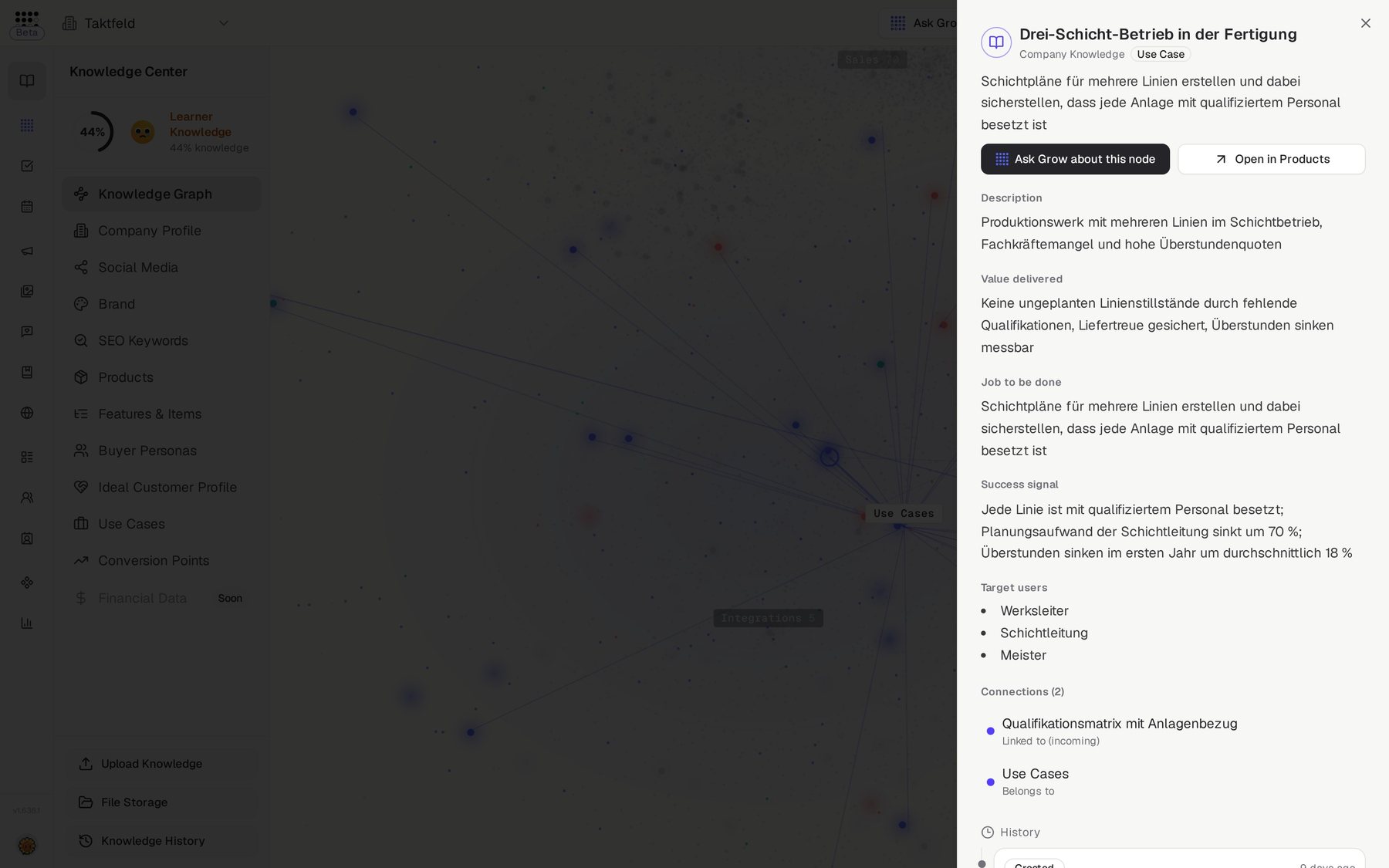
- Open a node and follow its connectionsClick any node to open its detail sheet. The top shows where the item sits in the map, a button that opens the item itself, such as Open persona or Open competitor, and Ask Grow. Use the arrow beside Ask Grow to pick a ready-made question for that kind of item. Below, three tabs: Overview shows What Grow reads and shortcuts under Do more with this; Connections groups related items, where a name moves the map and the arrow opens its page; History shows each change with its source, such as File import, Manual edit or Website scan, and who made it. A hub or a section, such as Use Cases, opens on its contents instead: every item it holds with a short preview, and a search box when the list is long.
- See what's new for an itemWhen you open a Knowledge Center item, the sheet checks for updates first. If a file you imported suggests a change, it shows the suggestion with the quoted passage and the file name; click Review and apply to decide in the import review. If new files or a website scan arrived since the item last changed, click Check them with Grow. Otherwise it reads Up to date. Nothing changes until you apply it.
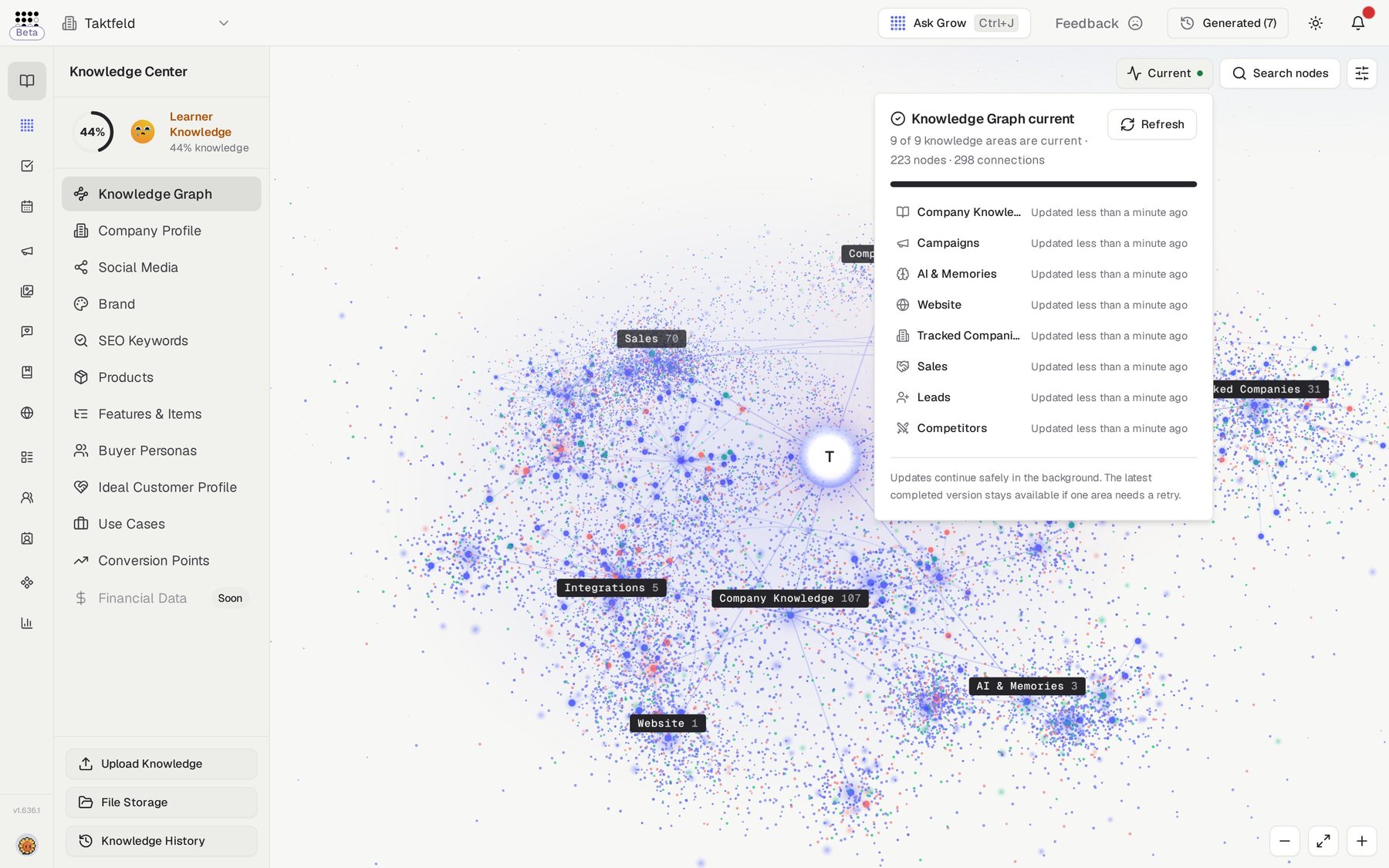
- Check that the map is up to dateThe map updates by itself. The status button at the top right shows Current, Refreshing or Needs attention. Click it to see when each knowledge area was last updated, and click Refresh if you want to update it now.
Hubs and safe deletion
The nine hubs
Nodes are grouped under nine hubs around your company core: Company Knowledge, Campaigns, AI & Memories, Website, Tracked Companies, Sales, Leads, Competitors and Integrations. Each hub mirrors a real area of the platform, so a node under Campaigns is a live campaign you can open in Campaigns.
What the connection labels mean
Edges between nodes are labeled with their relationship: Belongs to, Targets, Promotes, Competes with, Linked to, Derived from and Assigned to. Following them shows, for example, which personas a campaign targets and which products it promotes.
Deleting knowledge safely
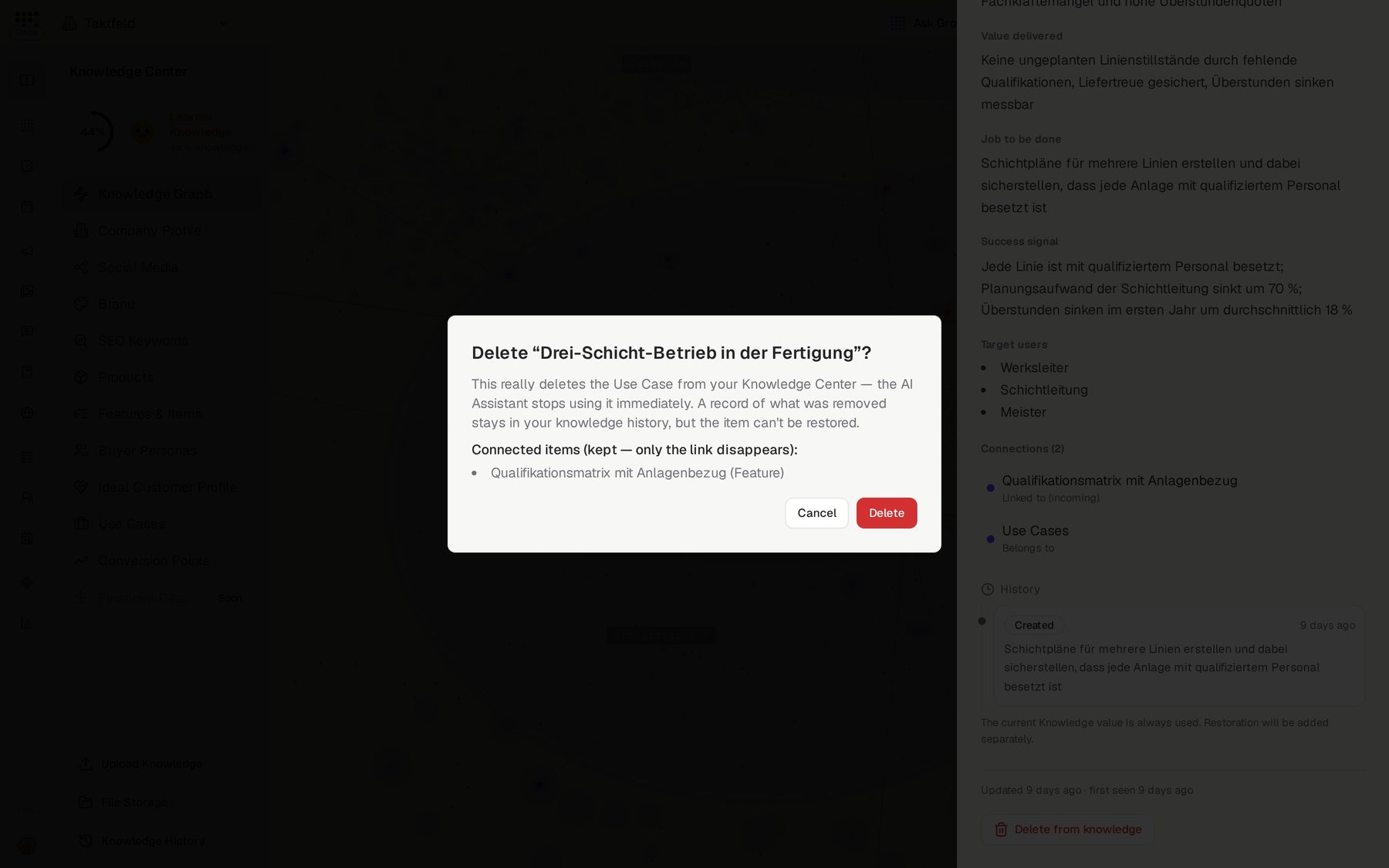
In a node's detail sheet, open the More actions menu and choose the delete option at the bottom. The item is removed after a confirmation dialog. This really deletes it from your Knowledge Center — the AI Assistant stops using it immediately. A record of what was removed is kept in your Knowledge History, but the item can't be restored from there. Connected items stay; only the link to them disappears.
Related features
AI Assistant — the chat that consumes everything on this map
Company Profile — the core record at the center of the graph
Knowledge History — where a record of deleted graph items is kept