
Leads
A company-scoped inbox for Meta Lead Ads and inbound forms, with contact history, qualification and connected tools.
Overview
Company access
Leads follows your company's feature access. Permitted teammates can read and work company leads. Inbound source management requires company administrator access; Meta Page settings remain with the connection owner or a platform administrator.
Leads brings Meta Lead Ads and inbound form submissions into your company's inbox. Email matching keeps repeated submissions with one contact, preserving distinct sources, activity and submission history.
Meta submissions follow the Facebook Page selected in your Meta integration. Inbound webhooks can collect leads independently of that Page.
Who needs it
Leads suits teams that:
- Run Meta Lead Ads and want submissions in one attributed inbox instead of scattered Facebook exports.
- Need to know which campaign, ad set, ad and form produced each lead before deciding where budget goes.
- Want a lightweight qualification pipeline (New → Contacted → Qualified → Won/Lost) without a separate CRM.
- Need to hand leads to another tool via a clean CSV export.
Attribution ties directly into your marketing reporting: the same campaign names appear in Campaigns and in the Advertising tab of Insights.
How to use it: set up the Meta Page
- Connect MetaGo to the Meta integration page (/integrations/meta) and connect your Meta account, then select your ad account.
- Select Facebook PageIn the Lead Ads Facebook Page section, click Select Facebook Page and pick the Page your Lead Ads run on.
- Save PageClick Save Page. The Leads workspace is now scoped to this Page — every submission from its instant forms flows into the inbox. You can review the current setup any time via the Page information button on the Leads page.
Connect other forms and tools
Open Leads → Settings → Inbound webhooks to create a company source for forms or other tools. Keep its generated URL private. In Outbound webhooks, register a public HTTPS destination to receive new-lead notifications and save the signing secret securely. Review delivery outcomes in Settings; failed deliveries retry up to six attempts.
How to use it: retrieve, qualify and export
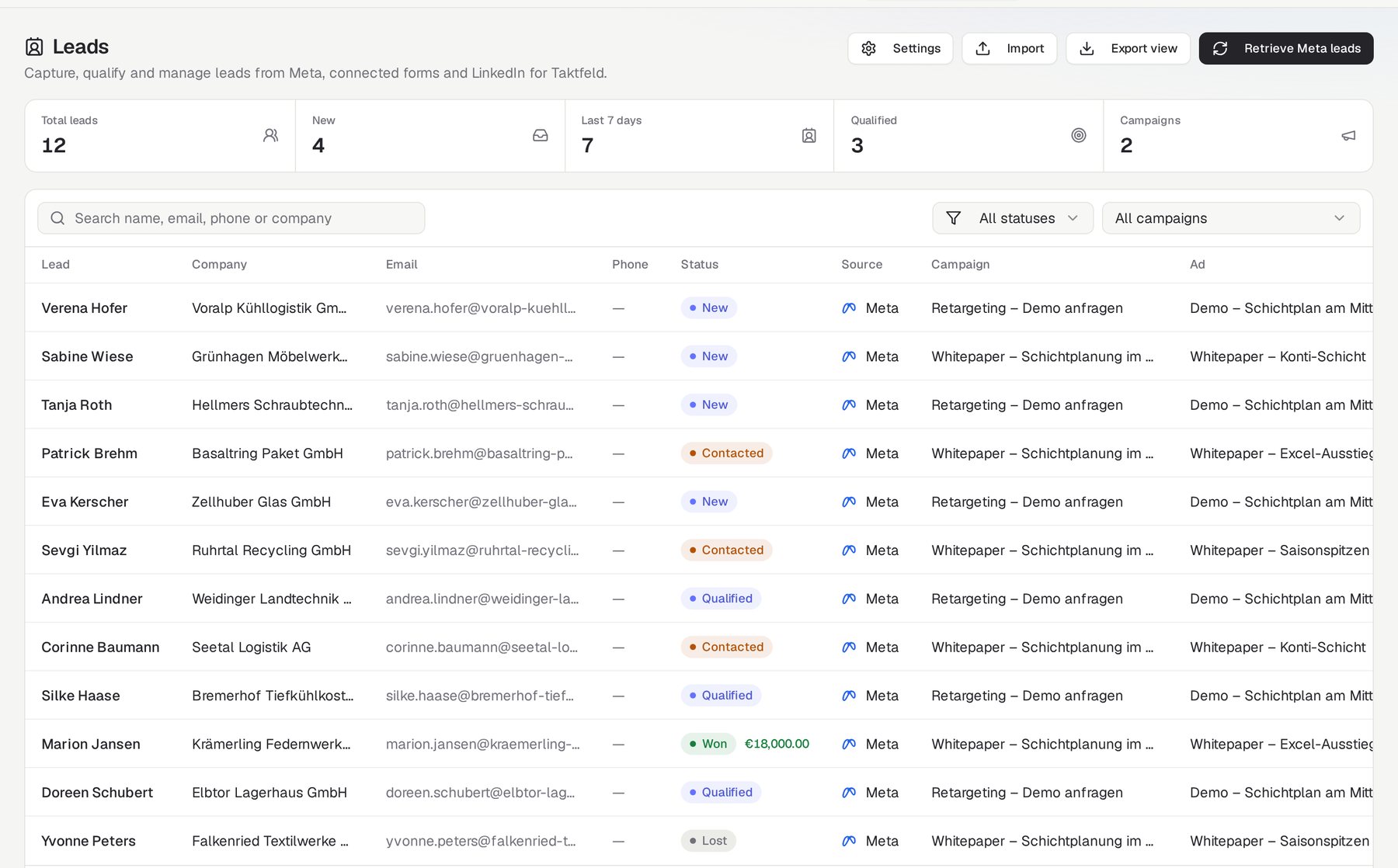
- Retrieve Meta leadsClick Retrieve Meta leads to pull the latest submissions (only the connection owner or an admin can do this). Leads land in the table with Lead, Email, Phone, Status, Campaign, Ad, Form and Received columns.
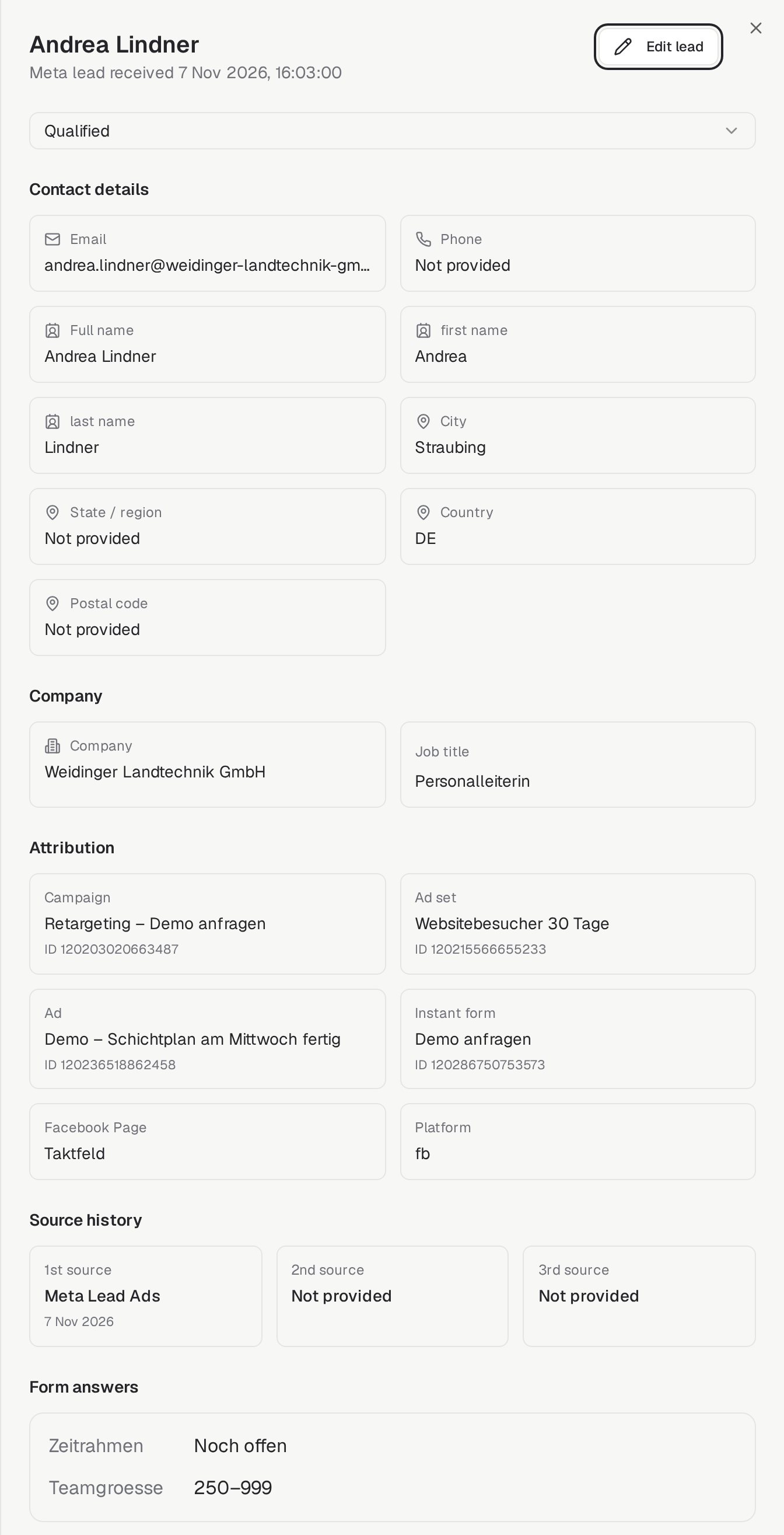
- Open a leadClick a row to open contact information, source and attribution details, form answers and Activity & notes. Permitted teammates can edit contact fields; changes are recorded in the activity feed.
- Work the pipelineMove each lead through New, Contacted, Qualified, Won or Lost. Add an internal comment in Activity & notes to keep the conversation with the lead's history.
- Export viewClick Export view to download the current table as a CSV — filters included — for your CRM or reporting.
One contact, several sources
Email matching ignores capitalisation and surrounding spaces within the same company. New submissions can update supplied fields and add source history without creating another active lead. Existing duplicates are retained as merged records, with their activity connected to the main contact.
Related features
Campaigns — where the campaigns behind your Lead Ads are planned
Insights — Meta advertising spend, CTR and conversion reporting