
Campaigns
Plan your marketing budget, set goals, build and launch campaigns with Grow, and follow every channel's results in one place.
Overview
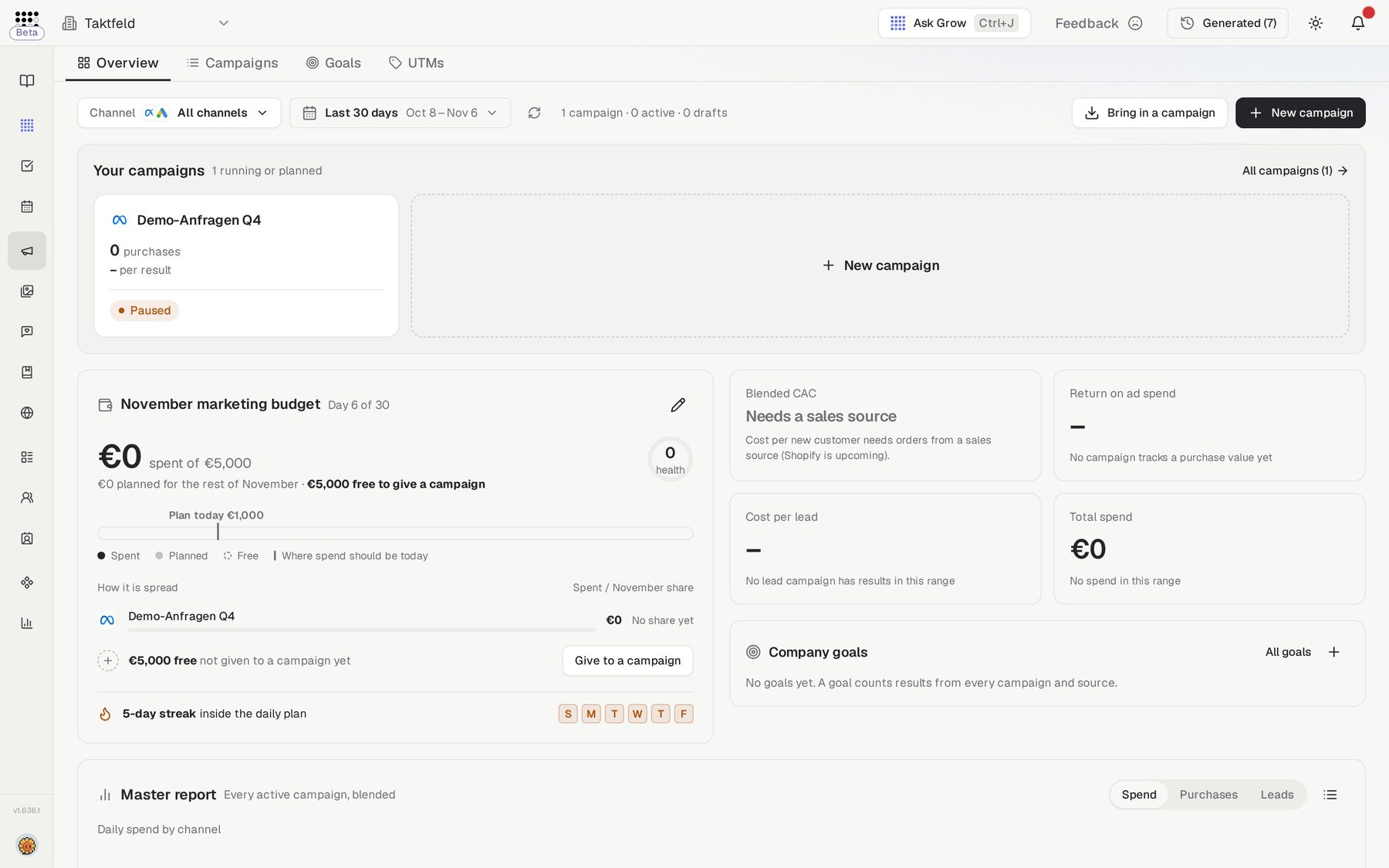
Campaigns brings every channel's campaigns, your marketing budget and your goals together. Set a monthly budget, decide what marketing should achieve, and build campaigns with Grow or by hand. Campaigns you already run on Meta or Google Ads can come in too, so their results sit next to everything else.
Nothing is published without you
Every new creative starts as a draft and needs approval, and campaigns are created paused in the ad platform.
Who needs it
Campaigns is for anyone who plans or runs paid marketing:
- Founders and marketing leads who want the budget, goals and results in one view.
- Performance marketers who run Meta and Google Ads and want to see spend against plan.
- Agencies working across several channels for a client.
How to get started
The first time you open Campaigns, the Overview tab shows four setup steps. Each one makes the next smarter, and you can stop and come back any time.
- Set your monthly marketing budgetEnter how much you spend on ads each month, choose whether it is the same every month, and click Save budget. Every campaign gets a share of it.
- Connect where your ads and results liveConnect Meta Ads, Google Analytics 4 and Google Ads, so results and spend can flow in.
- Pick your first goalDecide what marketing should achieve this quarter. Goals count results from their sources, and campaigns link to them.
- Generate your first campaign draftGrow writes the brief, strategy and creative ideas for you to review.
How to use it
Campaigns has four tabs: Overview for the budget, your campaigns and goals; Campaigns for the full list, filtered by channel, date and status; Goals; and UTMs, which shows tagged visits matched to the campaign they came from.
- Create a campaignClick New campaign. Chat with Grow, or build it yourself. Pick a goal to start, then fill in the plan. Everything is saved as you go, and Grow sees it too.
- Campaigns already running in Meta come in by themselvesEvery campaign that is running in your connected Meta account, or spent in the last 30 days, appears in Campaigns on its own, with its ad sets and ads. It keeps following Meta: when someone pauses, edits or adds ads in Ads Manager, Campaigns shows it within the hour. For an older or paused campaign, click Bring in a campaign and pick it from your Meta or Google Ads account.
- Finish setting up a campaign from MetaA campaign that came from Meta has no goal, targets or strategy yet. Open it and use the checklist at the top. Set up the plan opens one form for the main result, targets, budget and strategy, with each number suggested from the campaign's last 30 days. Or click Ask Grow to fill it in: Grow reads its ads and results and proposes the whole plan for you to confirm. Link a goal connects it to a goal. The card in the list shows how many steps are left.
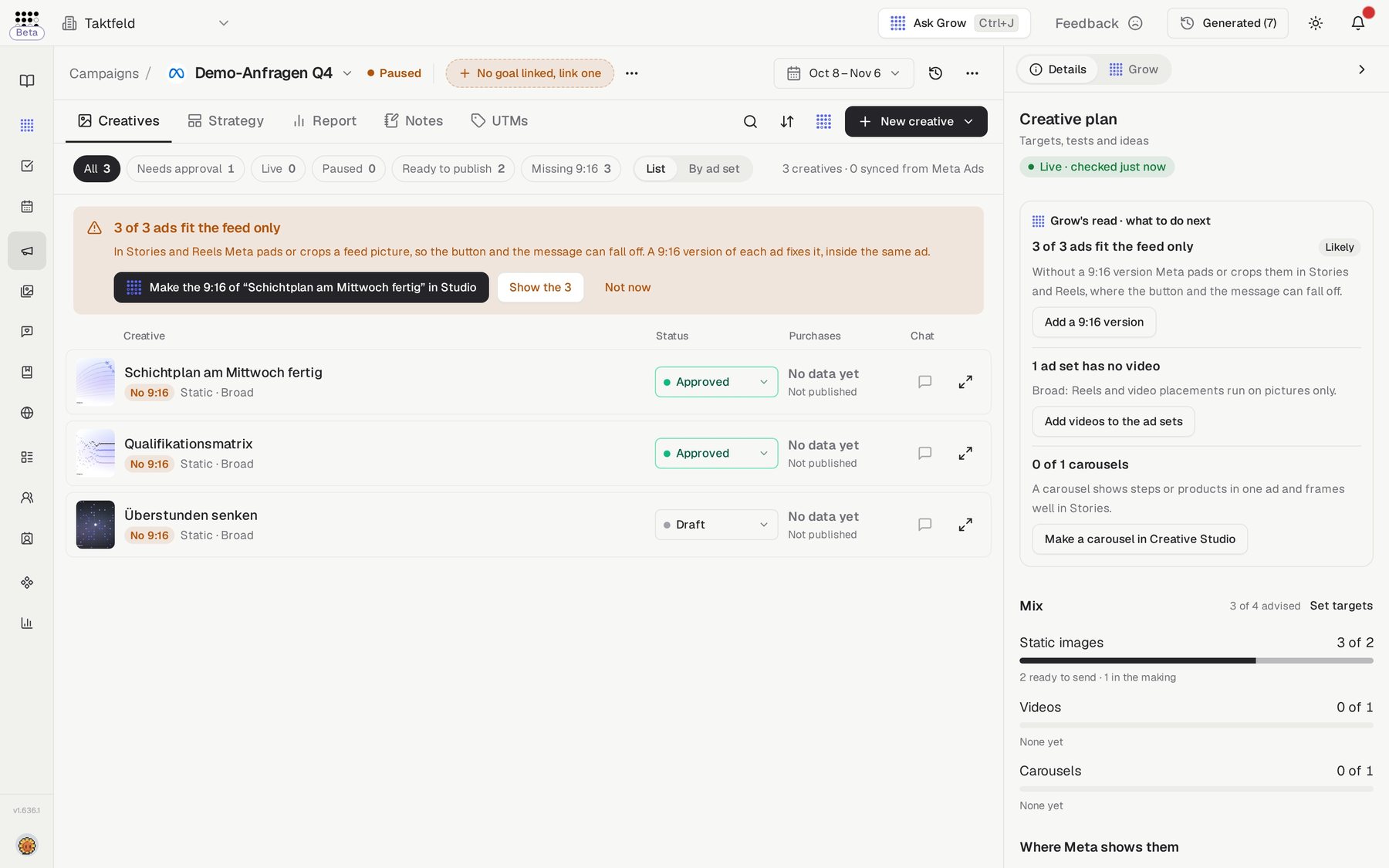
- Add creativesIn the campaign, open Creatives and click New creative. You can Open in Creative Studio, Improve a creative, Ask Grow to make one, Upload your ads or Write a search ad. Switch to By ad set to see each ad set's results and ads, and use Add creatives to place ads in it. An ad marked No 9:16 only fits the feed: click it to add a 9:16 picture, or drop many at once from the banner above the list. An ad already in Meta gets the picture in the same ad, for Stories and Reels, and Meta reviews it again. New creatives start as drafts and need approval before they can be published.
- Send it to the channelWork through the launch check, then click Create paused in Meta or Create paused in Google Ads. Everything is created paused, so nothing spends until you say so. When you switch it on, Checkgrow shows the checks and the most it can spend before anything runs.
- Keep running it from CheckgrowAdd ads, pause or remove them, put a new version live, and change budgets and end dates without leaving Checkgrow. Changes keeps a history with Undo, and it includes changes made directly in the ad platform.
- Follow the resultsOpen Report to see progress against your target. It unlocks when the campaign is live. Strategy holds your plan next to the live setup from the channel, Notes keeps what the team knows about the campaign, and UTMs shows its tagged visits.
Common questions
Which channels are supported?
How often do results update?
Does bringing in a campaign change it?
Why is the Report tab locked?
Related features
Conversion Points — the campaign's destination and the UTM Builder for its links
Insights — where campaign results and UTM traffic are measured
Moodboard — style references that guide AI image generation
Media Library — product and reference images for your creatives