
Moodboard
A visual reference board where every dropped image is AI-analysed into style, mood, palette, and a generation prompt — then guides your ad creatives.
Overview
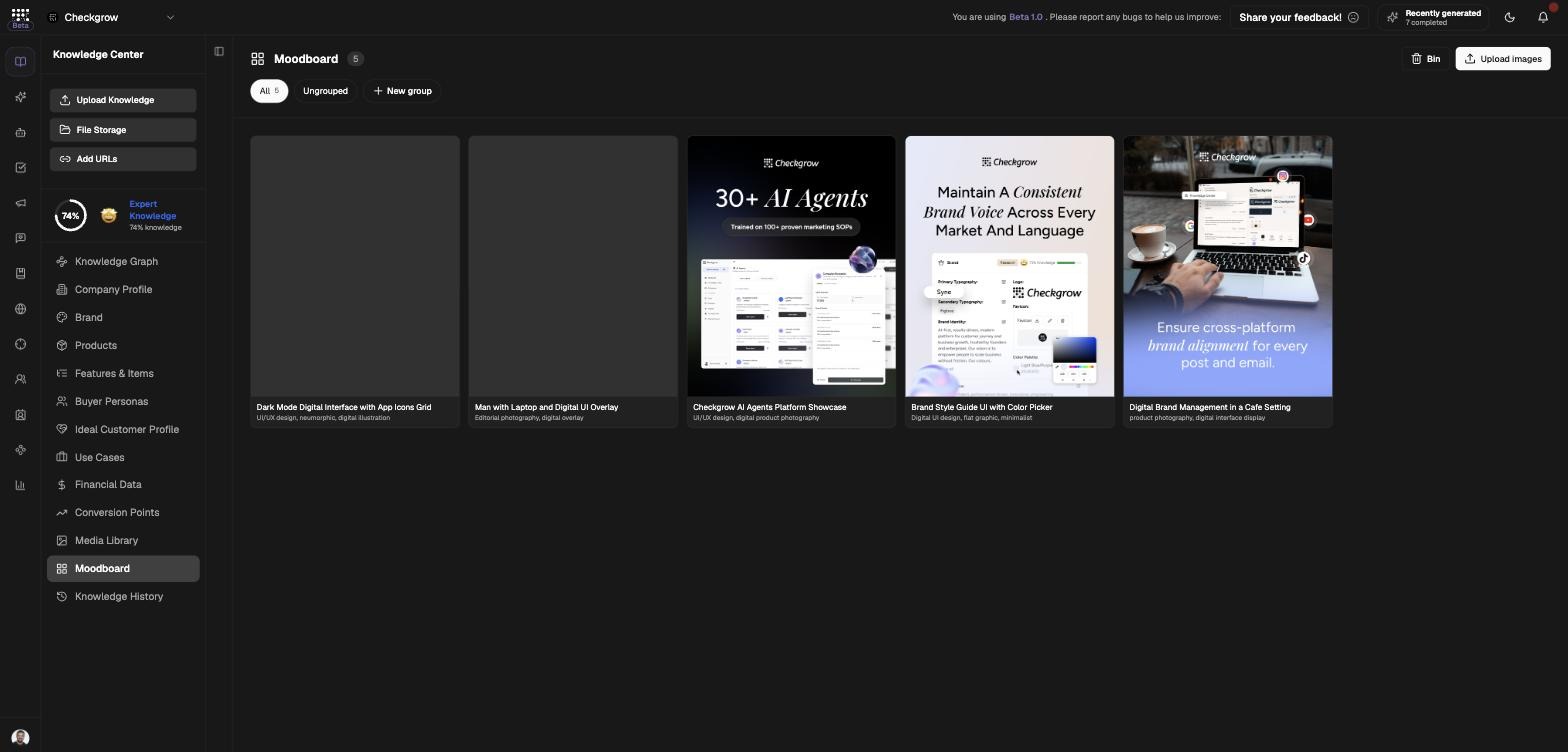
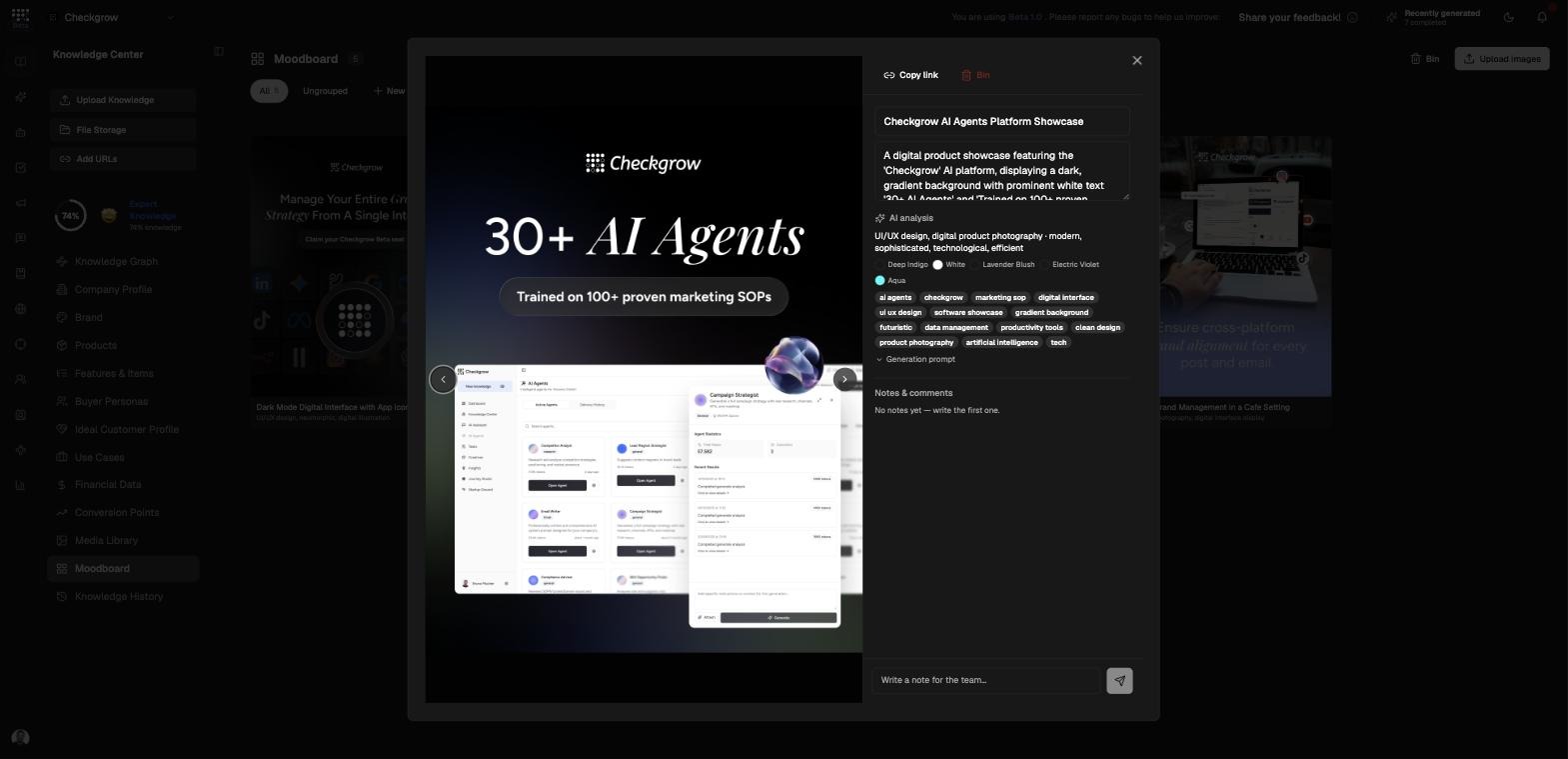
The Moodboard is your visual reference board. Drop in images — even 100 at once — and each one is automatically analysed by AI into a title, description, style, mood, colour palette, subjects, tags, and a reusable generation prompt.
Group images into boards, comment with your team, and select them as style references when generating campaign creatives.
Every image becomes usable style knowledge
You never tag images by hand. The moment an image lands on the board, AI writes its title, reads its style and mood, extracts its palette, and drafts a generation prompt the creative generator can reuse.
Who needs it
The Moodboard is for anyone shaping how your brand looks in generated content:
- Marketers — collect ad styles you admire and turn them into visual direction for your own creatives.
- Designers — build shared reference boards per campaign or theme, with the palette and style read out for you.
- Brand owners — keep the team aligned on the visual direction with comments on each reference.
- Agencies and collaborators — share a group via its "Copy share link".
Supported formats: PNG, JPG, WebP, and GIF, up to 10MB each. The header shows an "Analysing" badge with the number of images while AI is still working through a batch.
How to use it
- Drop images in bulkDrag images onto the page — the overlay reads "Drop images on the Moodboard — Each one gets an automatic AI title & description" — or click Upload images. Bulk drops of up to 100 images are fine; each is analysed automatically.
- Review the AI analysisOpen an image to see its editable Title and Description ("AI is writing a title…" while analysing), plus the "AI analysis" panel: style and mood, palette hexes, tags, and a collapsible "Generation prompt". If analysis fails, click Retry analysis.
- Organise into groupsClick New group and give it a Name (e.g. "Summer campaign") and Category (e.g. Product, Lifestyle, Brand). Drag cards onto a group chip to re-group them, filter with the All / Ungrouped / per-group chips, or select several cards and use Move to group from the bulk bar.
- Comment with your teamIn the image dialog, use the "Notes & comments" thread — "Write a note for the team…" — to discuss whether a reference fits the direction.
- Use the Bin, not permanent deleteDeleting sends images to the Bin, where you can Restore them. Only Empty Bin — with its confirmation — removes them for good.
How it powers ad generation
The Moodboard's real payoff is in Campaign Creatives. Click Select from Moodboard and pick up to 3 images — "Choose up to 3 images to guide the visual style." The generator uses their style, mood, palette, and generation prompts as visual conditioning for your ads.
Moodboard images are also retrievable by the AI Assistant, so your visual references inform conversations too.
Style only — never copied content
Moodboard references guide the look and feel only. The generator never copies products, logos, or text from a reference image. For the exact product to appear in an ad, use product images from the Media Library instead.
Wait for the "Analysing" badge to clear before generating. A fully analysed image contributes its style, palette, and generation prompt — an unanalysed one contributes far less.
Related features
Campaigns — pick Moodboard images as style references for creatives
Media Library — exact product and reference assets, as opposed to style