
Media Library
All your company images and videos in one place — scraped from your website or uploaded — ready to reuse in campaign creatives.
Overview
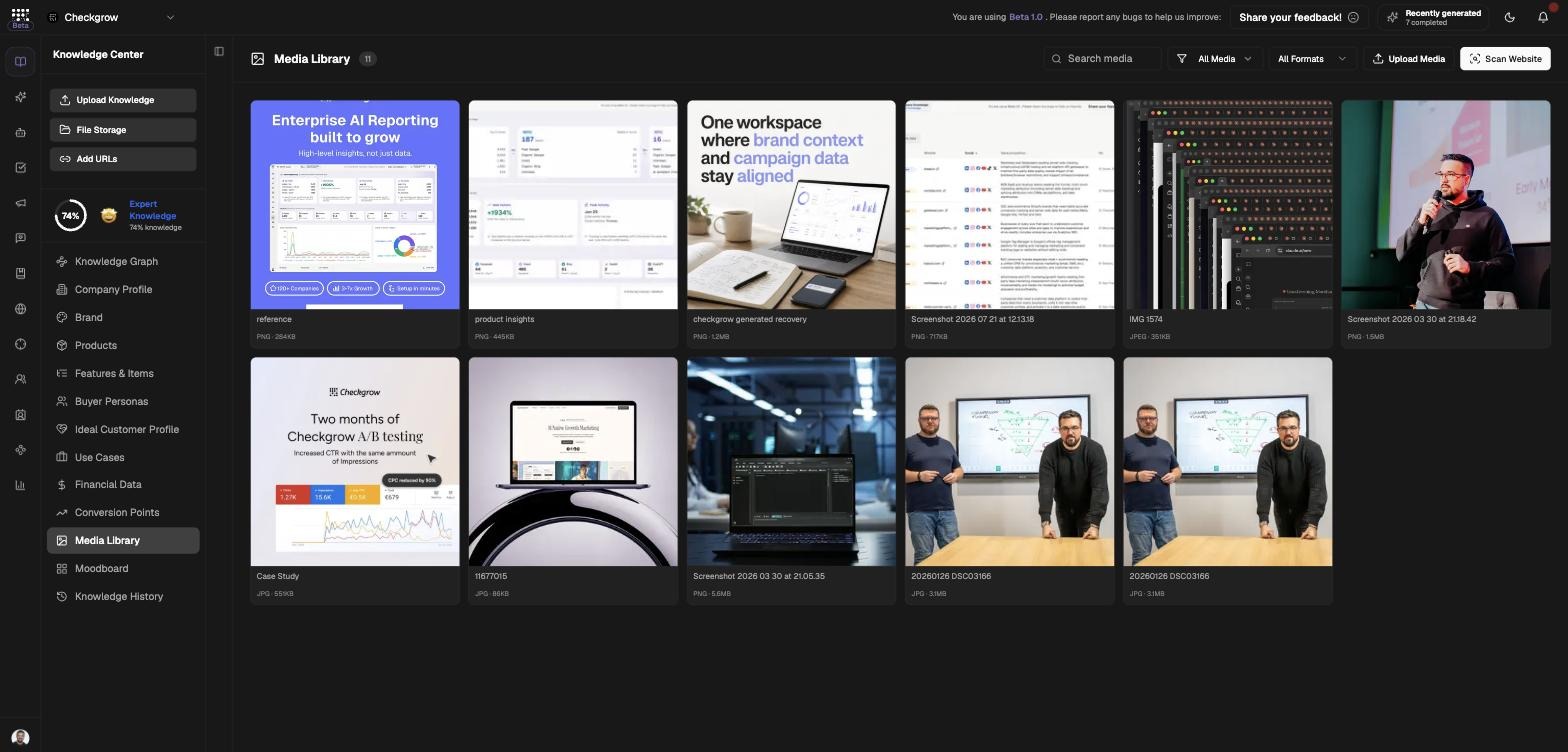
The Media Library collects all your company images and videos — scraped automatically from your website or uploaded by you. Every asset gets a card with favourite, download, and delete actions, and a lightbox showing its alt text and source page.
It is the visual asset pool the rest of the platform draws from, most importantly campaign creative generation.
Populated in one click
Click Scan Website and the platform crawls your site, saving valid images and videos automatically — while filtering out tracking pixels, favicons, and junk.
Who needs it
Anyone who works with your company's visuals benefits from one shared library:
- Marketers — pick product and reference images for campaign creatives without hunting through folders.
- Designers — keep the current, approved product shots in one findable place.
- Content creators — reuse website imagery in posts and articles.
- New team members — see at a glance what visual assets the company already has.
Supported formats
Images: .png, .jpg, .jpeg, .gif, .webp, .svg, and .avif, up to 10MB each. Videos: .mp4, .webm, and .mov.
How to use it
- Scan WebsiteClick Scan Website to auto-populate the library from your site. The button shows "Scanning..." while it runs; valid images and videos are saved with their alt text and source page.
- Upload or drag and dropClick Upload Media, or drag files anywhere onto the page — a "Drop files to upload" overlay appears. Images up to 10MB each; videos in .mp4, .webm, or .mov.
- Star favourites and filterClick the star on any card to favourite it, then use the filters — All Media, Images, Videos, Favorites, and format filters — plus the "Search media" box to find assets fast. Click "Load more" to page through large libraries.
- Inspect in the lightboxClick an asset to open the lightbox with its alt text and source page, and use prev/next to browse. From the card you can also Download or Delete.
Where your media is used
The library feeds visual generation across the platform. In campaign creatives it plays two distinct roles:
- Product images — high fidelity: select up to 3 as "The exact product to preserve in every creative" — the generator keeps these products faithful in every ad.
- Reference images: click Select from Media Library to pick up to 3 images that inform the creative's look.
Library assets also appear as agent result media and as product media in your Products catalogue.
Products stay exact; style comes from the Moodboard
Use Media Library product images when the product must be preserved precisely. For style direction, use the Moodboard — its images guide look and feel without copying products.
Related but separate: documents
The Media Library is for images and videos only. Two related surfaces handle documents:
File Storage
Upload Knowledge
Related features
Campaigns — creatives pull product and reference images from the library
Moodboard — the style-reference counterpart to your asset library