
Sales
Per-rep account-based selling: connect LinkedIn, approve a Sales Brain Personality, and let paced connections and approved comments run the outreach.
Overview
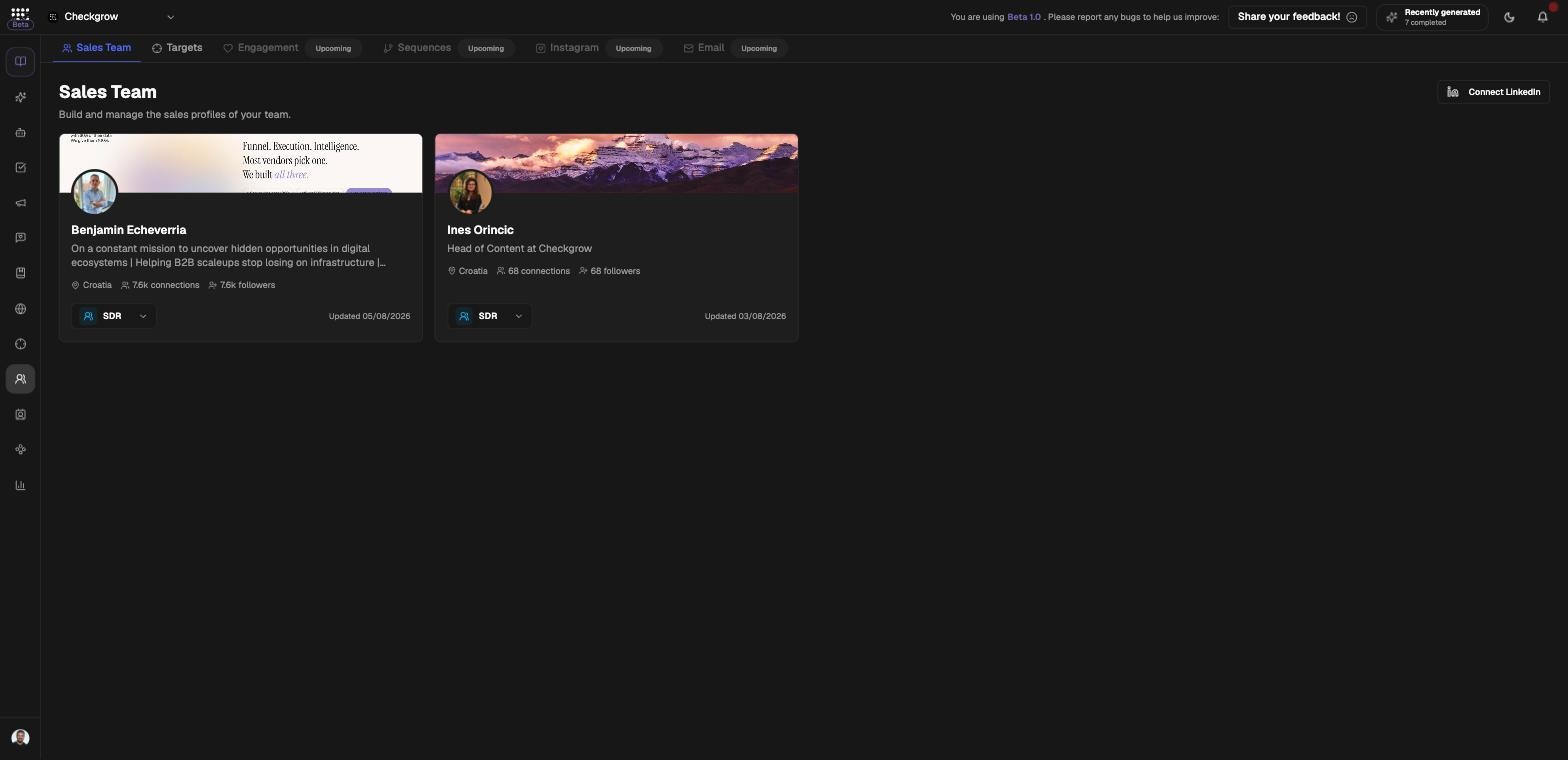
Sales is a per-salesperson, account-based selling workspace. Each rep connects LinkedIn to get an enriched sales profile, defines Targeting (industries and locations) that slices the Companies Targets into a personal list, and builds a Sales Brain. The platform then sends paced LinkedIn connection requests, scans connected targets' posts, and proposes comments the rep approves before anything is published.
Workspace tabs: Sales Team (default) and Targets. Engagement, Sequences, Instagram and Email are marked Upcoming at workspace level — the working Engagement surface lives inside each member's profile.
A live mirror, not a copy
Each rep's target list is mirrored live from Companies, filtered by that rep's targeting industries and locations. Targets added or removed in Companies appear or disappear here instantly — there is nothing to sync.
Who needs it
Sales fits teams that sell on LinkedIn and want volume without losing their voice:
- SDRs (Sales Development) who need steady, safely paced connection requests to their assigned accounts.
- BDMs (Business Development) who build relationships by commenting meaningfully on prospects' posts.
- Sales managers who want every rep's outreach grounded in an approved, trained voice — not improvised messages.
- Founders selling solo who want an assistant that drafts in their exact tone and never posts without approval.
The Personality gate
Nothing in Sales generates until the Personality is approved. Every generate button stays disabled with the tooltip "Approve the Personality first". Approve the rep's Personality before expecting messages, comments or training scenarios.
How to use it
- Connect LinkedInOn the Sales Team tab, click Connect LinkedIn (it takes you to the LinkedIn integration). The rep's profile appears automatically after connecting. Set their role — SDR or BDM — on the card. A profile refresh ("Re-scan your LinkedIn profile") costs 2 credits; a Reconnect badge appears if the LinkedIn session expires.
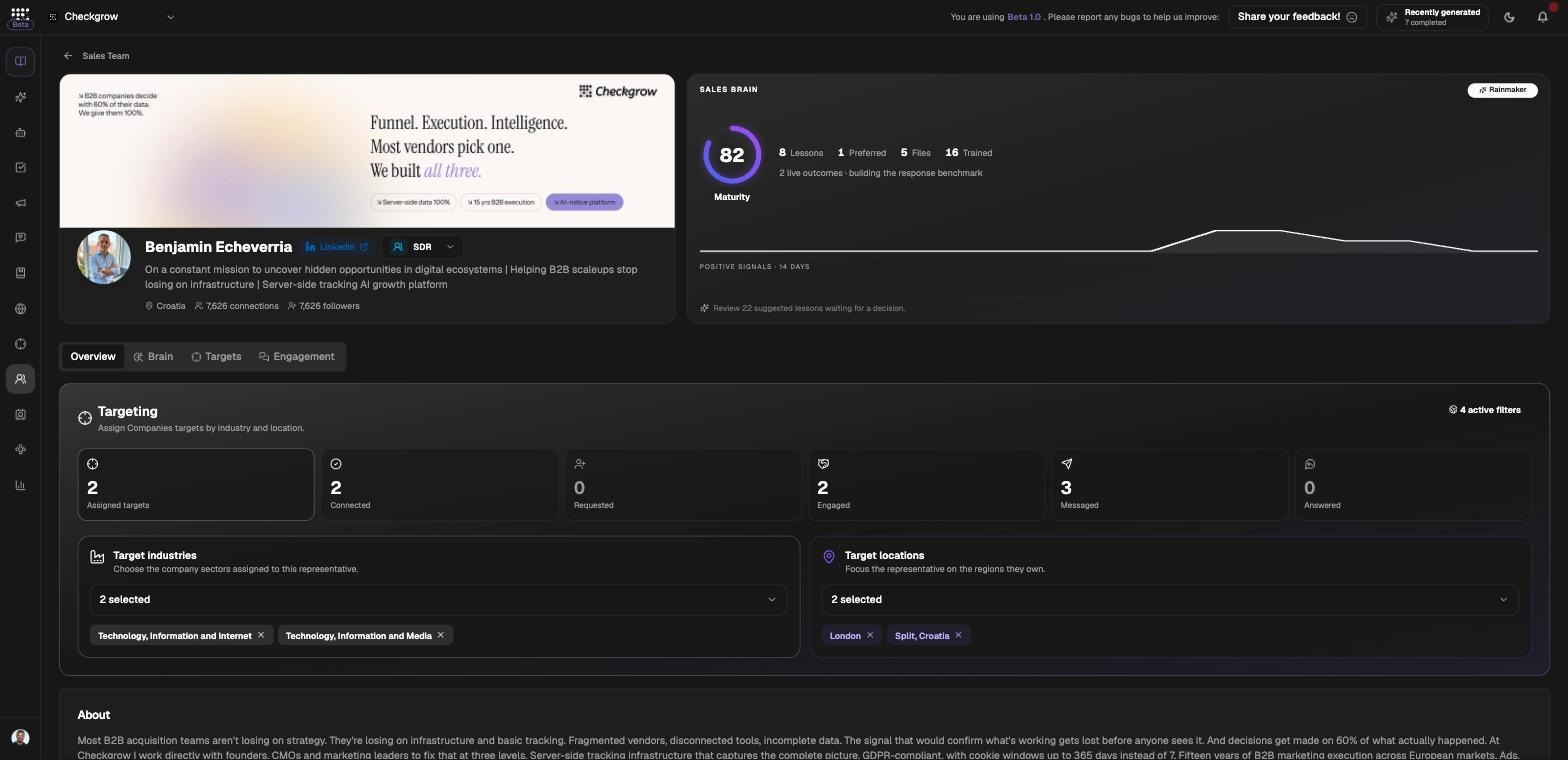
- Approve the voiceOpen the member's page, go to Brain → Personality. Pick up to 6 tones (Warm, Curious, Confident, Playful, No-nonsense, Supportive, Analytical, Bold), set directness, formality and length, fill in "Relationship approach" and "What to avoid", and paste real messages. Click Save & regenerate (2cr), review, then Approve & activate. Version history lets you Restore any earlier Personality.
- Assign targetsOn the member's Overview tab, use Targeting to pick Target industries and Target locations. This filters the live Companies mirror into the rep's personal list — the tiles track Assigned targets, Connected, Requested, Engaged, Messaged and Answered. Daily target progress charts the first recorded milestone per target by day in UTC. Choose 7, 30 or 90 days, or a custom range, and toggle milestones to compare them. These historical counts differ from the current pipeline totals.
- Connect with targetsClick Connect on any target row, or switch on the Autonomous connections card on the member's Targets tab. Set a daily limit (3–15/day); invitations go out weekdays 8:00–19:00, paced 5–20 minutes apart, at most one per rep per 15-minute tick. Each rep also has Invitations per week (40, 60 or 80). Sending pauses for that rep once the weekly limit is reached, even if the daily limit has room. An Emergency stop halts everything. If another rep is already connecting with someone, a tooltip explains it stays in line.
- Engage on their postsOpen a target's detail sheet → Posts → Scan posts (posts are also scanned automatically once the person accepts the connection). For posts, the Brain proposes comments — Approve, Edit or Reject each one. Approving publishes as the rep. Comments queue and post paced 10–20 minutes apart, one comment per target per day, and outcomes (They replied, They reacted, Some reactions, No response yet) are tracked on the Engagement tab.
Inside the Sales Brain
The Brain tab shows a maturity graph of everything the Brain has learned. Five components feed it:
Knowledge files
Choose Rules & knowledge for guidance or Conversation for the named salesperson's writing. Review extracted lessons before confirming them. Generation waits for pending files to finish and reports incomplete or oversized guidance rather than silently ignoring it. File processing uses 2 GC.
Brain Training Lab
"Review realistic scenarios. Every verdict sharpens this representative's voice." Scenarios cover Connection note, Post comment, First message, Follow-up, Reply and Re-engagement. Click Generate (3cr), then approve, edit (Save & approve — "your edit is the Brain's strongest lesson") or reject with a reason.
Lessons
Teach the Brain explicit rules, or confirm AI-suggested lessons drawn from your verdicts — Make it a rule makes a lesson a hard rule.
Write up to 5,000 characters in the lesson input. Short rules can be added directly; longer text uses Extract lessons to import guidance. Use the lesson carousel to review existing lessons.
Message references
Each audience gets its own message lane. Add manually to paste proven messages, or Generate messages (3 credits) to draft new ones in the approved voice.
Audiences
"Choose the ICPs and industries that receive their own message workspace." Audiences are built from your Ideal Customer Profiles in the Knowledge Center, so each segment gets messaging tuned to it.
Use Edit audience settings to change selections, then Select reference audience to switch the message references you are reviewing.
Approval and safety
Every comment goes through the review queue before it reaches LinkedIn: statuses run Awaiting review → Queued → Posting → Verifying → Posted (or Failed). The member's Engagement tab has a Publishing On/Off switch and shows when the next comment publishes.
Failed comments never retry on their own
If a comment fails, fix the cause (for example a rep's expired LinkedIn session) and retry it from the Engagement tab yourself. Nothing is re-sent automatically.
Refresh unapproved outreach
A new rule or lesson only shapes drafts written after it. To bring waiting drafts up to date, open the Inbox, choose Refresh drafts and confirm. Every first message and follow-up still waiting for approval is written again with your Brain as it is now, and each new draft needs your approval again. Approved, queued and sent messages stay as they are, and so do comments.
Drafts are rewritten about 15 every quarter hour, so a long list takes a while. Until they are all done, the top of the Inbox shows how many are ready and roughly when the rest will be.
After you change the Brain, the Inbox also says how many waiting drafts were written before the change, with a button to refresh just those. Saving or archiving a rule offers the same.
Related features
Companies — the source of every target; rep lists mirror it live
Ideal Customer Profile — powers Brain audiences and target matching