
Companies
Research any company with an AI cascade, prospect new accounts from your ICP, and build the target list your sales reps work from.
Overview
Companies is your account-research workspace. Point it at a company — by website or name, by bulk spreadsheet, or through a company search driven by your Ideal Customer Profile — and it runs a research cascade covering the website, LinkedIn presence, firmographics, tech stack, decision makers, buying signals, PR and news, market landscape, a sales playbook and an AI fit score against your ICP.
The workspace has four tabs: Track (default), Search, Targets and Active Customers.
One profile, the whole pipeline
Your Ideal Customer Profile powers all of it: it becomes the company search query, its key-people titles auto-match the people in your Targets tab, and it drives the 1–10 fit score on every tracked company.
Who needs it
Companies is built for anyone who researches or prioritizes accounts:
- Sales leaders building a scored, prioritized account list their team works from in Sales.
- SDRs and BDMs who need decision makers, buying signals and a sales playbook before reaching out.
- Founders prospecting a new market from their ICP instead of buying static lead lists.
- Marketing teams importing an event or webinar attendee spreadsheet and researching every account in bulk.
Credits
Research uses your credits. If your balance is low, the Track tab shows a banner with a Top up credits button. The button shows the estimated credits before you start.
How to use it: track a company
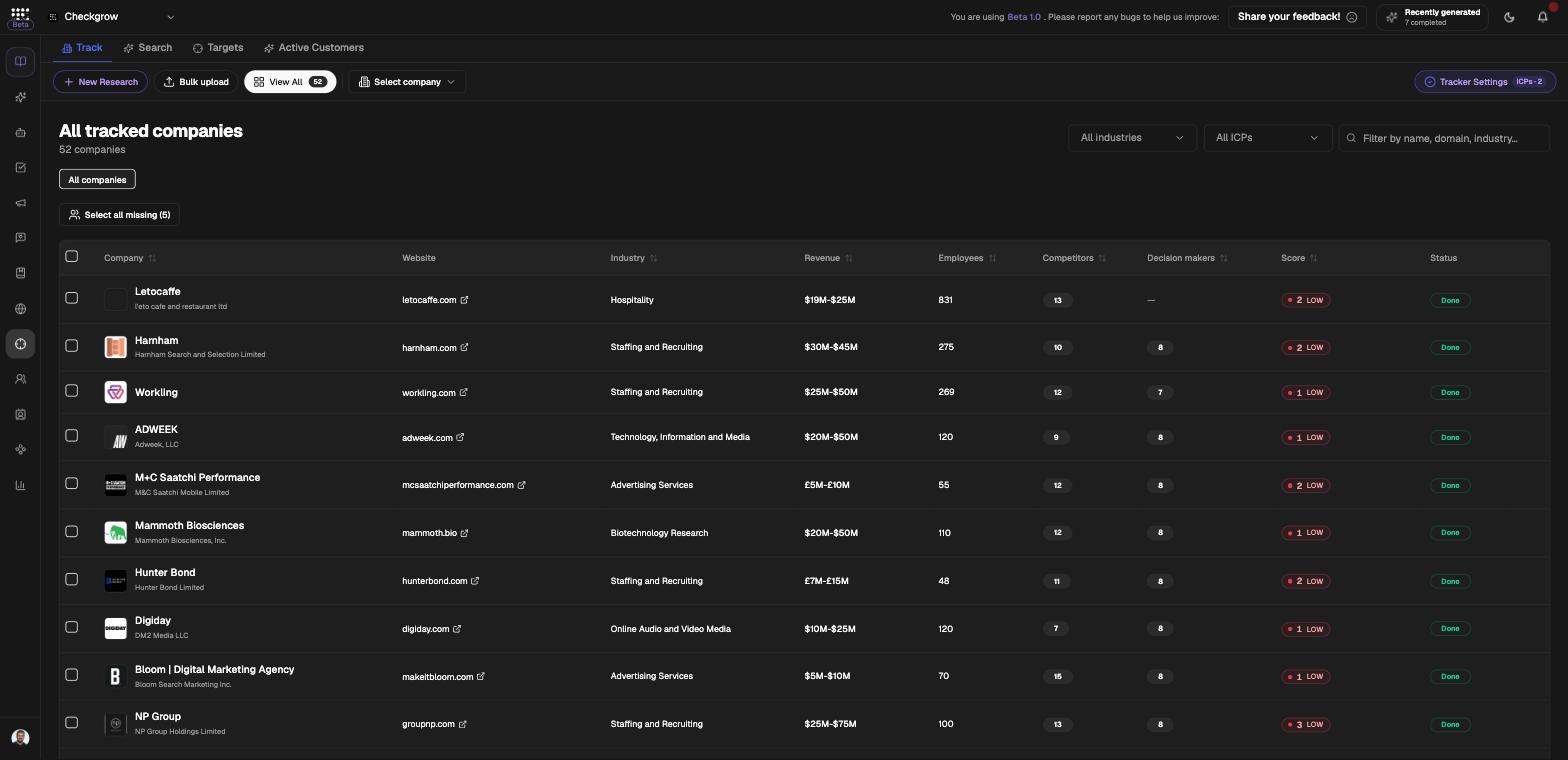
- New ResearchOn the Track tab, click New Research. The "Track a new company" dialog opens — paste a company website or name and pick the matching company. For a spreadsheet of companies, click Bulk upload instead and map the the company name column and Website fields.
- Watch the cascade runThe research stages appear live, from "Scanning company website" and "Extracting LinkedIn intelligence" through "Ranking decision makers", "Hunting buying signals" and "Building sales playbook" to "Finalizing report".
- Read the reportOpen the company to browse its report tabs: Overview, LinkedIn Research, Active Ads and Server-side. From LinkedIn Research or the Decision Makers list you can hand-pick any person as a target by clicking their card.
- Tune the scoringOpen Tracker Settings, pick your Target ICPs (pulled from the Knowledge Center) and write plain-English qualification rules under Your own rules, then click Save. Every tracked company is rescored in the background: 1–3 is Low, 4–7 Medium, 8–10 High, and the scorer cites which rules matched or missed.
How to use it: prospect from your ICP
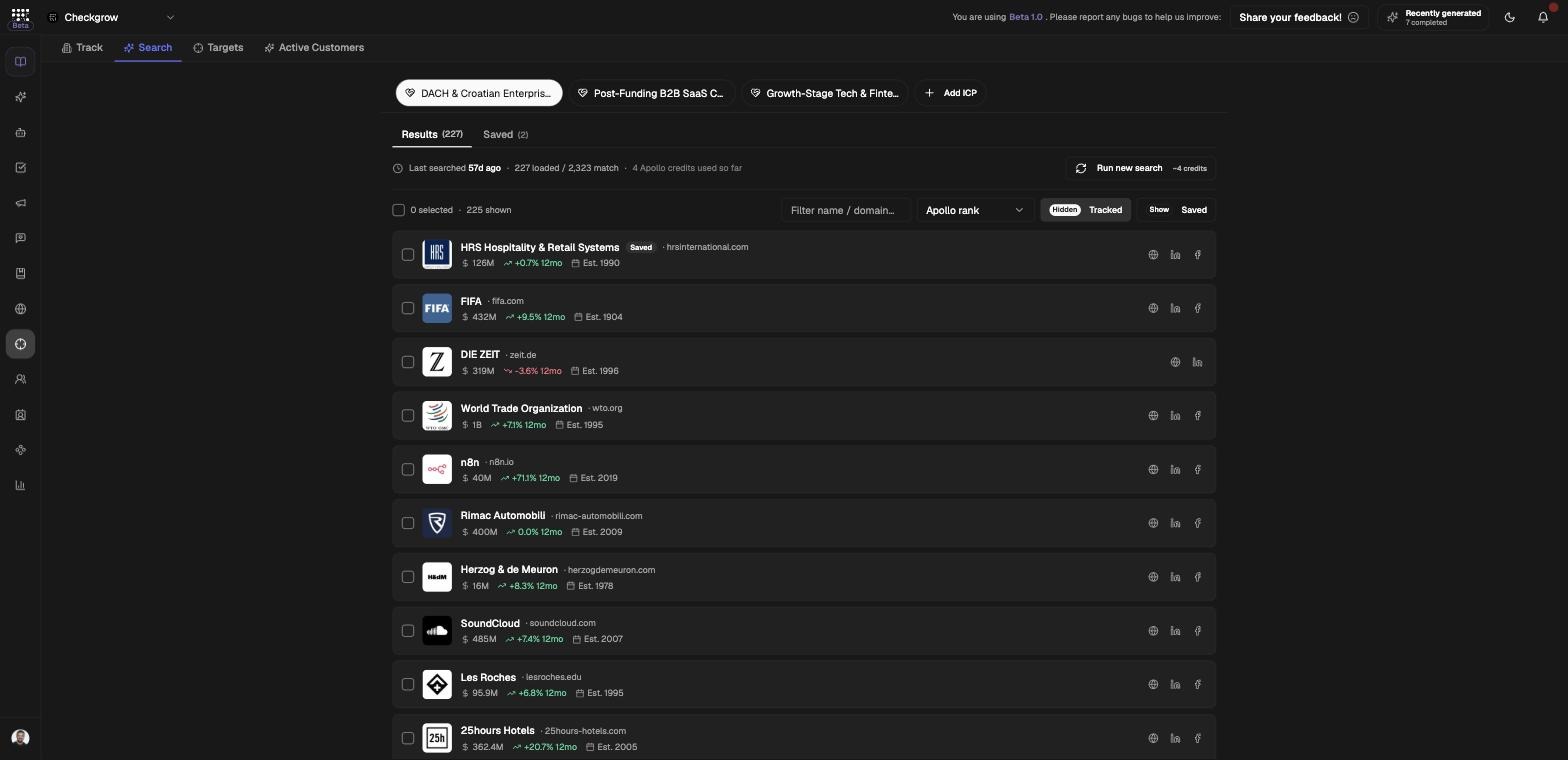
The Search tab finds new companies — and it only works from an Ideal Customer Profile. With no ICP defined you'll see "Pick a target before searching" and an Add your first ICP button.
- Pick an ICPSelect an ICP chip from the strip at the top, or click Add ICP to create one. The ICP is converted into the company search query.
- Run searchClick Run search. It finds up to 400 matched companies. Results and previously saved companies live under the Results and Saved sub-tabs.
- Save or trackTick the companies you want. The selection bar shows how many companies are selected — click Save to keep them for later, or Track (the button shows the company count and estimated credits) to run full research on each.
Targets, customers and bulk actions
Targets tab — the people list Sales works from
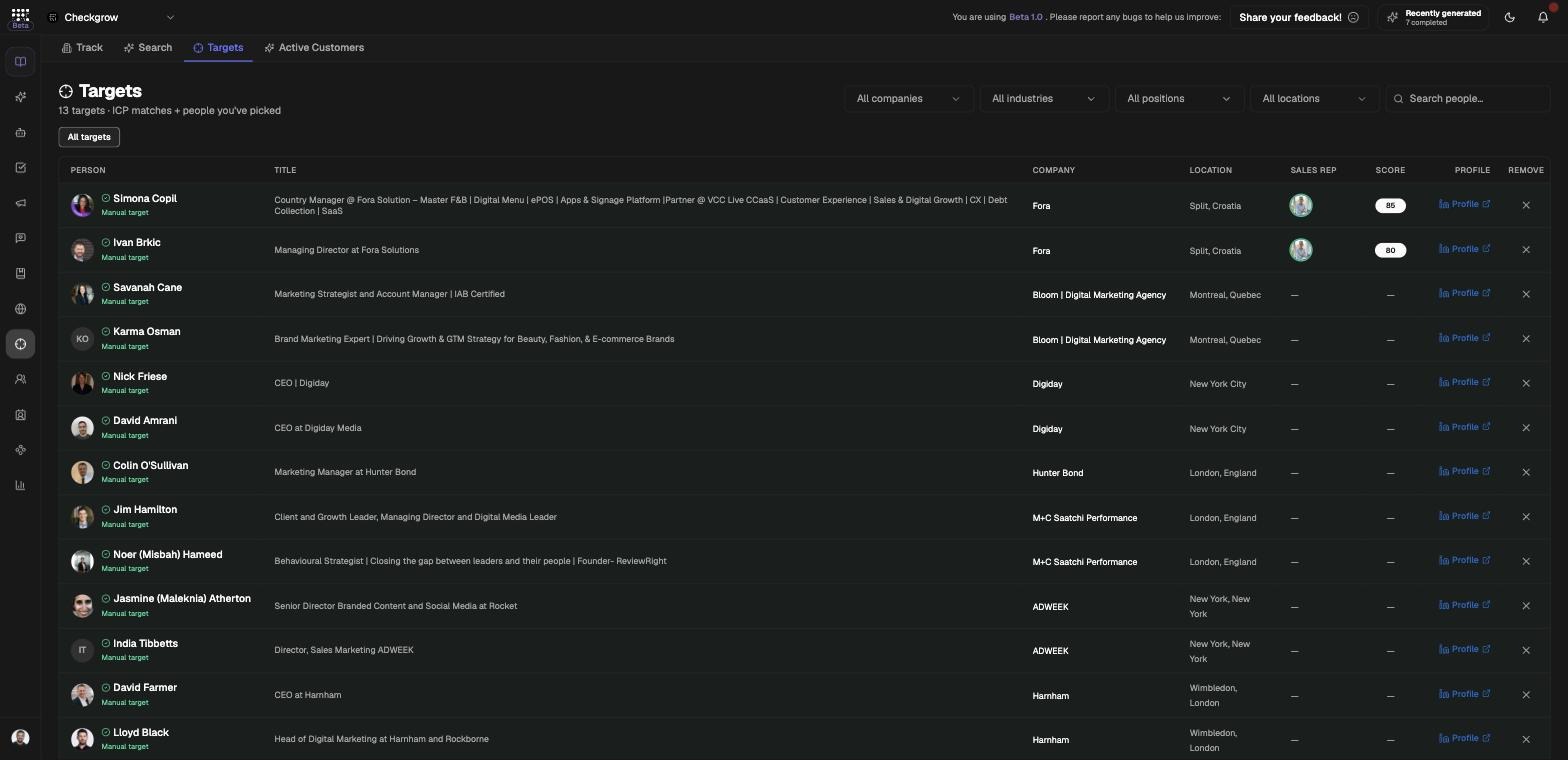
The Targets tab lists all your targets — ICP matches plus people you've hand-picked. Rows marked "ICP target" were auto-matched from your ICP's key-people titles; rows marked "Manual target" were hand-picked from a company's Decision Makers or LinkedIn Research. The Sales Rep column shows which reps hold each person — this list mirrors live into Sales, where each rep sees it filtered by their own targeting.
Active Customers tab
Mark companies as customers from the Track tab's bulk bar with Active Customer. They move to the Active Customers tab so prospecting stays focused on net-new accounts.
Table filters and bulk actions
The all-companies table filters by name, domain or industry and supports saved filter views. Select rows to use re-scan people, Active Customer or Delete. Columns include Revenue, Employees, Competitors, Decision makers, Score and Status.
Related features
Ideal Customer Profile — the profile that drives company search, target matching and fit scoring
Sales — your Targets flow live to sales reps for outreach
Competitors — a tracked company's report can push a competitor into full tracking