
Two-Factor Authentication
Protect your account with an authenticator app, use recovery codes, and require two-factor authentication for your whole team.
Overview
Two-factor authentication adds a second step to signing in: after your password, email code or Google sign-in, you enter a 6-digit code from an authenticator app on your phone. Someone who learns your password still cannot get in without your phone.
Every user can turn it on for their own account. Company admins can also require it for everyone on their team.
Enforced on our servers
When a company requires two-factor authentication, its data is only available to sign-ins that completed the second step, including direct requests to our services, not just the screens in the app.
Who needs it
Turn it on or require it when:
- Your security or compliance policy requires multi-factor authentication.
- Your team works with customer, campaign or billing data.
- People sign in from shared or travelling devices.
- You want to protect your own account beyond a password.
Which app to use
Any authenticator app works, for example Google Authenticator, Microsoft Authenticator, Authy or 1Password.
Set up two-factor authentication
- Open My Account
Open My Account and find the Two-factor authentication card. Click Set up.
- Scan the QR code
Scan the QR code with your authenticator app. If you cannot scan it, copy the key shown below the code into the app.
- Confirm a code
Enter the 6-digit code your app shows and click Turn on two-factor authentication.
- Save your recovery codes
Copy or download the 10 recovery codes and keep them somewhere safe, such as a password manager. Tick I have saved these recovery codes and click Done.
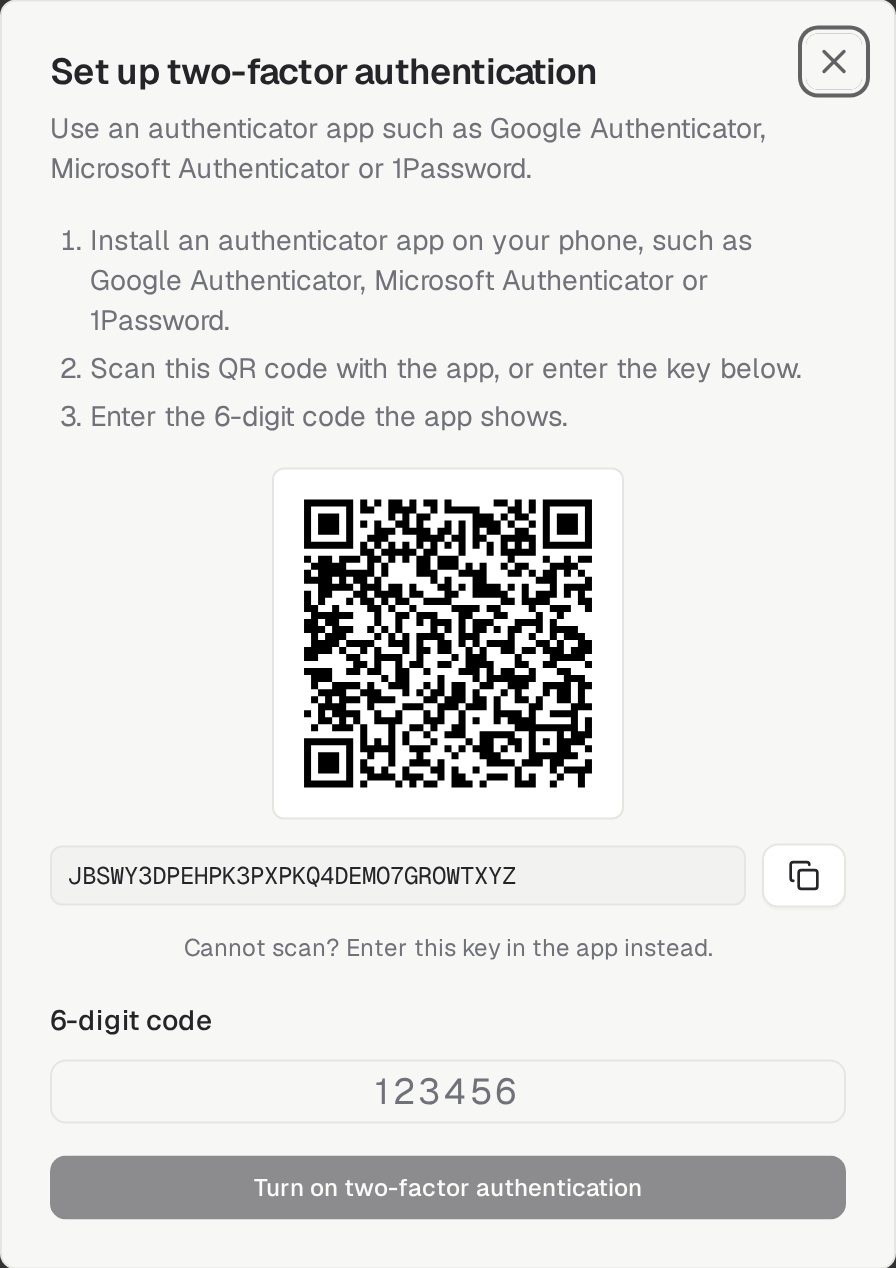
Require it for your team
- Turn it on for yourself first
You can only require two-factor authentication once your own account uses it, so you cannot lock yourself out.
- Switch on the requirement
Open Team, choose the Security tab and switch on Require two-factor authentication.
- Choose a grace period
Pick Right away, 3, 7 or 14 days. During the grace period members without two-factor see a reminder with a Set up now button. After it, they set it up before they can continue.
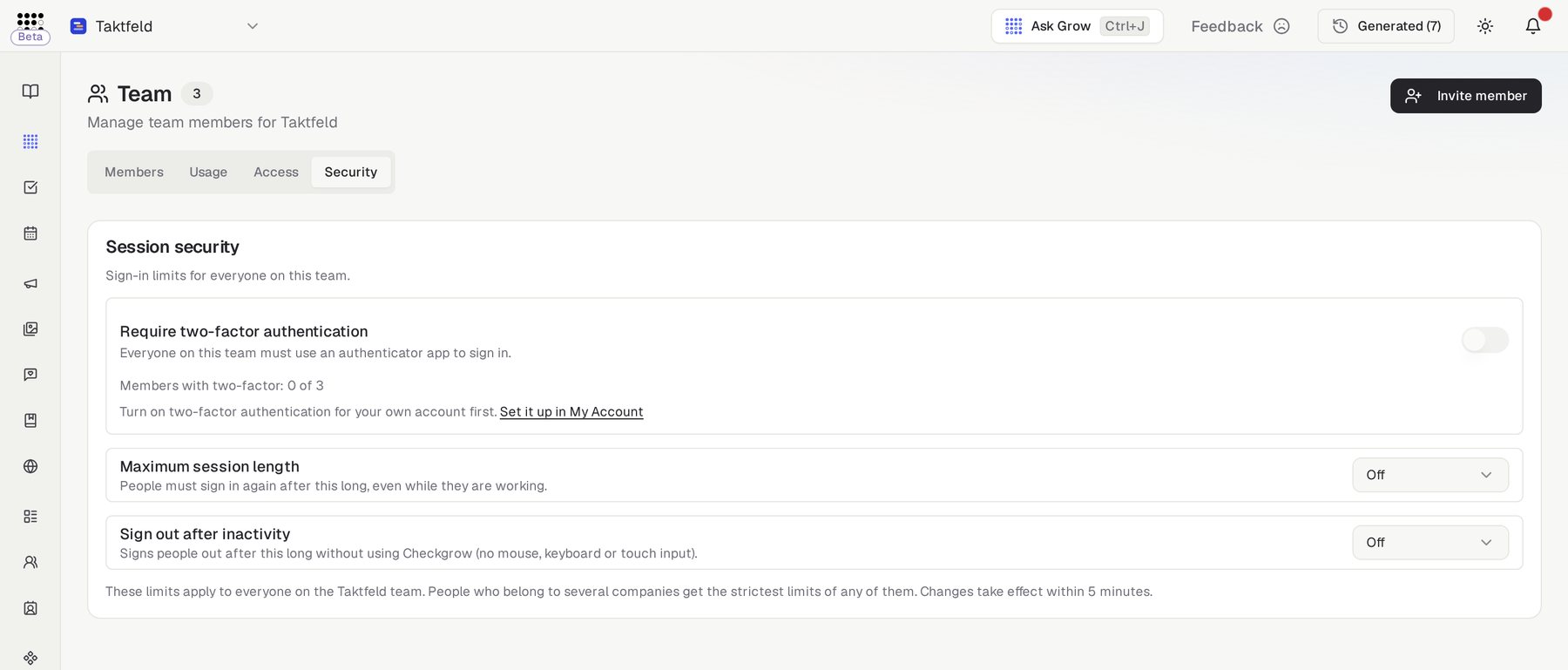
See who is covered
The Security tab shows how many members have two-factor on, and the Members list has a 2FA column. People who belong to several companies follow the strictest company, and Checkgrow staff also need two-factor authentication to open a company that requires it.
Common questions
I lost my phone. How do I get back in?
On the code screen, click Lost your phone? Use a recovery code and enter one of your saved codes. Each code works once. You then set up two-factor authentication on your new phone. If you have no codes left, ask your company admin to reset your two-factor.
How does an admin reset a member's two-factor?
On Team → Members, open the ⋯ menu on the member and choose Reset two-factor. Their authenticator and recovery codes are removed, they are signed out everywhere, and they set it up again at their next sign-in.
Can I get new recovery codes?
Yes. In My Account → Two-factor authentication, click New recovery codes. Your old codes stop working.
Can I turn it off?
Yes, with Turn off in My Account, unless a company you belong to requires it.
Does an email code count as two-factor?
No. Whoever can read your email could also reset your password, so an email code is not an independent second step. Two-factor authentication in Checkgrow always uses an authenticator app.
What are the password rules?
New and changed passwords need at least 12 characters, and commonly leaked passwords are refused. If you change your password on a sign-in older than a day, we email you a code to confirm it is you.