
Conversion Points
Manage the pages where visitors convert — with SEO and form analysis per URL, plus a UTM Builder for tracked campaign links.
Overview
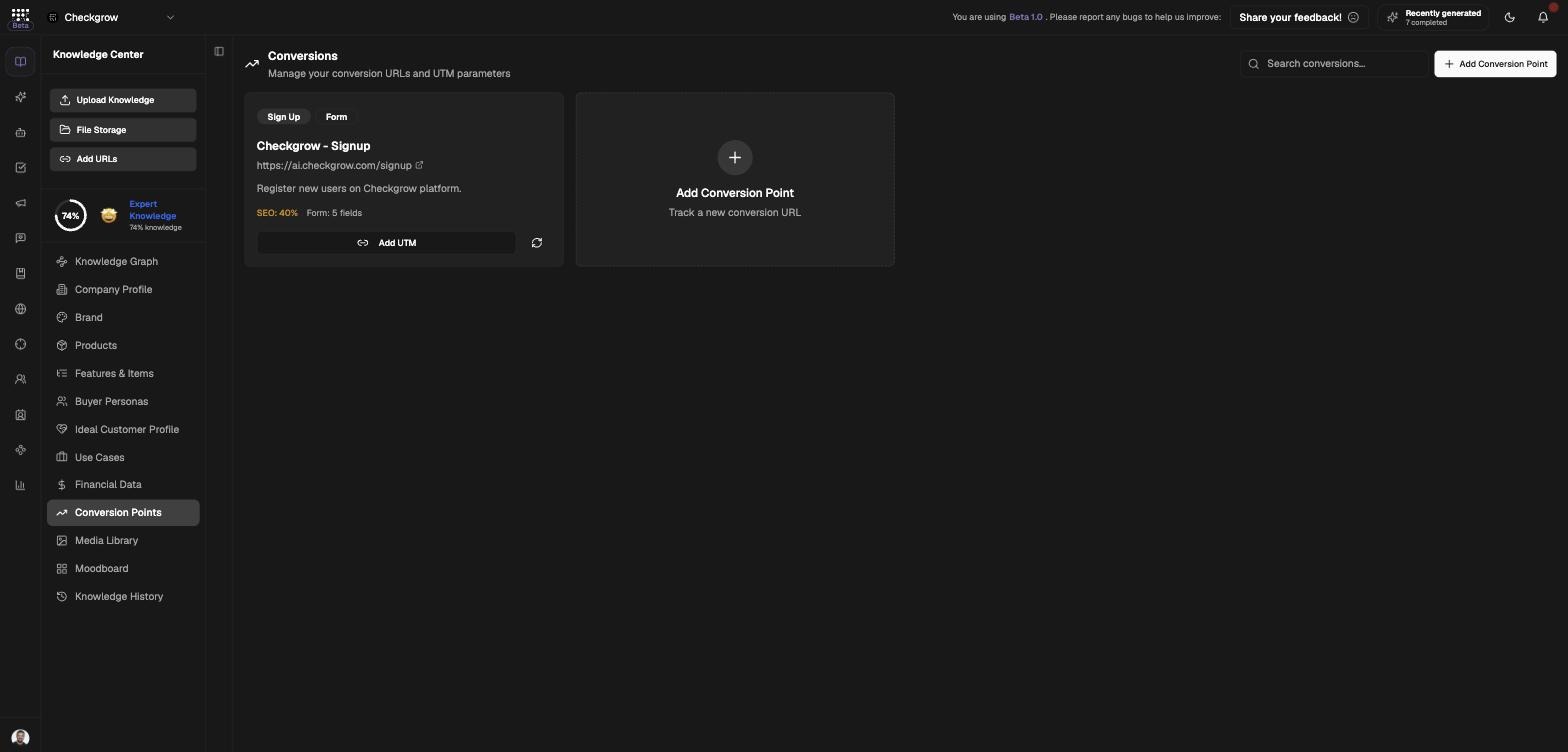
Conversion Points are the pages where visitors take action: contact forms, signup pages, demo bookings, and landing pages. The page is titled "Conversions" — "Manage your conversion URLs and UTM parameters".
Each conversion point is a URL the platform scans for SEO and form structure, and each carries its own saved UTM links. Every campaign links a conversion point as its destination, and the AI campaign builder lists your conversion points as selectable goals.
Define once, track everywhere
Define the conversion point once, build campaign UTM links from it, use those links in your campaigns, and measure the results in Insights. One record per conversion URL keeps all your tracking consistent.
Who needs it
Conversion Points are essential for anyone who sends traffic somewhere and wants to know what happened:
- Campaign managers — every campaign needs a destination, and campaigns pick theirs from this list.
- Performance marketers — build clean, consistent UTM links per channel instead of hand-typing parameters in ad platforms.
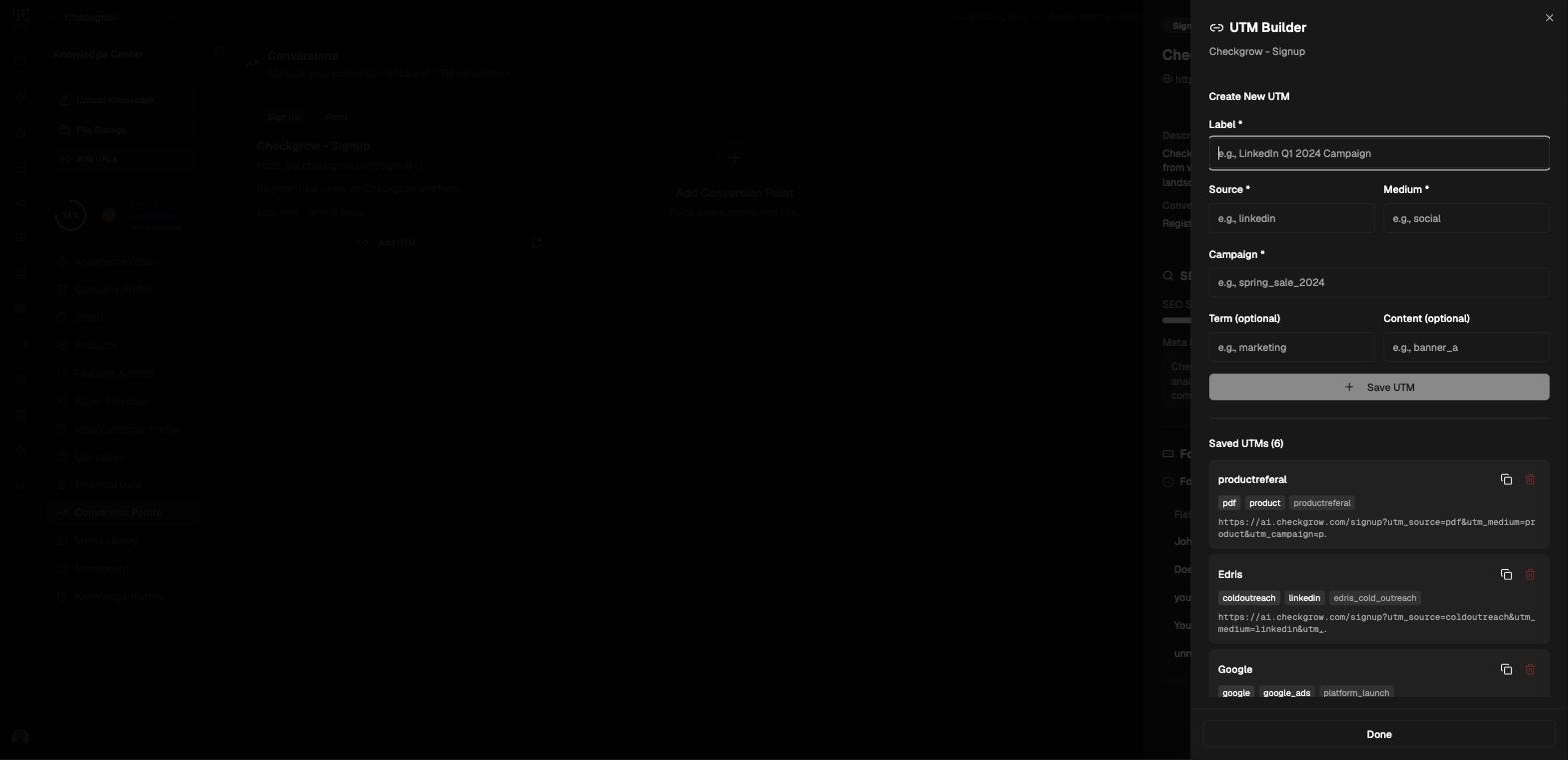
- SEO and web owners — check each conversion page's SEO score, headings, and meta description.
- Form owners — see exactly which fields the platform detected on each conversion form.
UTM links are built and saved manually here — campaigns do not auto-generate them. What campaigns consume is the conversion point itself, as their destination and goal.
Add a conversion point
- Open the add sheetClick Add Conversion Point. Paste the page URL into the URL field.
- Auto-fill with ScanClick the inline Scan button — "Click Scan to auto-fill details from the page". The platform reads the page and fills in the details for you to review.
- Complete the detailsCheck the Title and Description, and set the Conversion Goal — "What action should visitors take on this page?". Pick a Category (Landing Page, Sign Up, Sales Form, Download, Calendar/Demo, Contact, or Other).
- Set the conversion stageChoose the Conversion Stage: Landing for a product or info page, or Form for the final conversion page. Save to add it to your list.
Build campaign UTM links
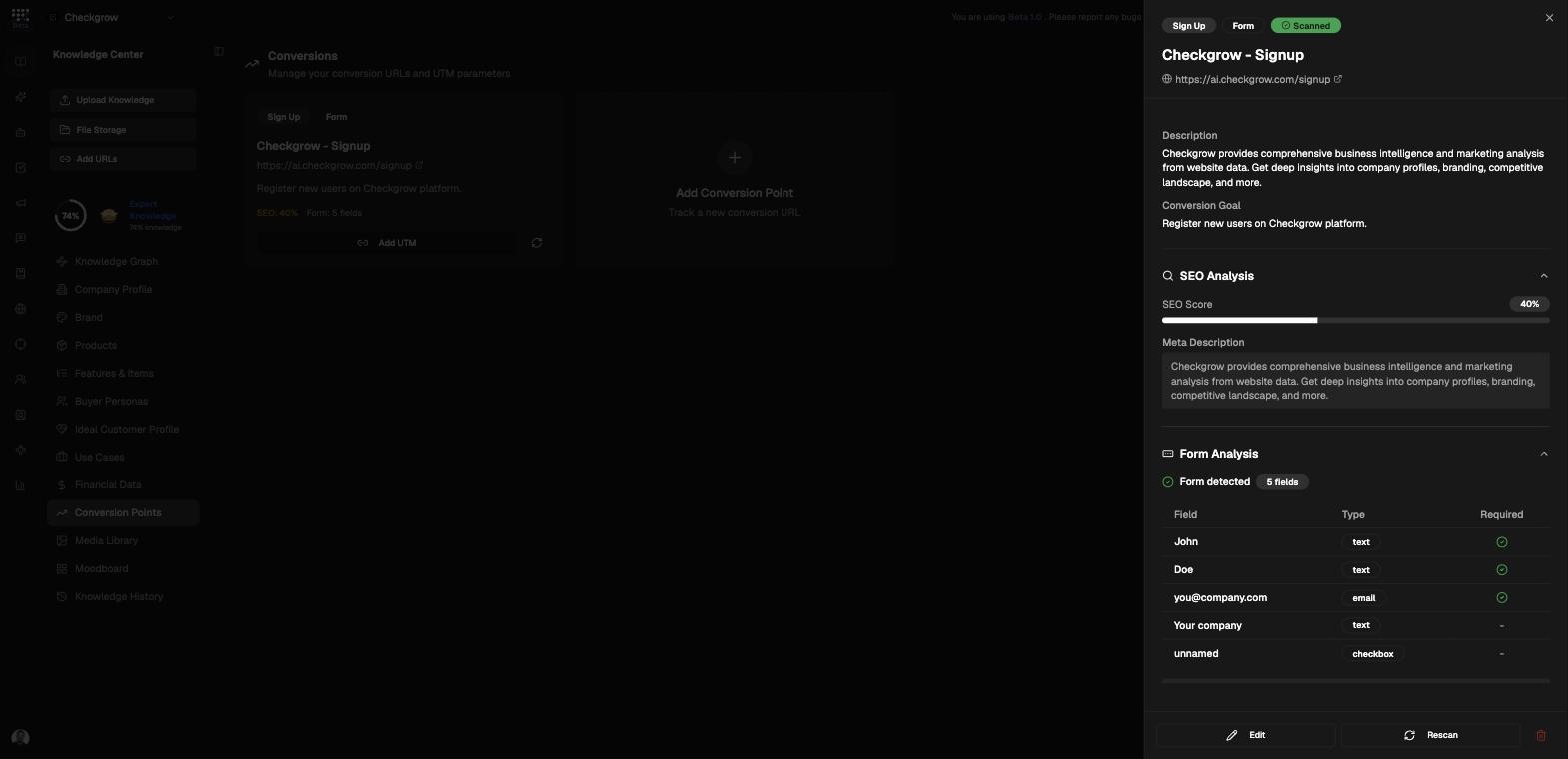
Each conversion point has its own UTM Builder for creating tracked links. The workflow: define the conversion point once, build a UTM link per channel or campaign, use those links in your ads and posts, and measure the results in Insights' UTM Reporting.
- Open the UTM BuilderOpen the conversion point's detail sheet and go to its UTM Links. Click Create New UTM.
- Fill in the UTM fieldsGive the link a Label, then fill Source (e.g. linkedin), Medium (e.g. social), and Campaign (e.g. spring_sale_2024). Add Term and Content if you need finer tracking. The "Preview URL" updates live as you type.
- Save and copyClick Save UTM to add it to the "Saved UTMs" list, then Copy URL to grab the full tracked link.
- Use it in your campaignPaste the copied URL into your campaign ads and posts — the LinkedIn ad, the social post, the email button. Every visitor arriving through it carries your UTM parameters.
- Measure in InsightsTrack how each link performs in Insights' UTM Reporting, powered by Google Analytics. Consistent Source/Medium/Campaign naming makes the reports easy to read.
SEO and Form Analysis
Because each conversion point is a scanned URL, its detail sheet doubles as a health check for the page itself:
SEO Analysis
Form Analysis
Related features
Campaigns — every campaign links a conversion point as its destination
Insights — UTM Reporting shows how your tracked links perform