
Website
SOP-driven conversion audit of your website — multi-page, desktop and mobile, evidence-checked — with tracking, competitor comparison, task ideas, a shareable live report, and how often AI assistants recommend you.
Overview
Website runs an SOP-driven conversion audit of your website — multi-page, desktop and mobile, evidence-checked. It reviews UX/UI, brand, technical quality, conversion strategy and playbook fit, and the playbook adapts to your business type (services B2B, SaaS or webshop).
The page has four tabs — Analysis (default), Tracking, Competitors and Tasks — and an AI visibility tab in workspaces where it is switched on, plus a history dropdown of past snapshots, Share report and Re-scan in the header. The audited URL comes from your Company Profile.
Evidence, not opinions
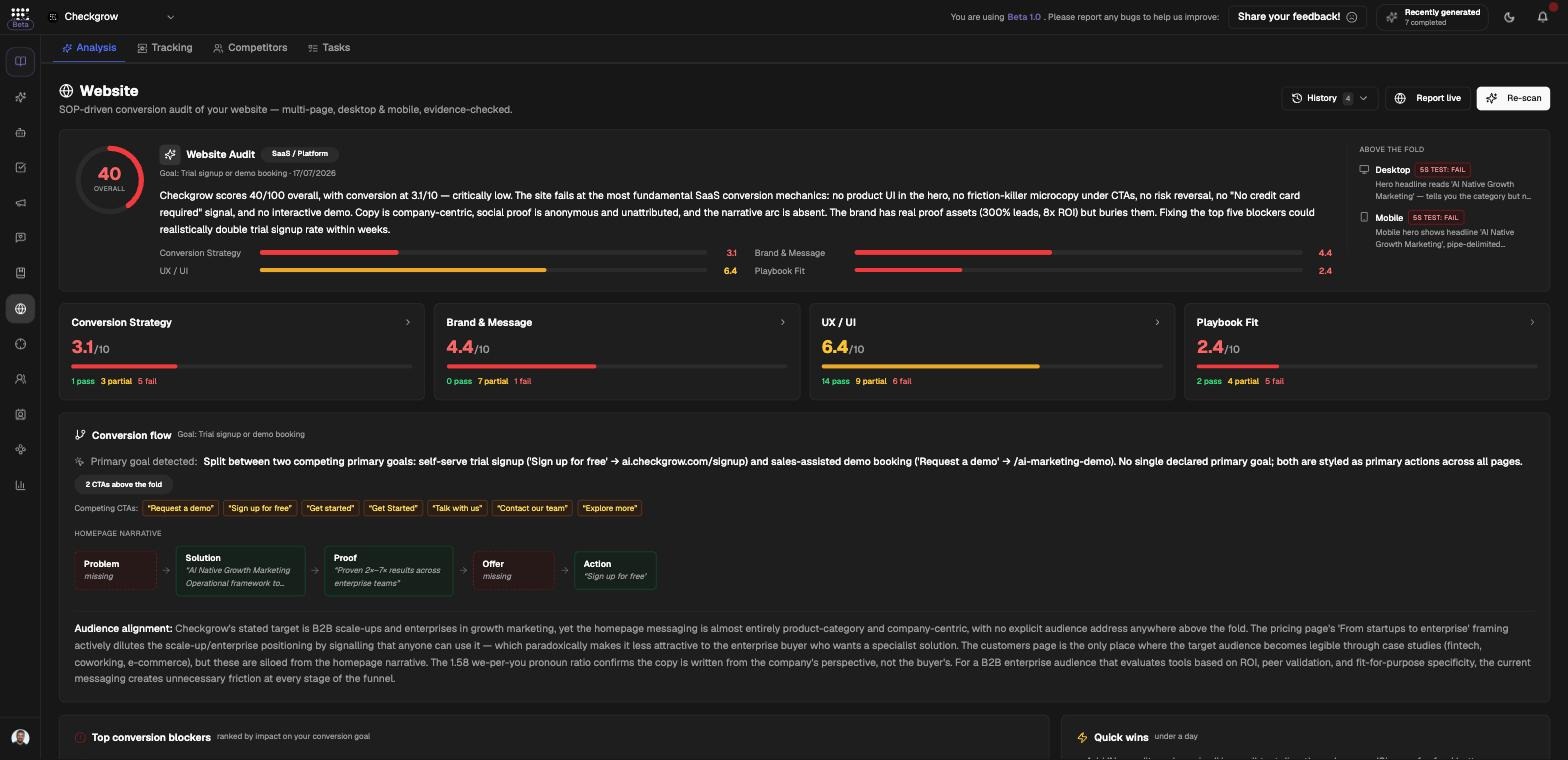
Every verdict is backed by what the audit actually saw: above-the-fold checks are badged "5s test: pass" or "5s test: fail" with evidence quotes, and blockers come with exact fixes.
Who needs it
The audit answers "why isn't the website converting?" for several roles:
- Founders who want an objective, scored review of their site before spending on ads.
- Marketers prioritizing conversion fixes — blockers, quick wins and strengths are listed with exact fixes.
- Agencies and consultants sharing a public live report with clients instead of a slide deck.
- Product and web teams turning audit findings into an actionable task list.
The audit starts automatically for new companies — by the time you first open the page, a report is usually already being written.
How to use it
- Run or refresh the auditThe audit auto-starts for new companies; click Re-scan in the header whenever you want a fresh snapshot. Progress runs through "Discovering pages", "Capturing screenshots", "UX, brand & code review", "Conversion & playbook review" and "Writing the report", with dimension chips for UX/UI, Brand, Technical, Conversion and Playbook.
- Read the reportStart with the score ring and executive summary, check the four category bars, review the "Above the fold" desktop and mobile verdicts (badged "5s test: pass" or "5s test: fail"), then work through the top priorities — blockers with exact fixes, quick wins and strengths.
- Unlock AI Task IdeasOn the Tasks tab, click Unlock AI Task Ideas to generate ideas from your latest analysis (available once per analysis run — "re-scan to unlock new ones"). Add your own with "Describe the idea…", then convert ideas into real tasks — they land on the "Website tasks" board (category "Website") and the global Tasks board.
- Share reportClick Share report — you'll see "Report published! Link copied to clipboard." and get a public live page anyone can open. Click Disable public link to revoke it at any time.
Tabs and the audit report
Analysis tab
The full audit report: score ring and executive summary; four category bars ("Conversion Strategy", "Brand & Message", "UX / UI", "Playbook Fit"); "Above the fold" desktop and mobile verdicts with 5s-test badges and evidence quotes; then the category grid, conversion funnel, top priorities, screenshot gallery and a server-side summary.
Tracking tab
A server-side and analytics tracking audit of your website. This tab is a separately gated feature. Click Export PDF above the report to download the scan, its recommendations and your server-side plan as a PDF.
Competitors tab
A landscape comparison built on your Competitors data: themes with verdicts of ahead, on par or behind, plus lists of what "competitors do better", what "you are missing" and what "you do better".
Tasks tab
The "Task Ideas" card — "Add your own, or unlock AI ideas from your latest website analysis". Converted ideas become real tasks on the "Website tasks" board and the global Tasks board.
AI visibility tab
How often ChatGPT, Perplexity, Gemini and Claude name your company when buyers ask them for advice, and what to do about it. It has four views: Where you stand, Your plan, Website setup and Blog & pages. See the AI visibility section below.
AI visibility
More buyers ask an AI assistant which product to choose. The AI visibility tab asks ChatGPT, Perplexity, Gemini and Claude, each with its web search on, about 32 questions your buyers ask. The questions are written from your Company Knowledge in your market's language, and you can review them in Questions & settings.
Where you stand counts the answers that name you ("AI named you in 33 of 121 answers": 31 questions asked to four assistants, minus any answer that didn't come back), the share of answers each competitor gets instead, a card per assistant, your next steps and, when Google Analytics is connected, the visits AI assistants send you. See every answer and source opens each answer and the pages it quoted.
- Run the first checkClick Run the first check on Where you stand. The price in grow credits is shown before it starts, and the check runs in the background, so you can leave the page. If it is interrupted, Resume asks the remaining questions; answers already in are kept and not charged again.
- Fix what stops AI reading your siteWebsite setup checks robots.txt for each AI search crawler, page text without JavaScript, firewall and bot protection, your sitemap, indexing, company information for machines, llms.txt and Markdown copies. The check is free; click Re-check now after a change. Write the files builds llms.txt, llms-full.txt and Markdown copies of up to 10 key pages for you to upload, for a small credit cost.
- Work through Your planYour plan turns what we found into steps in four stages: let AI read your site, publish what buyers ask, get mentioned where AI looks, keep your facts right. Open How to for the exact steps, tick a step off when it is done, or click Add to Tasks.
- Publish pages AI can quoteBlog & pages suggests one page a week for questions where AI names your competitors and not you. Write draft hands an idea to your Article Writer agent; Put all … in Calendar plans them on your Calendar. Add your own idea adds a page you already have in mind.
- Check againClick Check now after each stage. Give AI two to four weeks to catch up; the trend chart on Your plan shows the change against your goal.
Nothing runs on its own
Answer checks and the llms.txt files start only when a member clicks, and each shows its price first. The website setup check is free. llms.txt and Markdown copies are marked as having no proven effect on AI answers yet, and blocking AI training crawlers (such as GPTBot) is your choice, never counted as a problem.
Why 128 answers when there are 32 questions?
Every question goes to each assistant, so 32 questions and four assistants give 128 answers. The headline counts the answers that name you, and each assistant's card counts its own 32. Percentages compare you with competitors, your earlier checks and your goal. AI answers change from one ask to the next, so one check is a sample: the note at the bottom of Where you stand gives the range your real share most likely falls in. Compare checks over time rather than reading one number.
Can I ask the AI Assistant about it?
Yes. Ask the AI Assistant "Does ChatGPT recommend us?", "Why does AI name our competitor?" or "What did Perplexity answer about data rooms?". It reads your latest check, the website setup findings and your plan, links each step, and can turn a step into a task. It cannot start a check; that happens on this tab.
Where do the AI visits come from?
From your connected Google Analytics: sessions whose source is an AI assistant (ChatGPT, Perplexity, Gemini, Claude, Copilot and others), for the last 12 weeks. It is a minimum: some AI visits arrive without a referrer and count as direct traffic.
Structure and GDPR compliance scans
Two related scans live in the Knowledge Center's Website report section, not on this page. The Scan Now structure scan maps your site's navigation and detects conversion pages and forms. The "Framework & GDPR Compliance" scan (Scan Website) identifies your tech stack, hosting and detected cookies, and checks: Cookie Banner Active, Privacy Policy Present, HTTPS Secure, Cookie Policy Link and DSAR Pathway.
From scan to Conversion Points
Conversion pages detected by the structure scan can be added straight to Conversion Points ("Page added to Conversion Points") — from there they feed the UTM Builder and your Insights reporting.
Related features
Tasks — where converted website task ideas end up
Competitors — the data behind the Competitors tab comparison
Company Profile — the source of the website URL that gets audited
Conversion Points — where detected conversion pages are added
AI Assistant — ask it how AI assistants see you and what to fix first