
Lists
Group the companies and people you want to reach, choose who works them, and let campaigns do the rest.
Overview
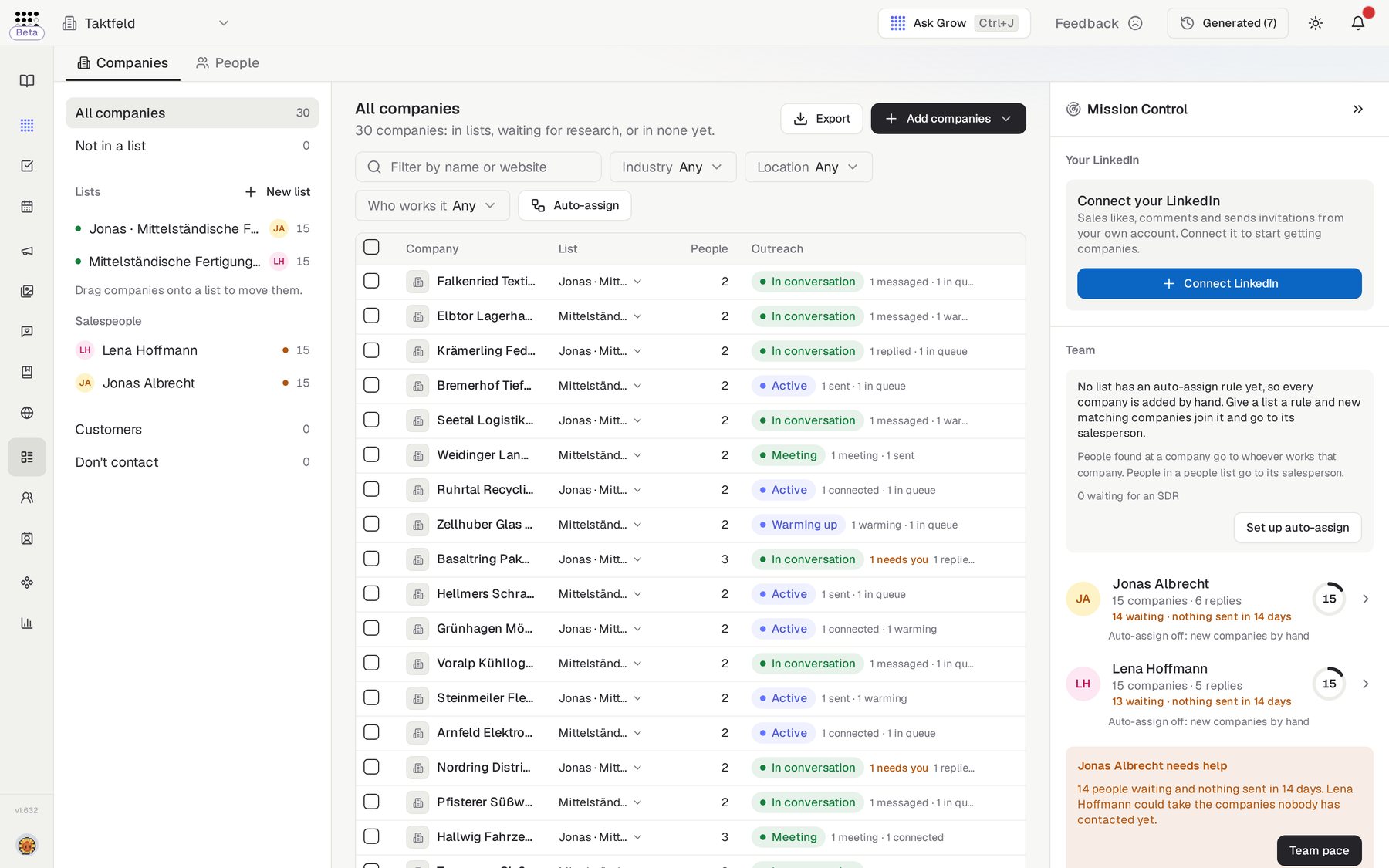
Lists is where you decide who your team reaches. A company list holds the accounts you care about, and a people list holds the individuals you contact there.
Each list has a salesperson who works it. Outreach campaigns then run on your lists and decide how, when and in which language to reach out.
Adding companies is free
You can build long lists without paying for research up front. Research runs when a campaign needs it, and it finds the people first.
Who needs it
Lists help anyone who plans who the team contacts:
- Sales leads who split markets between salespeople.
- Salespeople who want a clear list of the accounts they own.
- Teams who already keep targets in a spreadsheet or a CRM.
- Founders who want to reach their own LinkedIn network.
How to use it
- Create a list
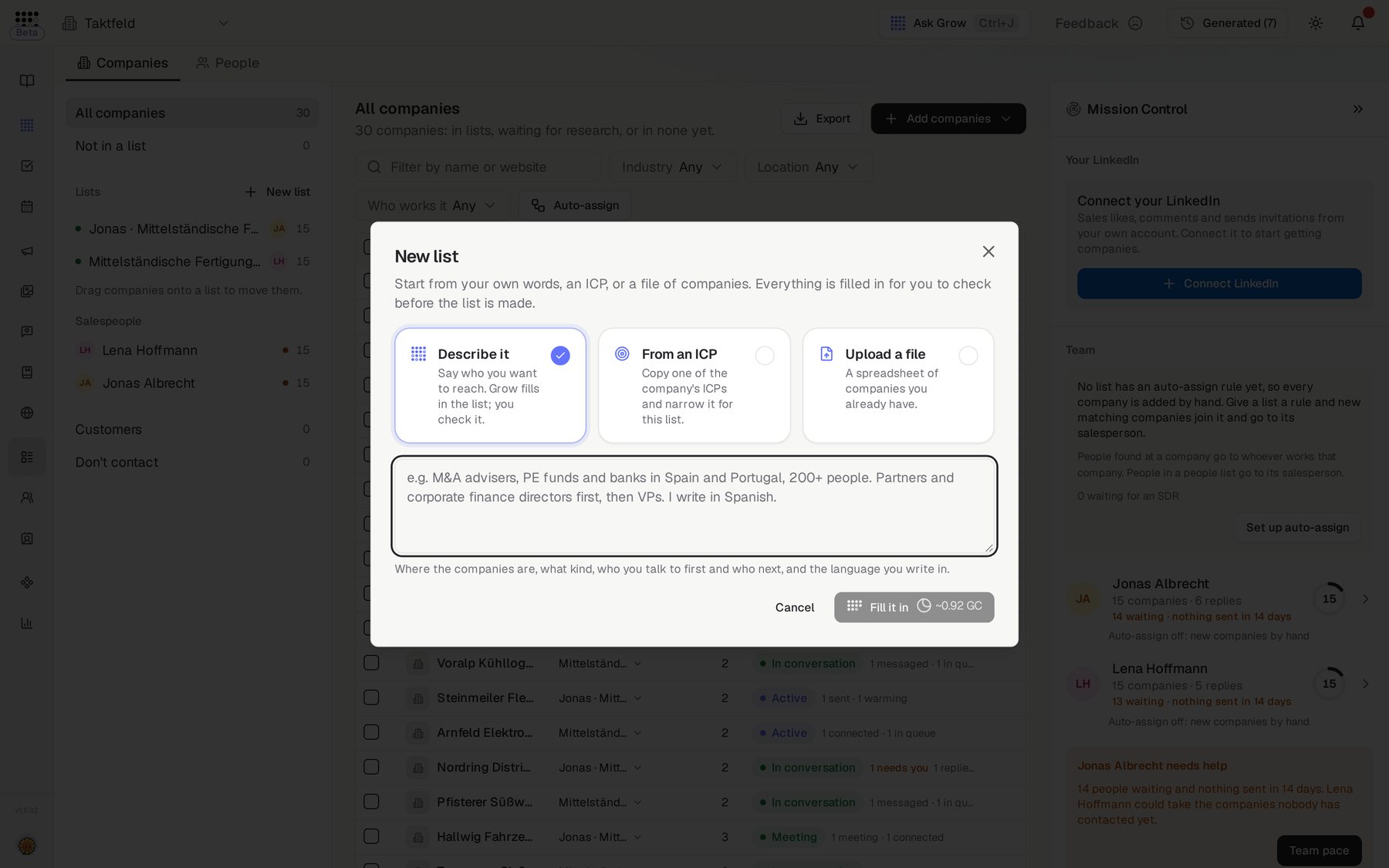
Open Lists in the menu, click New list and choose Company list. Choose how to start: Describe it and Grow fills in the list for you, From an ICP to copy one of your Ideal Customer Profiles, or Upload a file of companies you already have. Check what was filled in, choose Who works it, then click Create list.
- Add companies
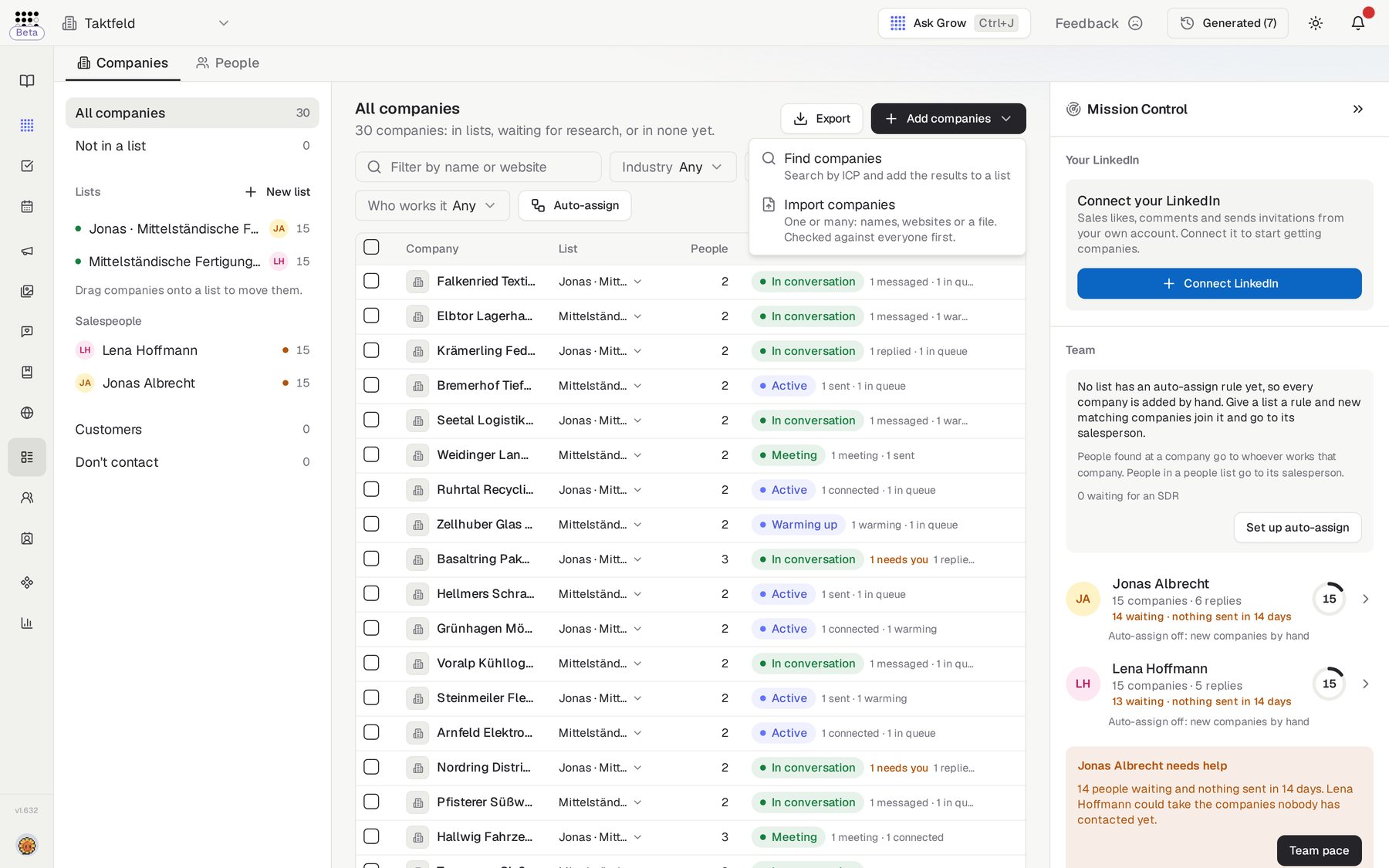
Click Add companies. Use Find companies to search by ICP and add the results to a list, or Import companies to bring in names, websites or a file.
- Choose who to contact
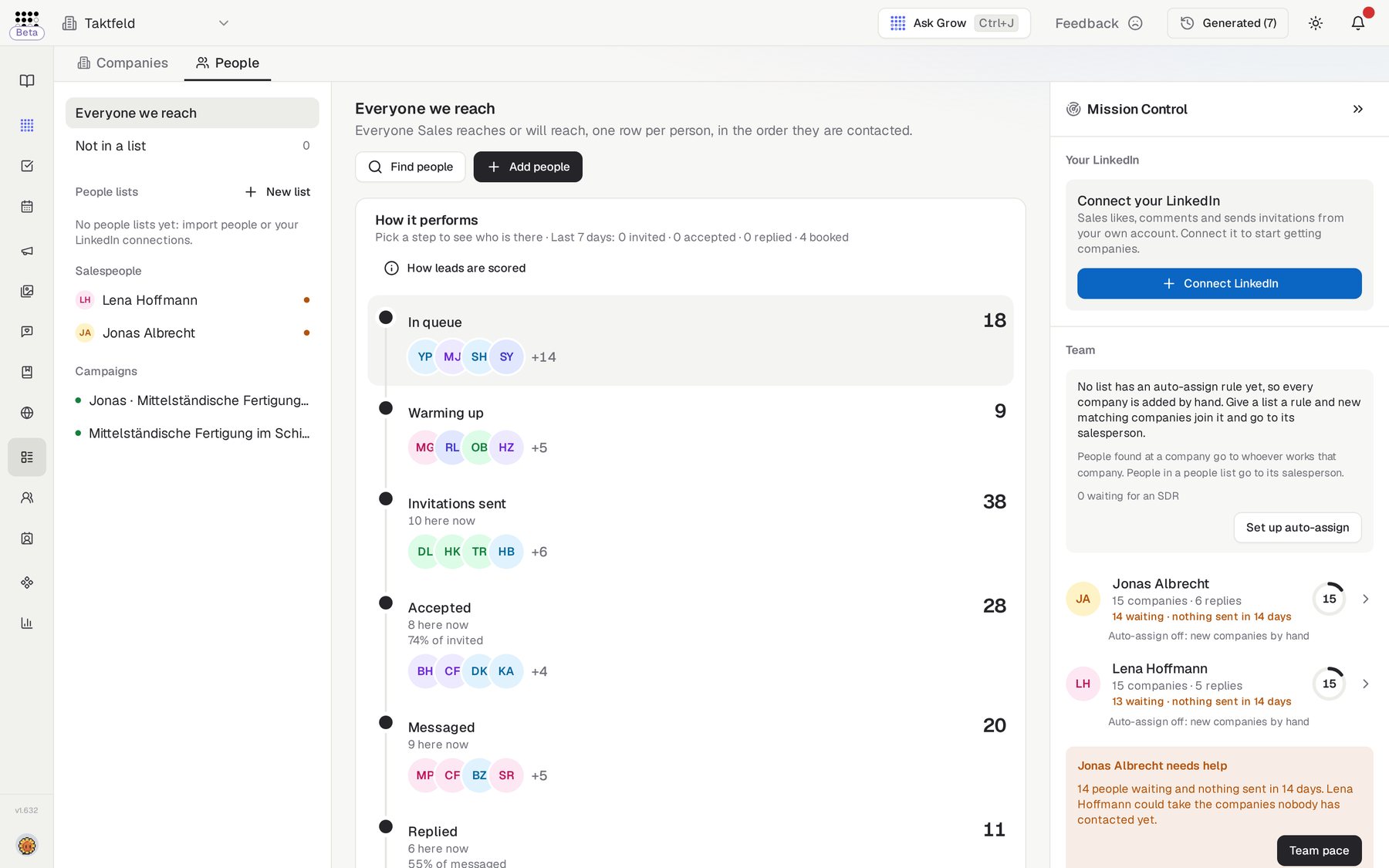
A company list says which job titles to reach and how many people per company. Every list sits in the rail on the left, with a people list right under the company list it came from. Use the Companies and People switch at the top to see everyone being reached and where they are. Click Find people to search, or Add people to bring people in yourself.
- Start reaching out
Open your list and click Start a campaign, or run one from Outreach. New salespeople click Start outreach when they finish setup.
Importing companies and people
Click Add companies, then Import companies, to bring in a CSV or Excel file of up to 5,000 companies or people, or to pull them from HubSpot, Zoho CRM or GoHighLevel. Columns are matched for you, and when one is unclear you choose.
Every import is checked against every salesperson before anything goes in.
People without a LinkedIn link
Find LinkedIn looks them up by name and company, or by work email. You pay only for people it finds. Anyone not found is listed so you can paste their link or remove them.
After an import, a summary shows what went in and what was left out. Each person is then checked on LinkedIn, so people you already know skip the invitation and get the right message. People you keep for later wait under People, in Not in a list.
Common questions
How do I add my LinkedIn connections?
Open Lists, switch to People, click Add people and choose Your LinkedIn connections. They become a list a campaign can message, picking up where you left off.
How do I rename a list?
Open the list and click its name at the top. Type the new name and press Enter.
Why can't I add a company to my list?
One company has one salesperson. If someone else works it, it stays theirs until you click Ask to take it over.
How do I get a company or person contacted sooner?
Select them and click Move to top. They go first in the queue.
When do messages go out?
Requests and messages go out in each person's own working hours, weekdays 9:00 to 18:00 by default. You can change this per campaign.
How do I leave someone out of one campaign?
Open the campaign and click Skip for that person. It only affects that campaign.