
Social Media
Social intelligence and engagement workspace: Instagram performance and comment replies, LinkedIn Find & Reply, influencer tracking and a competitor-aware dashboard.
Overview
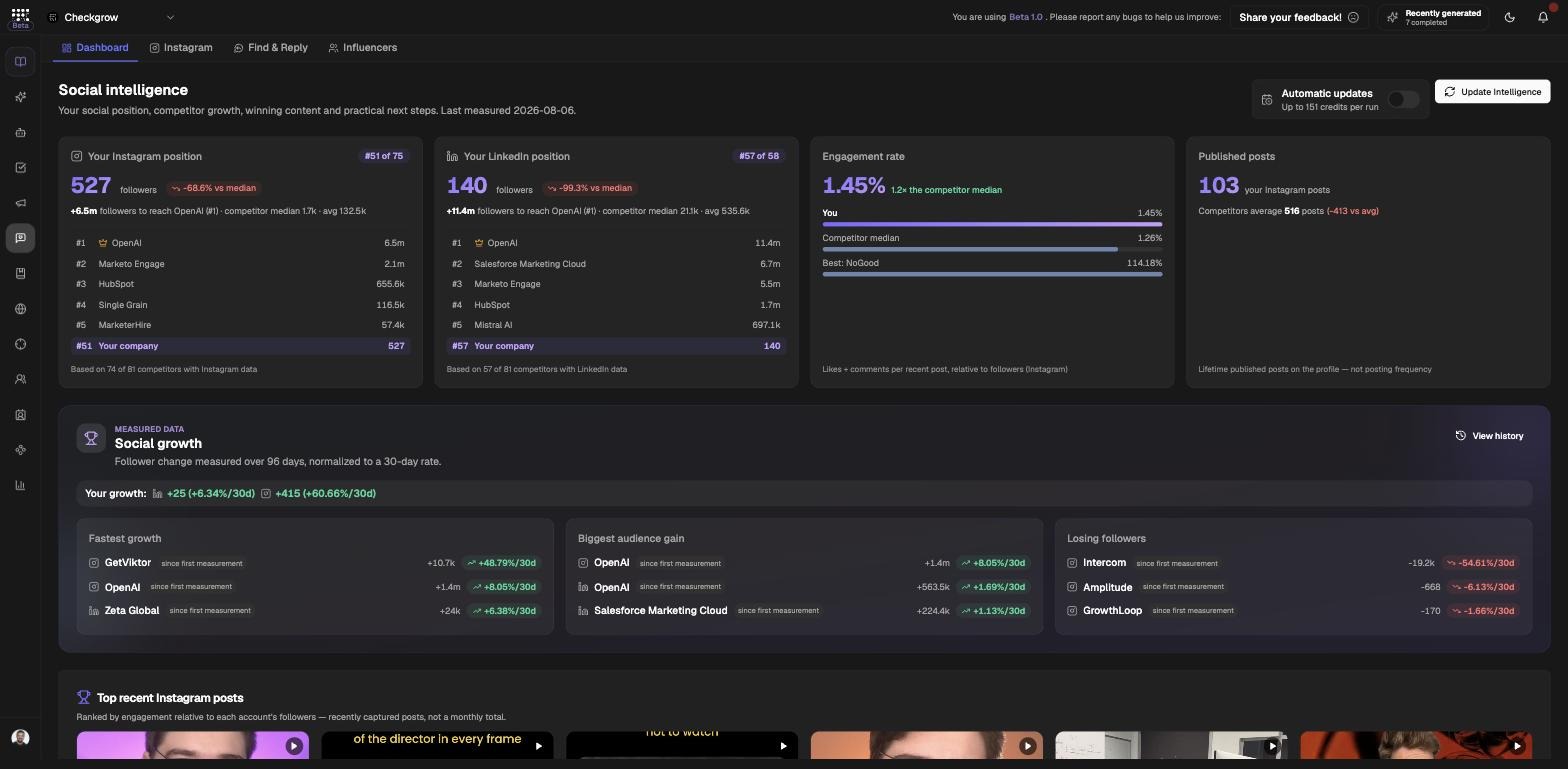
Social Media is your social intelligence and engagement workspace, split into four sub-tabs: Dashboard, Instagram, Find & Reply and Influencers. It shows your social position versus competitors, your growth and winning content, and gives you practical next steps.
It is built for listening and engaging — reading performance, spotting what works and answering the conversations that matter.
No post scheduler
Social Media has no post composer or publishing scheduler. The only outbound actions are replying to Instagram comments and posting comments on LinkedIn posts through Find & Reply — every AI suggestion is a draft you approve before it goes out.
Who needs it
Social Media is for anyone who owns the brand's social presence:
- Social media managers tracking follower growth, reach and top posts without exporting from native analytics.
- Community managers clearing the Instagram comment queue with AI-drafted replies.
- Founders and sales-adjacent marketers joining relevant LinkedIn conversations via Find & Reply.
- Strategists benchmarking against competitor growth and studying influencer content.
Looking for paid advertising numbers? Meta and Google Ads reporting lives in Insights. Competitor ad libraries live in Competitors — the dashboard's "See competitor ads" link takes you there.
How to use it
- Complete your setupOn the Dashboard, use the "Complete your social intelligence setup" card: Connect Instagram, Connect LinkedIn and Add competitors. The Instagram tab's connect card does the same — "Bring your official profile, posts, comments and performance data into Social Media." Once connected you see your @username with a "Connected" badge and an Update Instagram button to refresh data.
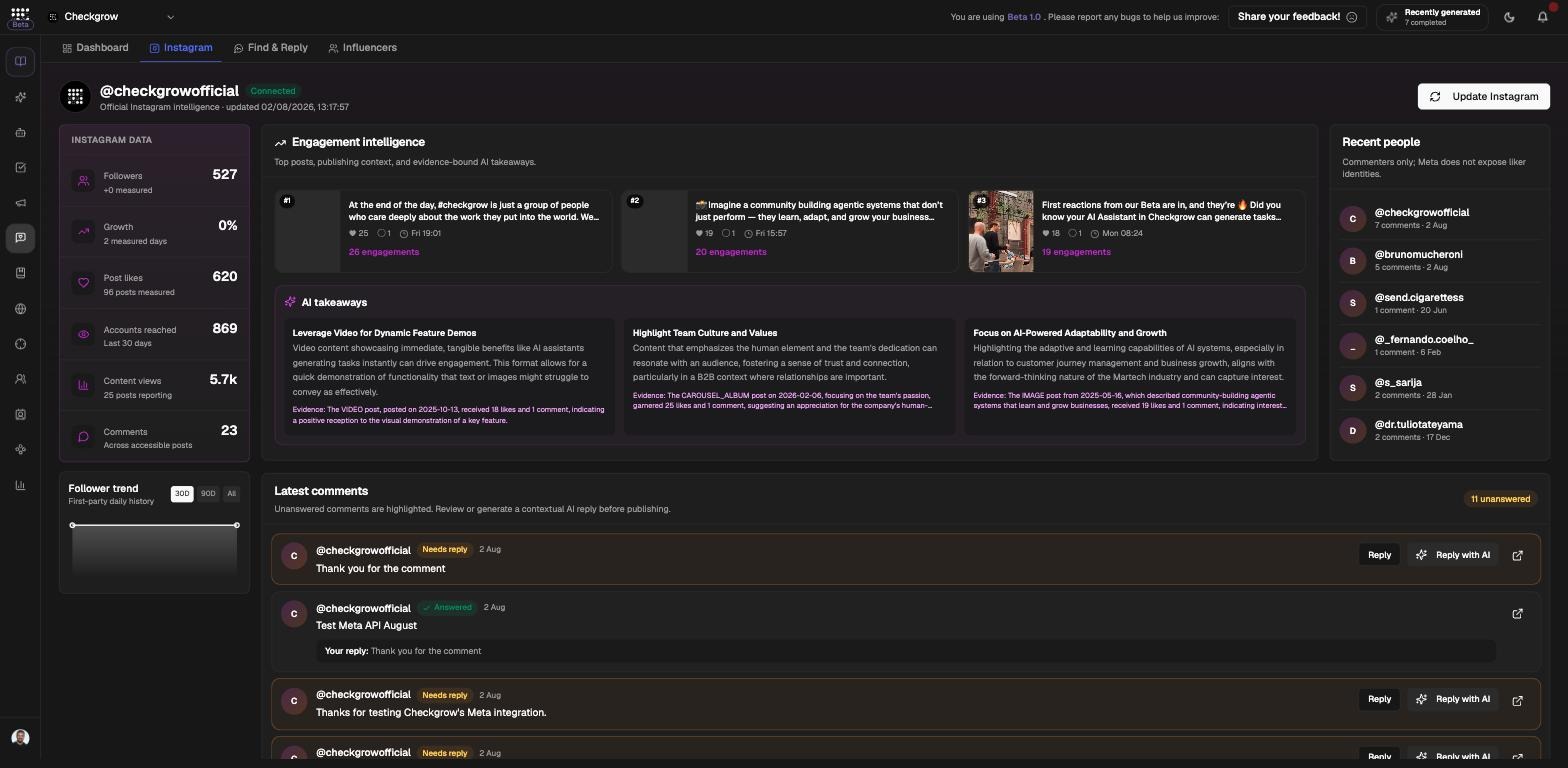
- Reply to Instagram commentsOn the Instagram tab, "Latest comments" highlights unanswered comments ("Needs reply" vs "Answered"). Click Reply to write your own, or Reply with Grow for a draft. Edit it in the composer (limit 1000 characters — "AI suggestions are drafts; you approve every post."), then click Post reply.
- Unlock Find & ReplyOn the Find & Reply tab, click Unlock Find & Reply to "Monitor LinkedIn posts based on your priority keywords and get AI-generated comment suggestions." Set your keywords, then use Scan Posts — "Scan all ready" or select keywords individually (each has a weekly cooldown) and "Scan selected". Keywords off cooldown are scanned automatically when you open the page.
- Generate and post a commentOpen a matched post, then use the Generate Comments dropdown — Generate Random, Refer Comment or Select Context (from your Context Library). Review and edit the AI comment, then post it.
- Track influencersOn the Influencers tab, search a profile ("Search LinkedIn profiles…"), click Confirm + start scraping to add it, and use Refresh posts to update the feed of their posts. LinkedIn tracking requires Sign in with LinkedIn.
Sub-tab reference
Dashboard
"Your social position, competitor growth, winning content and practical next steps." Sections cover your position versus competitors, social growth, top posts and AI takeaways, plus the setup card and a footer link to "See competitor ads".
Your connected profile's metric rail (Followers, Growth, Post likes, Profile views / Accounts reached, Content views, Comments), a "Follower trend" chart (30D / 90D / All), "Engagement intelligence" with top posts and evidence-bound AI takeaways, and the "Latest comments" reply queue.
Find & Reply
Monitors LinkedIn posts matching your priority keywords. Toolbar: a "LinkedIn Posts" tab (the Instagram source is marked "Coming soon"), Context Library, the Generate Comments and Scan Posts dropdowns and a settings gear. Search in "Normal" or "Job Position" mode and save views ("All Posts", Save View). Requires an explicit unlock.
Influencers
Track specific LinkedIn and Instagram profiles: platform tabs in the sidebar, profile search, add with Confirm + start scraping, then read their post feed and Refresh posts when you want the latest.
Find & Reply (like Trends in Content) needs an explicit unlock before first use — and the two features share the same keyword configuration.
Related features
Competitors — the competitor profiles and ads behind the dashboard benchmarks