
Use Cases
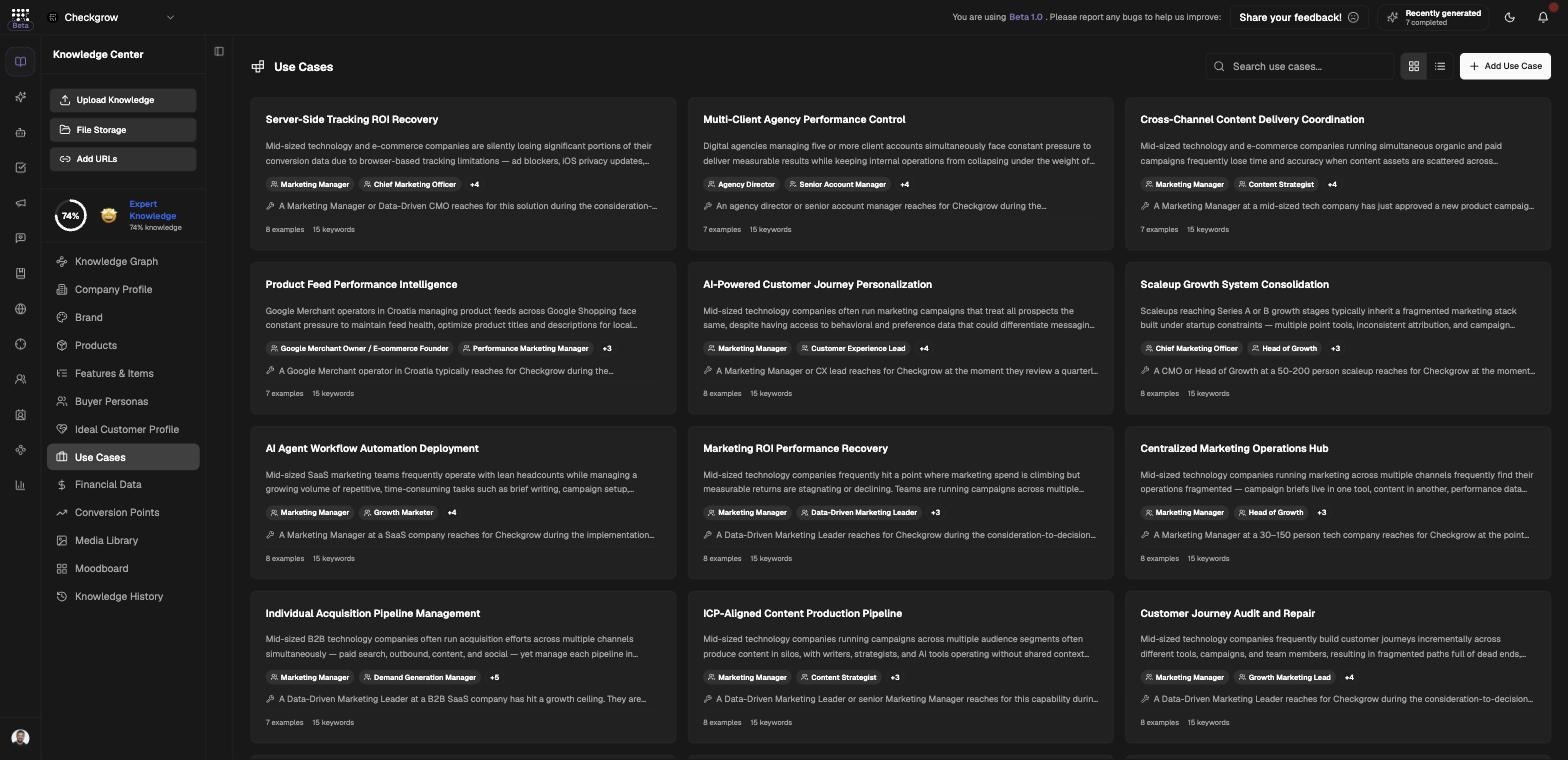
Document the concrete situations customers use your product in, with a structured 9-field schema the AI uses in campaigns and briefings.
Overview
Use Cases capture the concrete situations customers use your product in — who is doing what, why, and what success looks like. Each use case follows the same 9-field schema, so the AI always has structured, comparable answers instead of loose notes.
Use cases feed campaign creation and marketing briefings, link to your Features & Items, count toward your knowledge score, and appear in the Knowledge Graph.
Structured once, used everywhere
Every use case you define becomes reusable context: campaign builders and marketing briefings pull from these fields, so a well-written use case sharpens every AI output that references it.
Who needs it
Use Cases matter to anyone who explains what your product does in the real world:
- Marketers — ground campaign messaging in real customer situations instead of feature lists.
- Founders and product leads — keep a single agreed record of who the product serves and the value it delivers.
- Sales teams — answer "does this work for a company like ours?" with documented real-life examples.
- Content writers — pull search keywords and success signals straight into articles and landing pages.
Use cases describe situations; Features & Items describe capabilities. Link the two so every feature is tied to a reason someone needs it.
How to use it
- Seed the page with AI CheckIf the page shows "No use cases defined yet", click AI Check. The AI generates a first set of use cases from your website and existing company knowledge — review and refine them rather than starting from a blank page.
- Add a use case from a descriptionClick Add Use Case and describe the situation in plain language — for example "Enterprise companies needing to automate their customer onboarding process...". The AI drafts all nine fields from your description.
- Or generate from documentsIn the same dialog, upload documentation instead of typing — case studies, sales decks, or process docs. The AI extracts the use case details from the file.
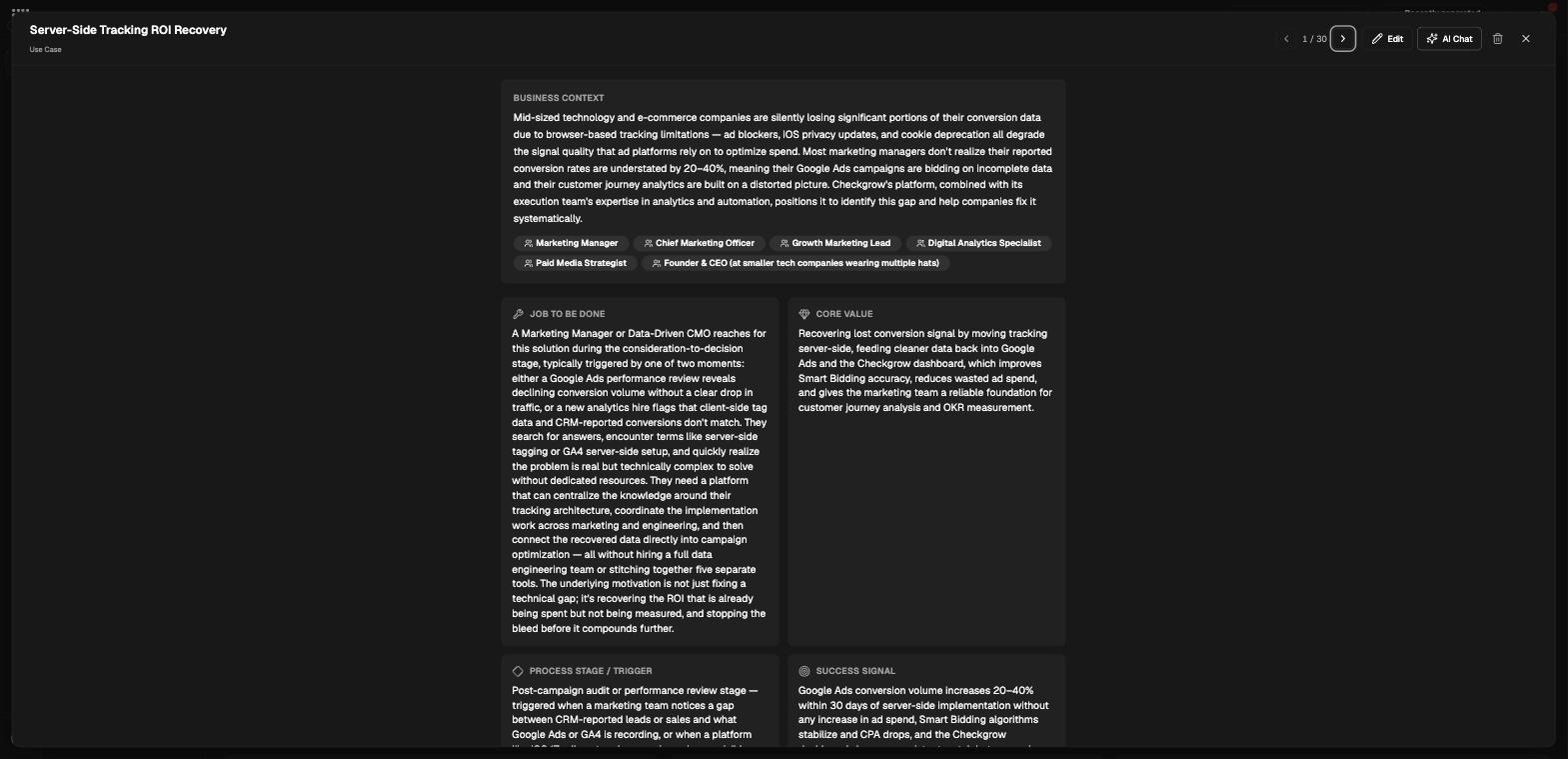
- Refine in the detail overlayOpen a use case and click Edit to change any field inline, then save. Manage the "Real-Life Examples" and "Search Keywords" lists, or use Edit with Grow to rewrite a field.
- Search and switch viewsUse the "Search use cases..." box to find one quickly, and the card/table toggle to switch between browsing cards and scanning a compact table.
The 9 fields of a use case
Every use case is built from the same nine fields. Filling them all gives the AI the full picture:
Use Case Name
Business Context
Primary Job to Be Done
Target Users & Roles
Core Value Delivered
Process Stage / Trigger
Success Signal
Search Keywords
Real-Life Examples
Related features
Campaigns — use cases feed campaign creation and marketing briefings
Features & Items — link features to the use cases they serve