
Brand
Logos, colors, typography, tone of voice and a generated Design System — the visual identity behind every AI creative.
Overview
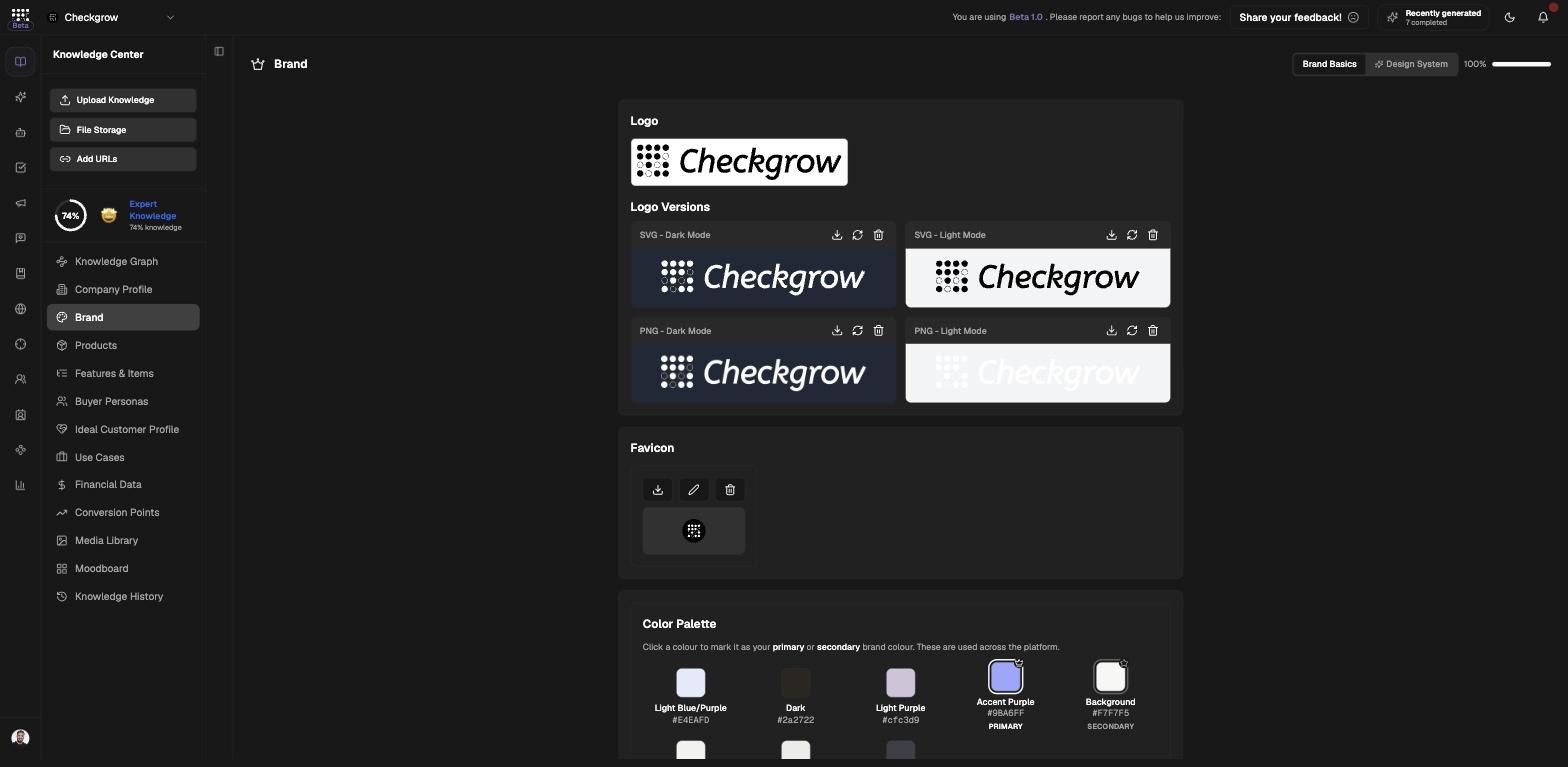
The Brand page holds your visual and verbal identity in two tabs: Brand Basics (logo versions, favicon, color palette, typography, brand identity, tone of voice, brand message and keywords) and Design System (a full generated spec of your site's look and feel).
The onboarding website scan pre-fills most of it. From there, this page feeds campaign briefings, AI Agents and — most visibly — every AI-generated creative.
Injected into every generated ad image
Creative image generation injects your logo, colors, typography, brand identity, tone of voice and design system into every generated ad. Get this page right and every creative comes out on-brand automatically.
Who needs it
Look after the Brand page if you are:
- A marketer generating creatives — the palette, logo and tone of voice decide how every AI ad looks and sounds.
- A designer — upload the correct SVG/PNG logo variants and lock in primary and secondary colors so the AI never improvises them.
- A founder without a brand book — Generate Design System builds a professional, exportable spec from your website.
- Anyone rebranding — update it here once and every future creative follows the new identity.
Your Brand knowledge score stays capped until colors are set — pick a primary and secondary color early.
How to use Brand Basics
- Upload your logo versionsIn the Logo Versions card, fill the SVG and PNG slots for dark and light backgrounds with Upload (files up to 2MB). Use Replace or Delete to manage existing files, and add your favicon in its own card.
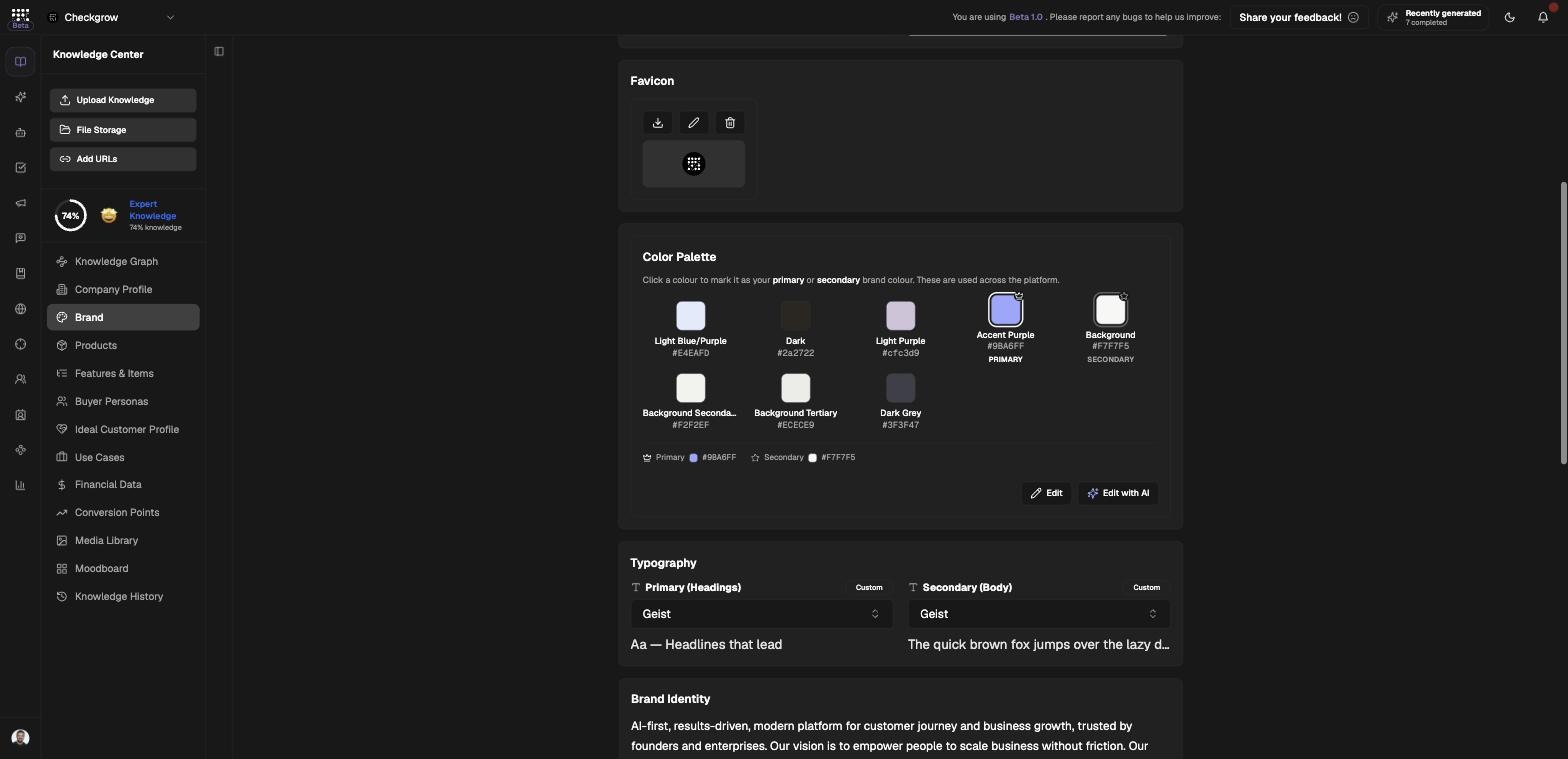
- Set your primary and secondary colorsIn the Color Palette card, click a swatch and choose Set as primary or Set as secondary. The chosen swatches get primary/secondary badges and become the anchor colors for generated creatives.
- Choose your typographyIn the Typography card, pick a Primary (Headings) and a Secondary (Body) font. The pickers suggest fonts detected on your own website, so matching your site takes one click.
- Refine identity and tone of voiceThe Brand Identity, Tone of Voice and Brand Message cards support AI Check when empty and Edit with Grow when filled — describe the change, click Apply, and Grow rewrites it. Add Keywords to round out the verbal identity.
- Check the voice Grow has learnedYou don't fill this in. Every time you edit a generated post, email or article, by hand or with Edit with Grow, Grow learns how you write and writes the next piece that way. The Voice Grow has learned card lists it: Company for everyone's shared voice, Yours for your own founder posts, emails and outreach. Click Forget this on anything that's wrong; Undo brings it back.
The Design System tab
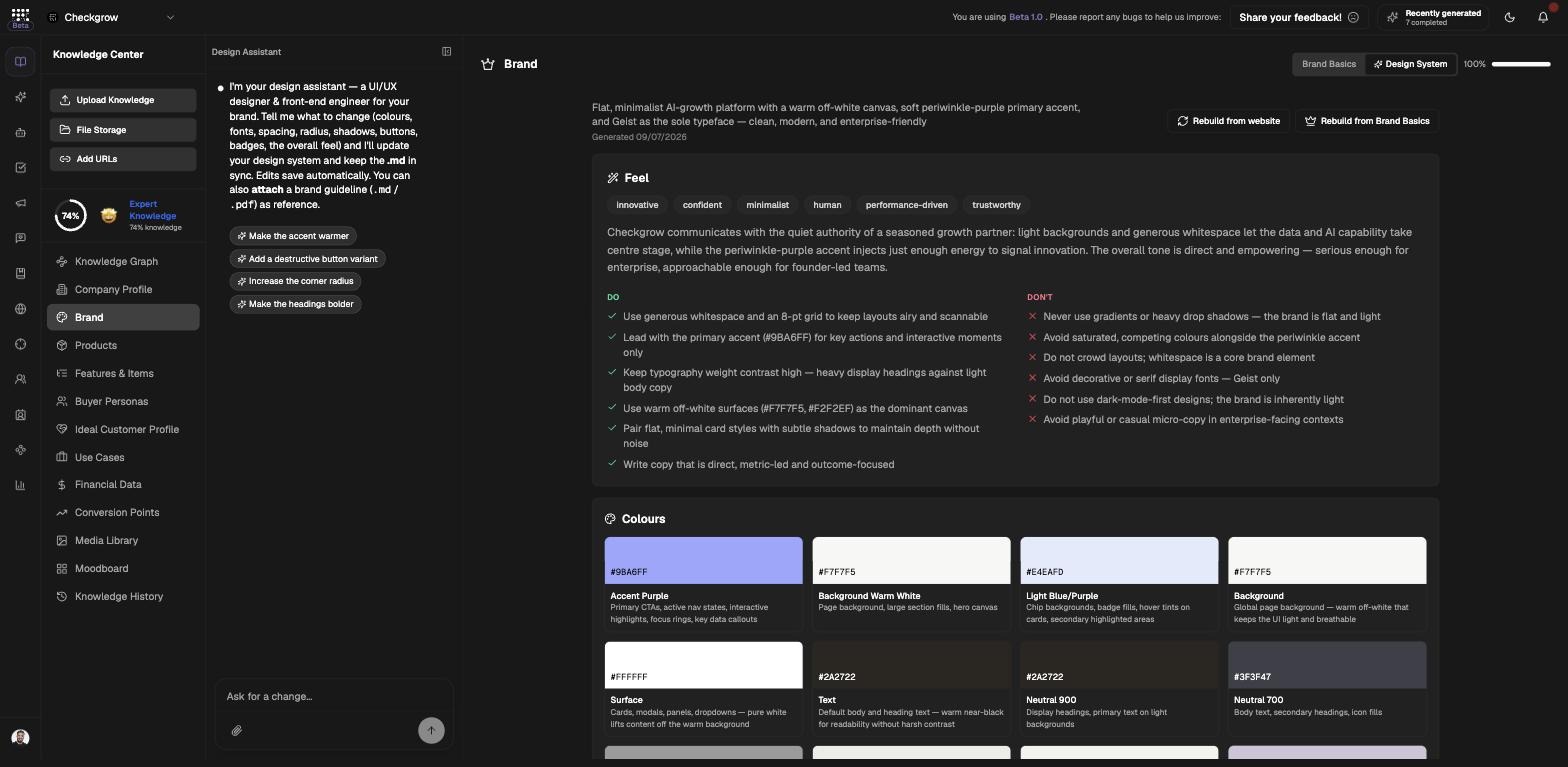
The Design System tab builds a professional design system from your website screenshot and brand — colors, typography, spacing, radius, shadows and more, plus a downloadable spec. Opening the tab also docks a Design Assistant chat for follow-up tweaks.
- Generate itClick Generate Design System. The result is organized into Feel, Colors, Typography, Components (Buttons, Badges, Input, Cards, Stat), Spacing, and Radius & Shadow sections.
- Rebuild when things changeAfter the first generation the buttons become Rebuild from website and Rebuild from Brand Basics — use the first after a site redesign, the second after you change Brand Basics.
- Export the specUse Export to download the design system as a markdown spec you can hand to designers, developers or agencies.
Related features
Campaigns — where your brand shows up in every generated creative
Company Profile — the identity record behind the brand
Media Library — the images and videos used alongside your brand