
AI Agents
Pre-built specialized AI workers that generate LinkedIn posts, emails, ads, articles, and more — grounded in your company knowledge.
Overview
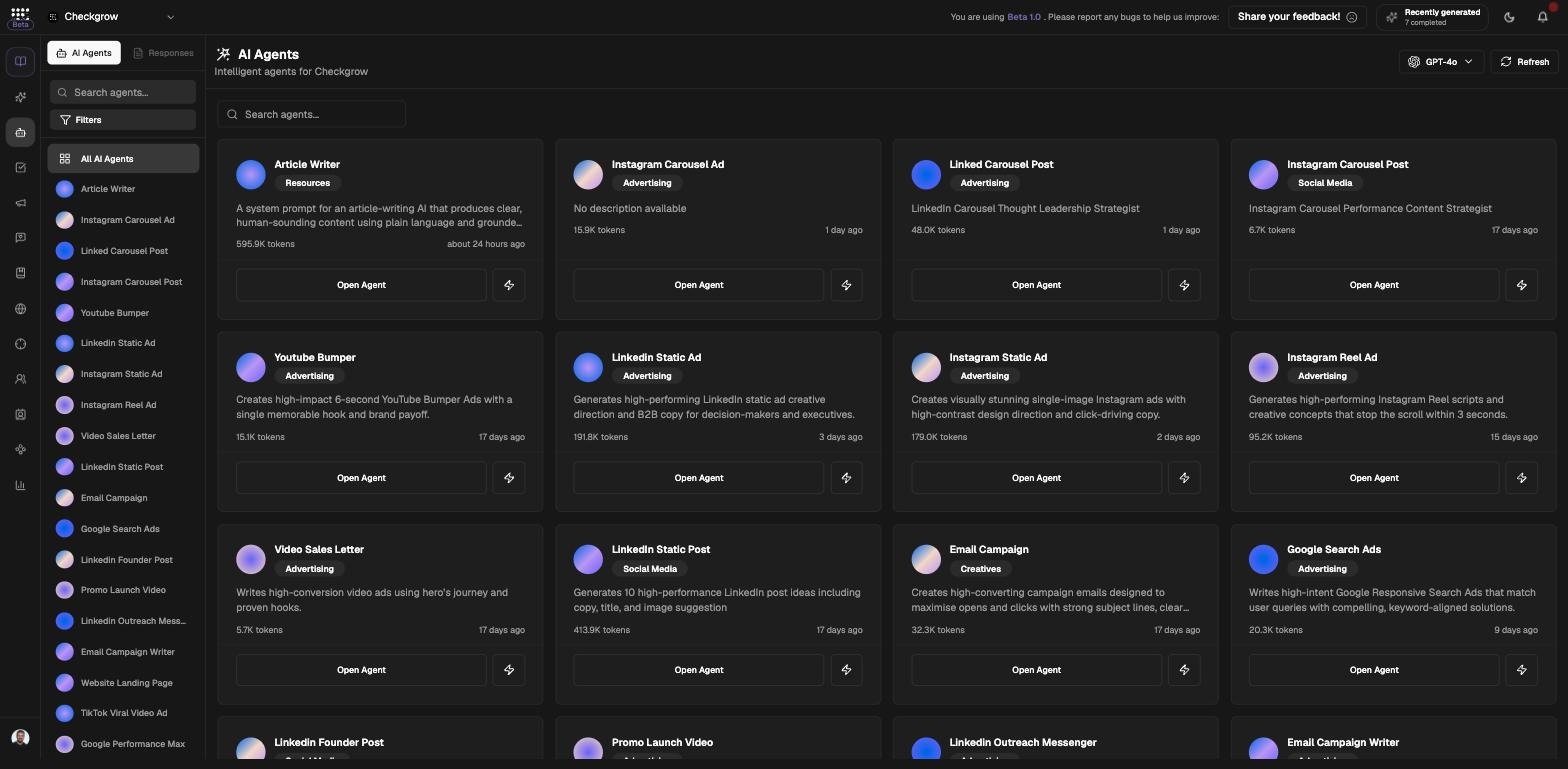
AI Agents are pre-built specialized AI workers — for LinkedIn posts, emails, ads, blog articles, outreach, OKRs, and more. Each agent runs a brief-driven chat: you describe what you need, it generates multiple options grounded in your company knowledge.
Every run is saved as delivery history. You can edit, approve, translate, share, export to PDF, chain results into another agent, or convert them to Tasks. Which agents you see depends on your per-user agent permissions.
Briefs are grounded in your Knowledge Center
Agents pull from your Buyer Personas, Products, Use Cases, and scraped pages — so a two-line brief still produces on-brand, company-specific output.
Who needs it
AI Agents suit anyone who produces recurring content or outreach:
- Marketers — generate LinkedIn posts, ads, and blog articles in multiple options at once.
- Sales teams — draft outreach emails tailored to your Buyer Personas.
- Managers — draft OKRs and structured plans from a short brief.
- Reviewers — approve deliveries in bulk and hand them to the team as Tasks.
Credits per run
Each agent run charges credits. Every agent card shows its token count, and the AI Assistant confirms with you before running an agent on your behalf.
How to use it
- Find your agentOpen AI Agents from the sidebar. Use "Search agents..." or the Filter Agents popover (by Category and Channel) in the secondary sidebar, then click Open Agent on the card you want.
- Write the briefType into "Tell me what you'd like to create...". Add context with Attach Files, Scraped Pages, the Web toggle, or Merge to reuse previous responses as context.
- GenerateClick Generate Now. The button shows "Generating..." while the agent produces multiple options as result cards.
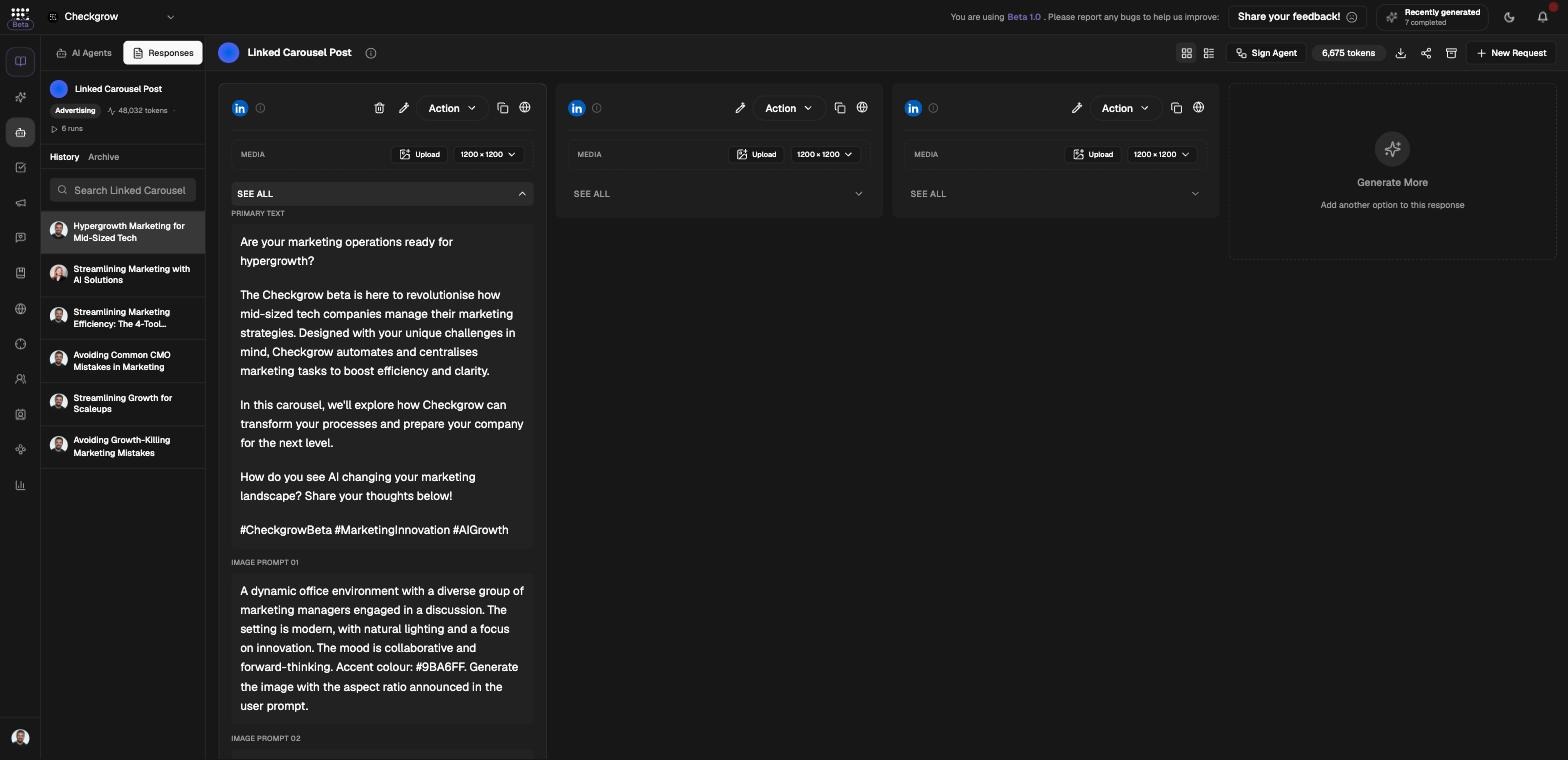
- Refine an optionClick a result card and describe the change in "Ask to refine this option...". Select several cards to refine them together ("Ask to refine selected options..."). You can also edit fields inline, like options, translate, or upload media.
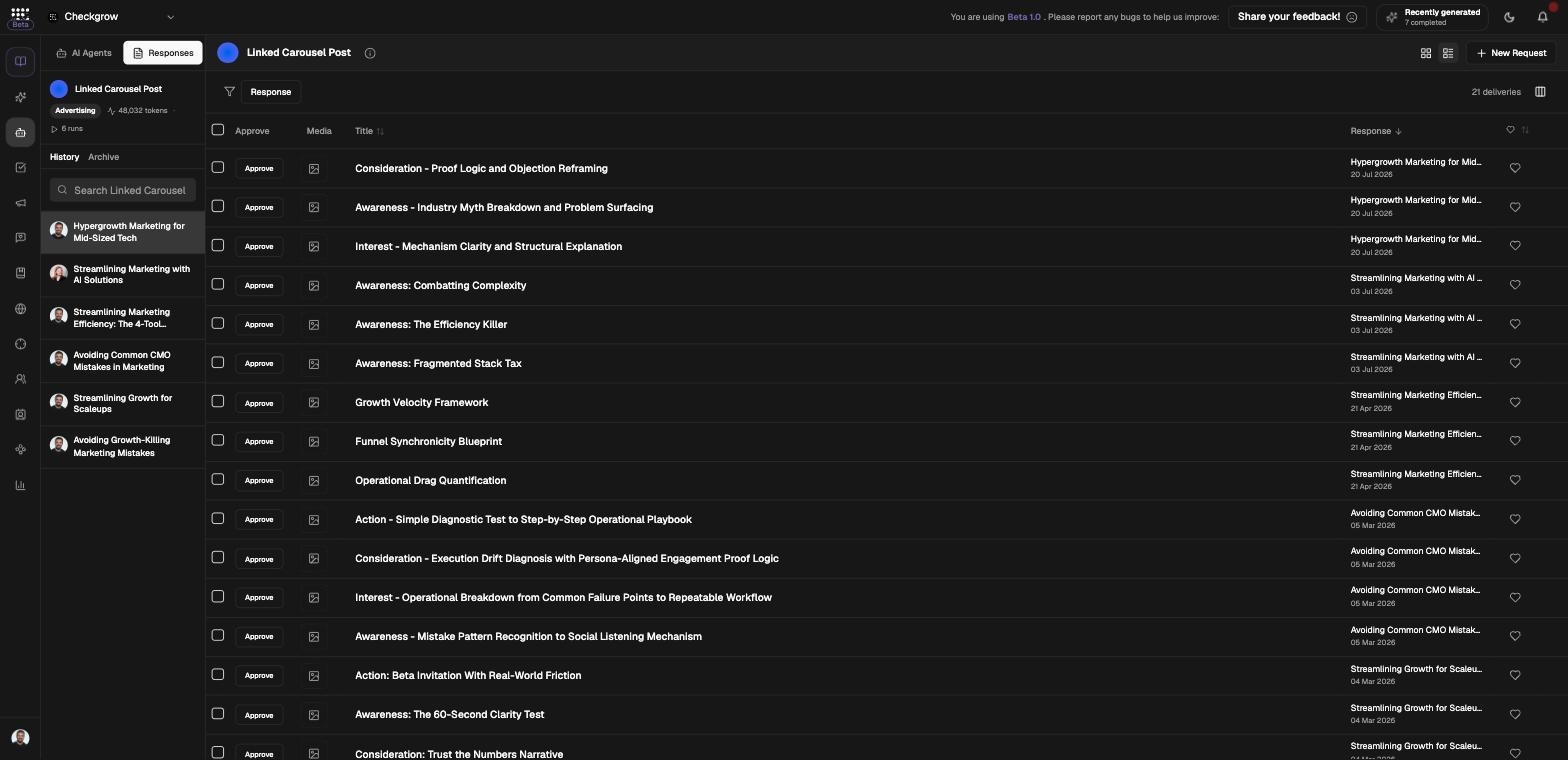
- Approve and hand offSwitch to Table view — all deliveries, tick the rows you want, and click Approve (n). Approved deliveries flow to Tasks for execution. On a single option, use Action → Generate Task.
Working with results
Every run is kept as delivery history on the agent page — here is what each part of it does.
Result cards
Deliveries table
Chaining agents with Sign Agent
Responses, history, and archive
Models
Related features
Tasks — where approved deliveries land for execution
AI Assistant — find and run agents from chat
Buyer Personas — audience knowledge that grounds every brief