
Calendar
One company calendar for campaigns, published posts, tasks, objectives, influencer collaborations and key dates.
Overview
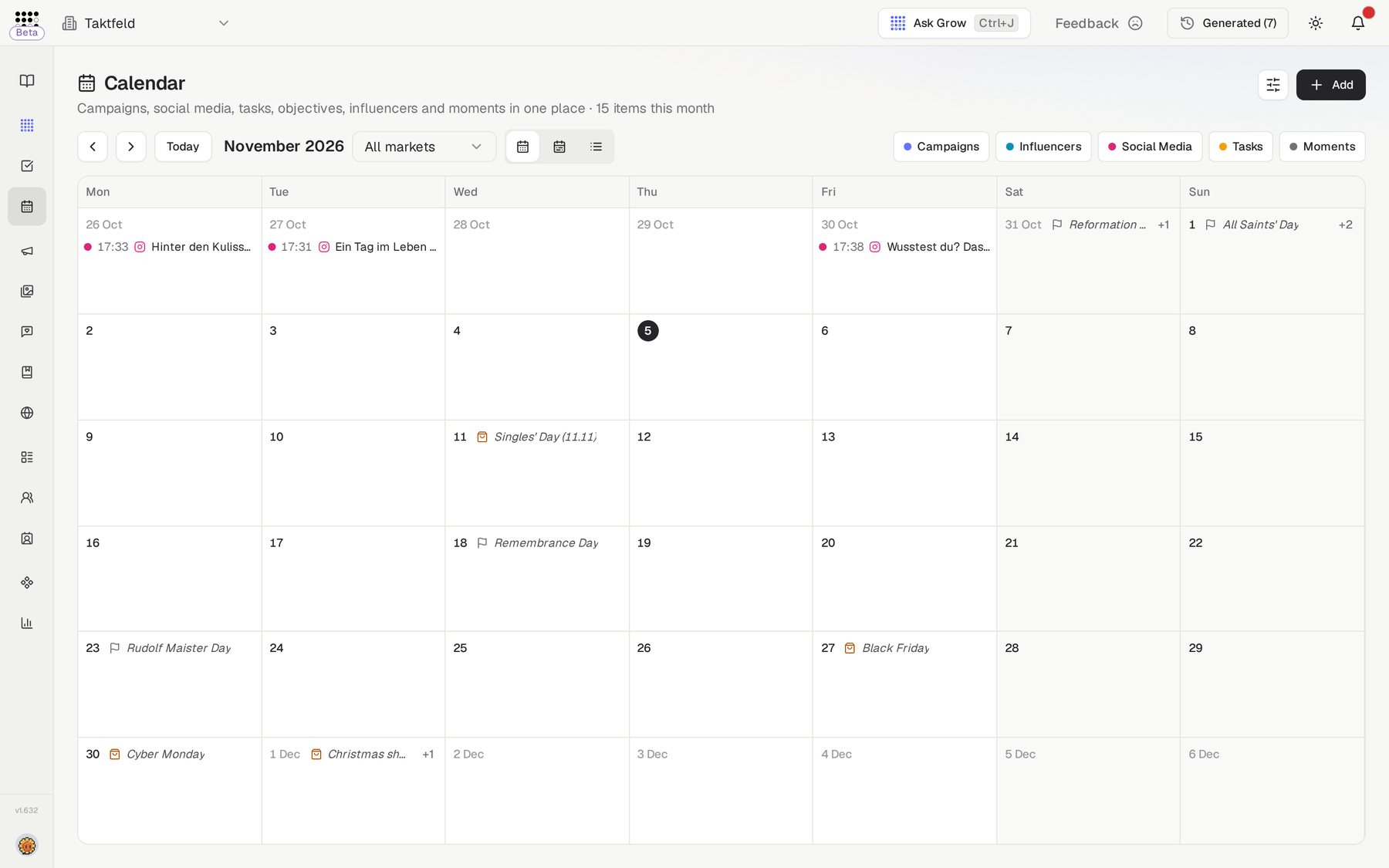
The Calendar shows everything your company has planned or published on one timeline: Campaigns and their periods, posts that went out on your Social Media channels, Tasks on their due dates, objective cycles, influencer collaborations, public holidays and your own key dates.
It is not another place to plan. Every entry belongs to the feature it came from; the Calendar shows it, lets you filter it and opens it where it lives.
One timeline, six sources
Each source has its own colour and its own filter chip with a count. Switch a source off and the calendar shows only what you want to see; your choice is remembered per company.
Who needs it
The Calendar answers "what is happening when?" for the whole team:
- Marketing leads — see the month in one glance before a planning meeting: which campaign is live, what went out, what is due.
- Agencies — run several channels for a client and answer "what went out, and what is next?" without opening five tabs.
- Teams in more than one market — filter the holidays and key dates to one country, or see all your markets together.
- Anyone with a deadline — tasks sit on their due date, overdue ones in red.
Rolled out per company
The Calendar appears under Operations for companies included in the rollout. Ask Checkgrow to switch it on for yours.
How to use it
- Open the CalendarIn the sidebar, choose Operations → Calendar. The current month opens with every source shown.
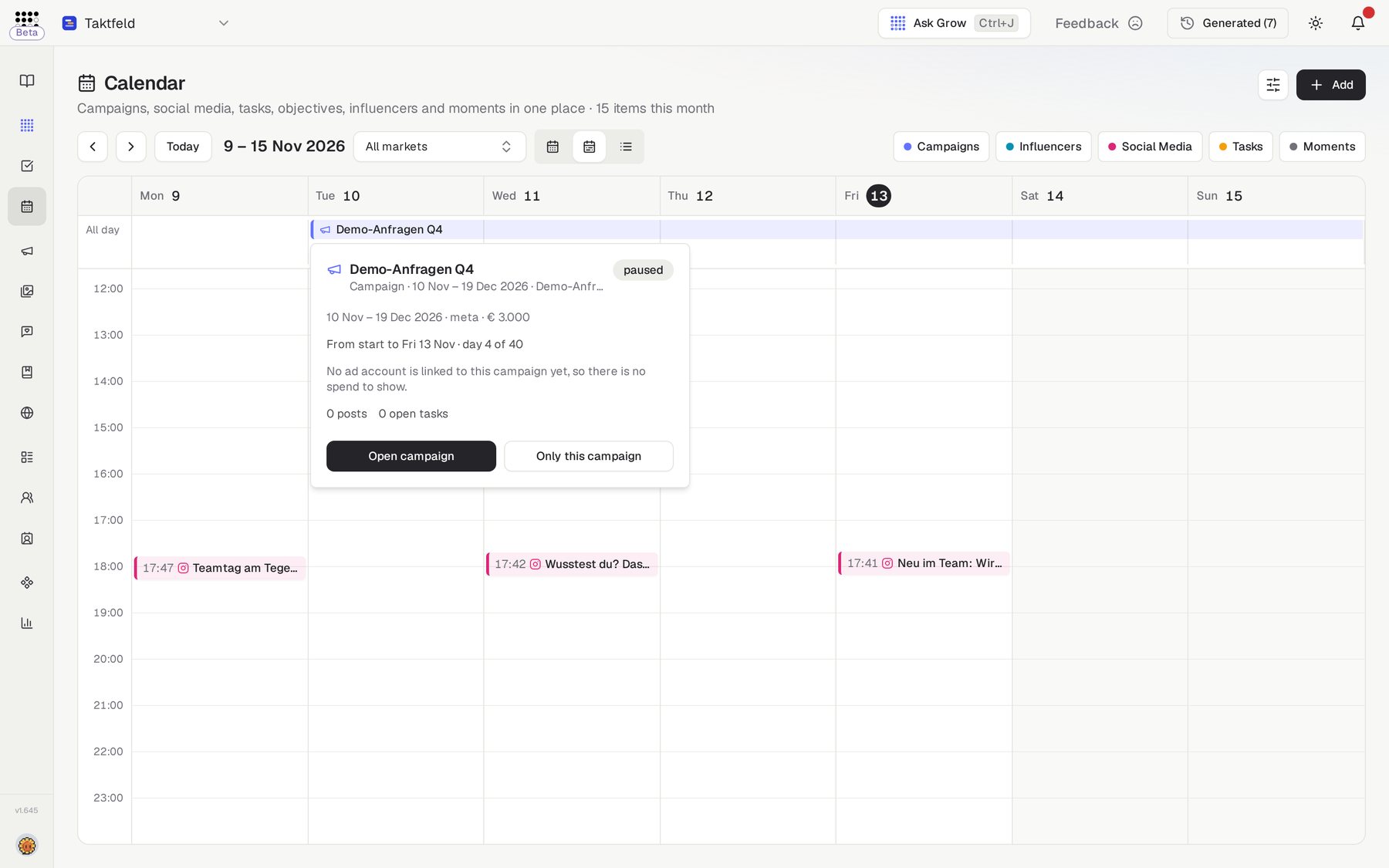
- Pick a viewUse Month, Week or List at the top right. Month shows campaigns as bars across the days they cover; Week adds an hour grid where every post appears at the time it went out; List reads the month top to bottom.
- Show what you wantClick a source chip (Campaigns, Posts, Tasks, Objectives, Collaborations, Moments) to hide or show it. Pick a country in the market selector (type to search) to change which holidays and key dates appear. Show everything resets the chips.
- Hover for details, click to openHover any entry for its card. A campaign shows its spend, impressions and conversions from its start to the day you point at, plus the posts and tasks inside it. Click the entry, or Open campaign, Open task or Open post on the card, to go where it lives.
- Move a taskDrag a task onto another day to change its due date. The change saves immediately and shows on the Tasks board too.
- Add a key dateClick Add → Add a moment, give it a title, a date (and an end date for a season), and optionally a market. Everyone in the company sees it. Remove it from its card with Remove moment.
What appears on the calendar
Every entry comes from a feature you already use. Nothing is created in the Calendar except your own key dates.
Campaigns
Posts
Tasks
Objectives
Collaborations
Moments
Keyboard
T jumps to today, N and P move to the next or previous month (or week, in the week view).
Ask the AI Assistant
The AI Assistant reads the same calendar. Ask "What is coming up this week?", "What ran in August?" or "What is planned for the Autumn campaign?" and it answers with the exact dates. Ask it to add a key date and it shows a confirmation card before anything is added.
What it will not do
The Assistant does not schedule or publish posts, move campaign or objective dates, or remove key dates. Those stay in their own features and on the Calendar page.