
Tasks
The single execution board where AI output, your company's next steps, and manual work all become trackable tasks.
Overview
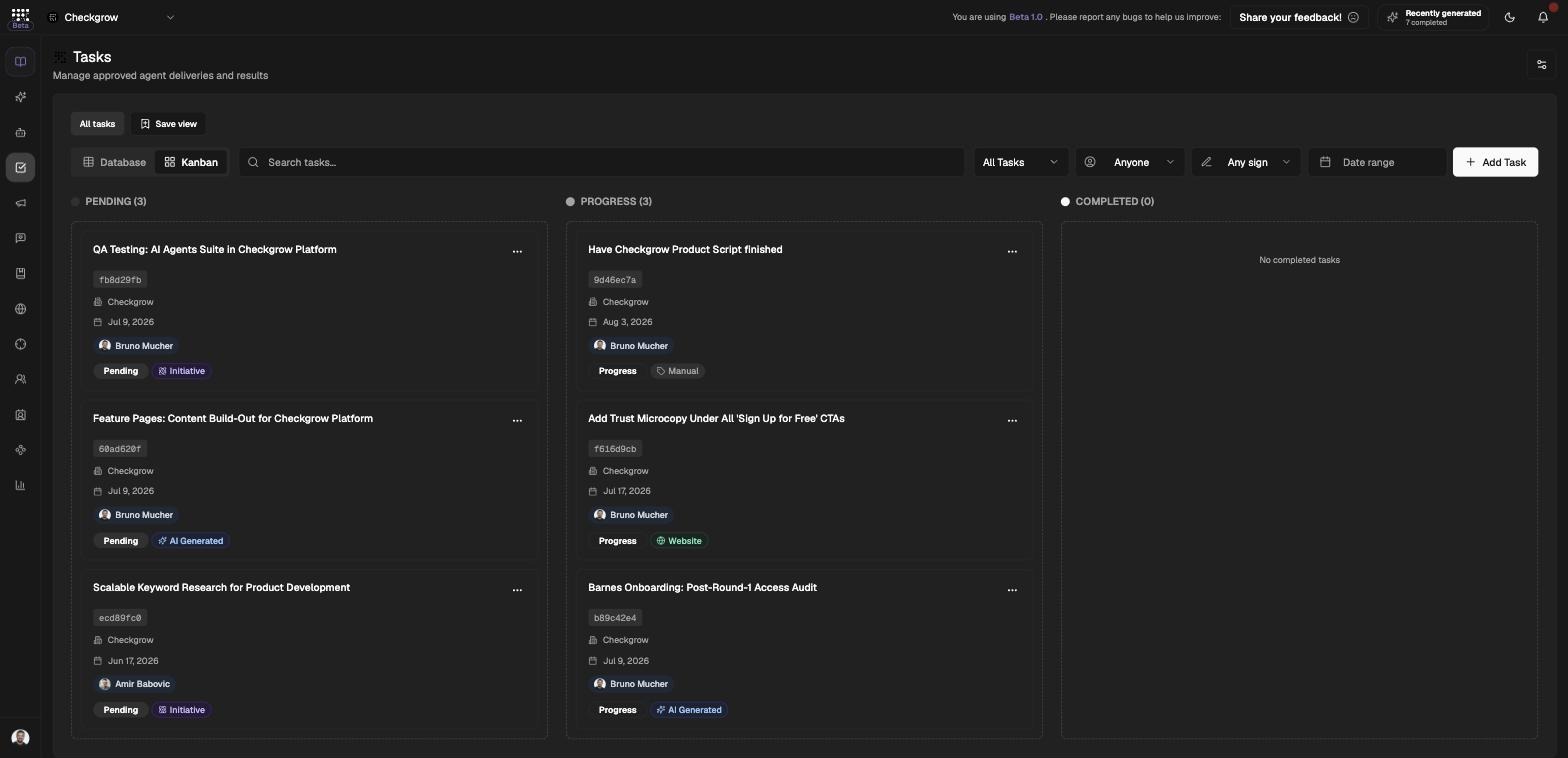
Tasks is the single execution board where everything on the platform becomes work: approved AI Agent deliveries, AI Assistant answers, your company's Next steps, objective initiatives, Website audit ideas, and tasks you create yourself.
Each task carries a full briefing — a What to Do checklist, How to Do It, Why It's Important, Expected Outcomes, Resources Needed, and estimated time — plus attachments, comments with @mentions, assignees, a due date, a campaign or project link, and its own AI chat.
One board for all your work
Whether a task came from an AI agent, a next step, or a teammate, it lands on the same board with the same briefing structure — so nothing generated ever gets lost between features.
Who needs it
Tasks is where plans turn into execution:
- Team leads — assign work, set due dates, and track it across the Kanban board.
- Marketers — execute approved agent deliveries and campaign work from one queue.
- New companies — follow the setup steps in Next steps, such as inviting the team or connecting ad accounts; each one closes by itself when it is done.
- Reviewers — filter to AI-created tasks and check them before the team picks them up.
Choose how tasks open
In the settings popover "Tasks settings", set "Open tasks in" to Side peek, Center peek, or Full page.
Next steps
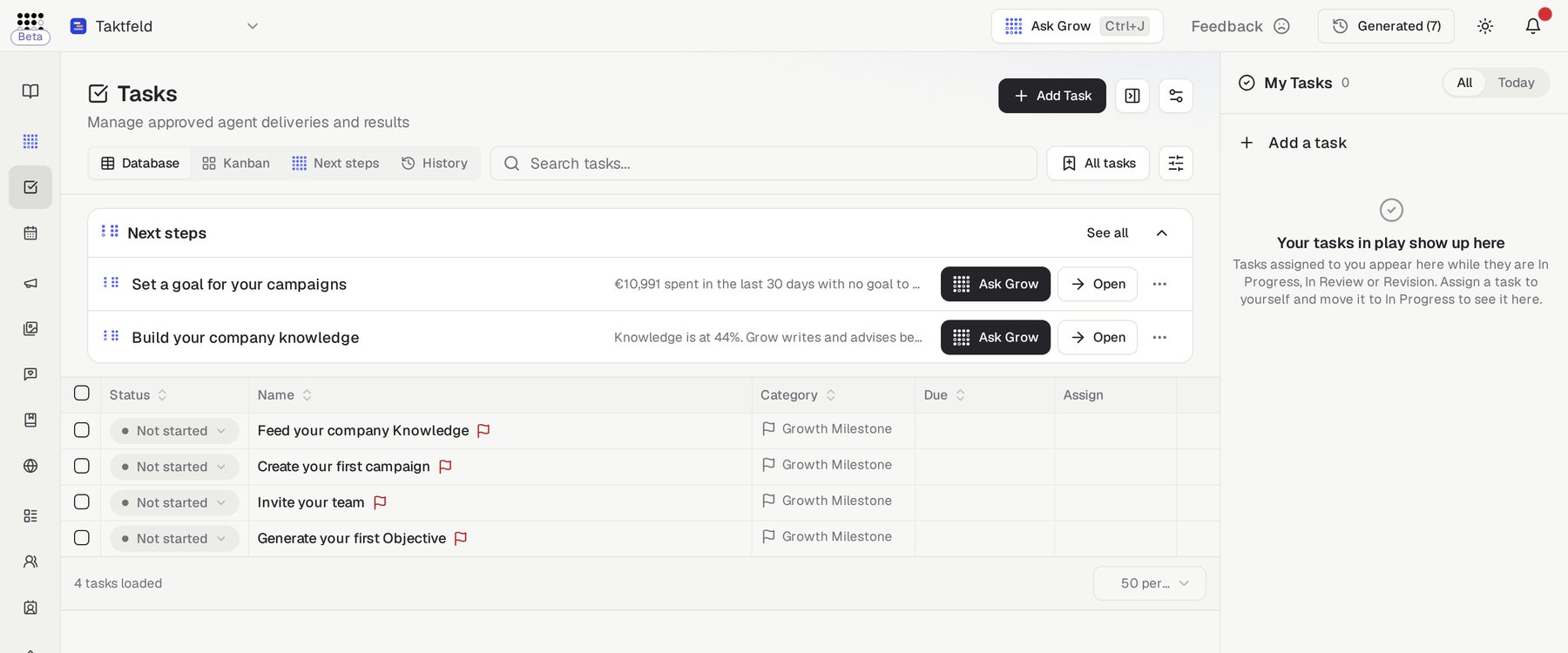
Next steps is one short, ranked list of what your company should do next, built from your campaigns, tasks, goals, team, connections and knowledge. The same steps appear under the composer of a new Grow chat, in Grow's Dashboard tab, above the Tasks database and, for campaigns, on the Campaigns Overview.
- Fewer, better — at most four steps are open at a time, one per subject; the rest wait behind them.
- They close themselves — when the work is done, the step moves to Done. Nobody ticks boxes.
- Not now — open a step's menu and choose Snooze for a week, or Not relevant to hide it unless its evidence doubles.
- See every stepIn Tasks, click Next steps beside Database and Kanban, or See all on the strip. The tabs Open, Waiting, Done and Not now show the ranked list, what is queued, every closed step with how it closed, and what you set aside.
- Act on a stepHover a step to read it in full. Click Ask Grow to plan it with Grow, Open to go to the exact page, or Generate task to turn it into a task.
- Bring a step backOn Not now, click Bring back to return a snoozed or hidden step to the list.
Campaign steps can be applied
On Campaigns › Overview, Campaign next steps names the ad platform each step's numbers came from. When Checkgrow can make the change, such as pausing losing ads or moving budget between ad sets, the button applies it after a check of the current state, logs it in the campaign's Changes and offers Undo.
Where tasks come from
Tasks flow in from across the platform. These are all the sources:
AI Agent approvals
AI Assistant answers
Next steps
Website audit ideas
Objective initiatives
Manual creation
How to use it
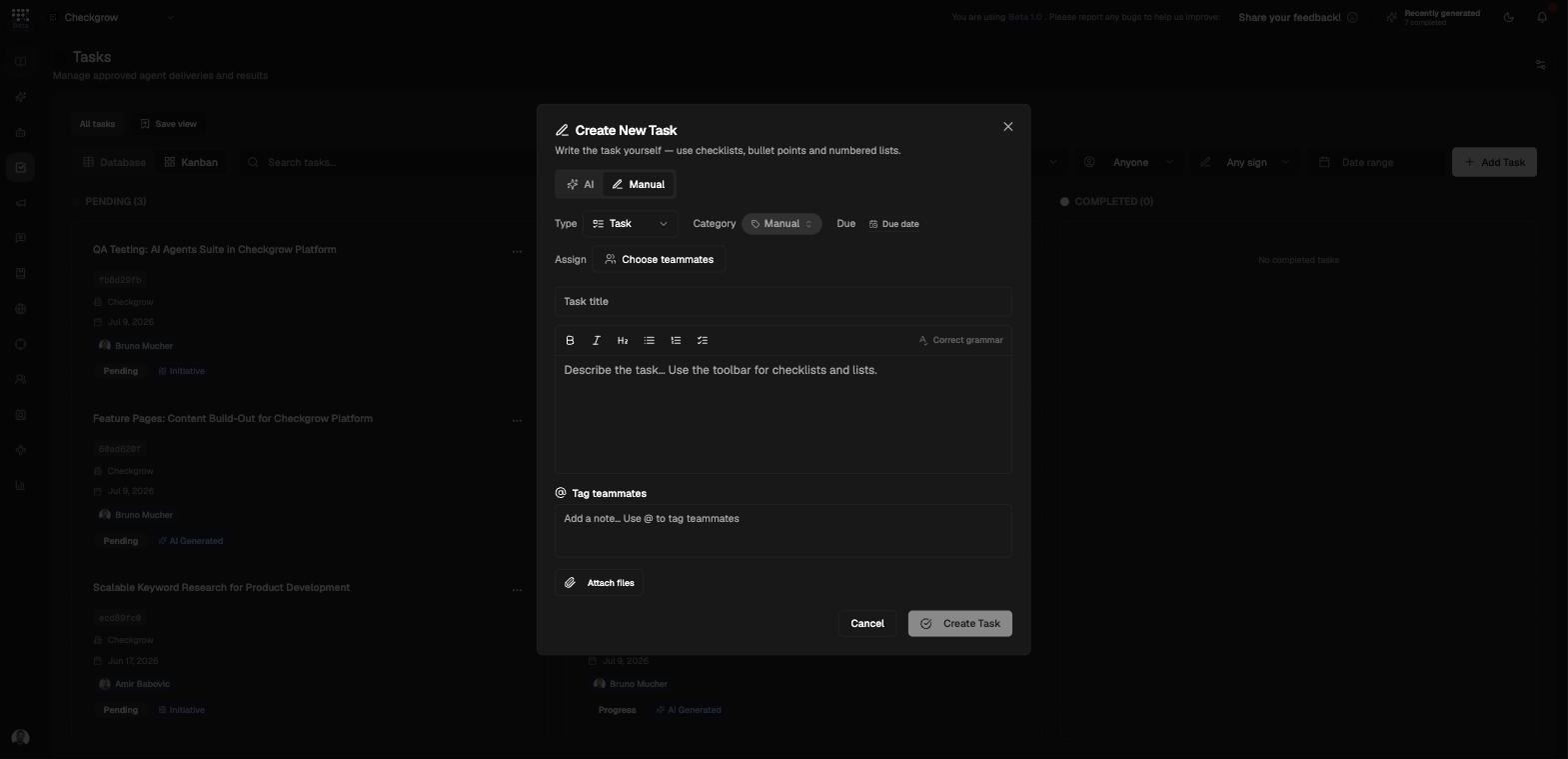
- Create a task with AIClick Add Task to open the task composer. On the AI tab, describe what you want to accomplish and click Generate for a detailed briefing. Manual is the default: write a title and description in the document-style composer. The formatting toolbar, @mentions and file uploads remain available. Use the compact controls below to set type, category, due date, assignees, campaign or project, or choose a saved task from Templates.
- Move work to FinishedSwitch between the Database table and Kanban. In Kanban, drag cards between Pending, In Progress, Paused, Blocked and Finished, tick off the What to Do checklist inside each task, and comment with @mentions.
- Filter and save viewsUse "Search tasks...", the Status filter (All Tasks, Pending, In Progress, Paused, Blocked, Finished), Created by (Anyone, Created by me, AI (agents & assistant), or a member), assignee filters, category, and a date range. Click Save view to keep the current filters, dates, and layout as a named pill (e.g. "My review queue").
- Handle tasks in bulkSelect tasks to show the bulk toolbar. Assign teammates, change category or due date, link tasks to a project, mark tasks finished, or delete the selected tasks. Clear the selection when finished.
Inside a task
Open any task to see its full briefing and tools. Move between tasks with the previous and next task arrows.
Ask Grow and Edit with Grow
Comments and collaboration
Share and push outward
Edit text and add files
Move around a project
Related features
Grow — next steps under a new chat and in the Dashboard tab
AI Agents — approved deliveries become tasks
AI Assistant — generate tasks from any answer