
AI Assistant
A company-aware chat copilot that answers from your knowledge and data — and takes action across the platform with your confirmation.
Overview
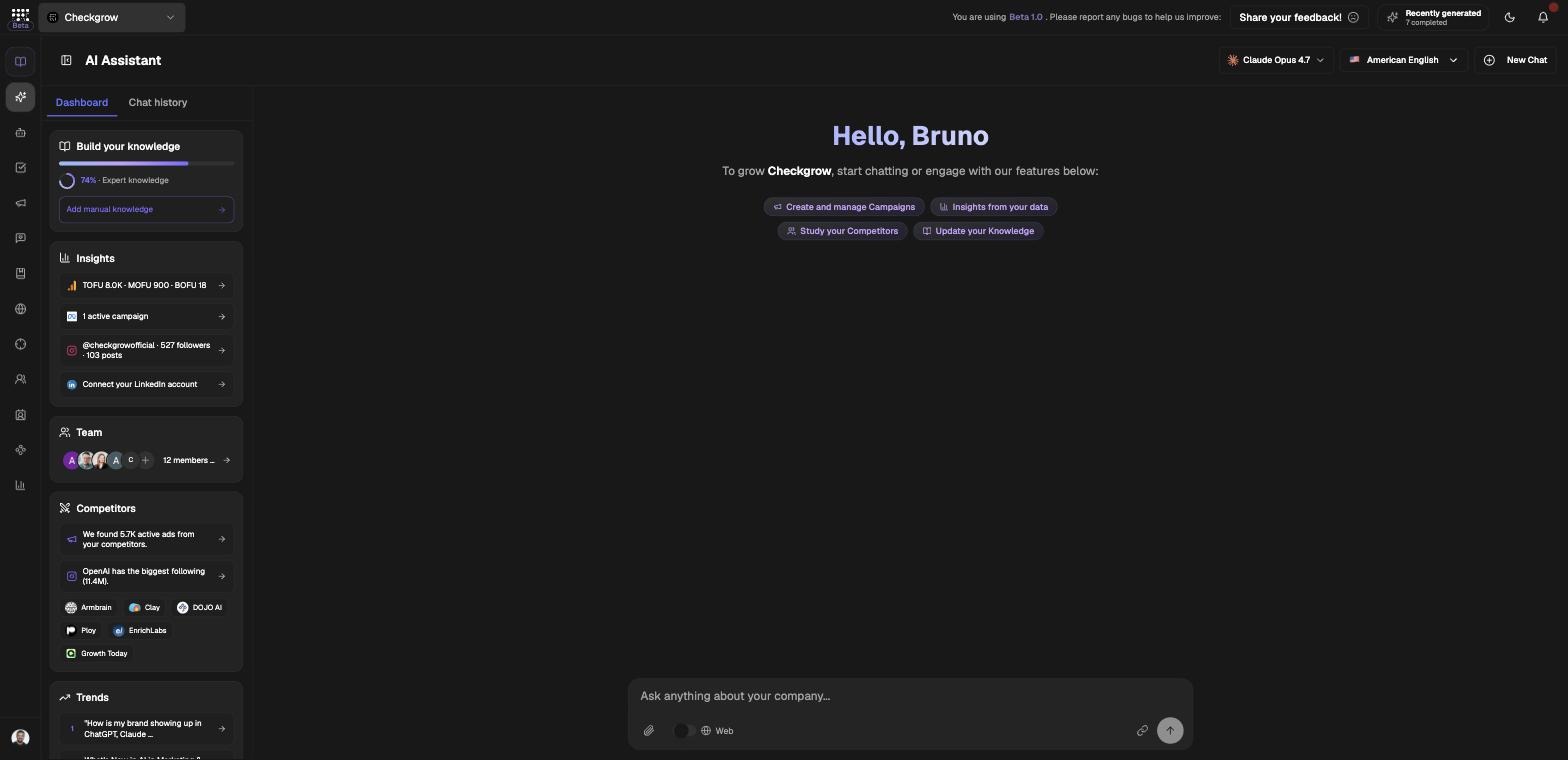
The AI Assistant is your home screen in Checkgrow and a chat copilot that knows your company. Landing on it, you get a live mini-dashboard beside the chat — knowledge score, insights, active campaigns, team, competitors and trends — and a composer ready for anything. It answers from your company knowledge, uploaded files, and connected data — and it acts: it can read and update the Knowledge Center, create and edit Campaigns, pull exact numbers from Insights, summarize Competitors, traverse the Knowledge Graph, and run AI Agents.
It also appears as a docked side chat across the platform — in the Tasks detail view, the Knowledge Center, campaign details, and agent pages.
You always confirm changes
The Assistant never changes your data on its own. Every data-changing action shows a confirm card first — click Apply to accept or Cancel to reject. Nothing is written without your confirmation.
Who needs it
Anyone who would otherwise dig through dashboards or documents:
- Founders — ask for a performance summary instead of opening every report.
- Marketers — create or edit a campaign directly from chat.
- Knowledge owners — upload a document and let the Assistant propose Company Profile and Knowledge Center updates.
- Analysts — pull exact ads, analytics, and funnel numbers from Insights in plain language.
Setup nudges in chat
When a data source is missing, the Assistant shows amber setup cards such as "Connect Google Analytics", "Connect Meta Ads", "Create a campaign", or "Fill your Knowledge Center" — with Connect or Create buttons to fix it on the spot.
How to use it
- Start a conversationOpen AI Assistant from the sidebar. Pick a starter pill — Create and manage Campaigns, Insights from your data, Study your Competitors, or Update your Knowledge — or type in the composer ("Ask anything about your company...").
- Pick a model and languageUse the model selector in the header to choose between GPT-4o, Gemini 2.5 Pro, Claude Sonnet 4.6, and other models, and set your language. Turn on Auto-fallback to switch models automatically if one is unavailable.
- Add contextClick the paperclip to attach up to 10 files per message (PDF, Office documents, images, CSV, and more) or drag files in. Flip the Web switch for web search, or use the URL selector to include scraped company pages.
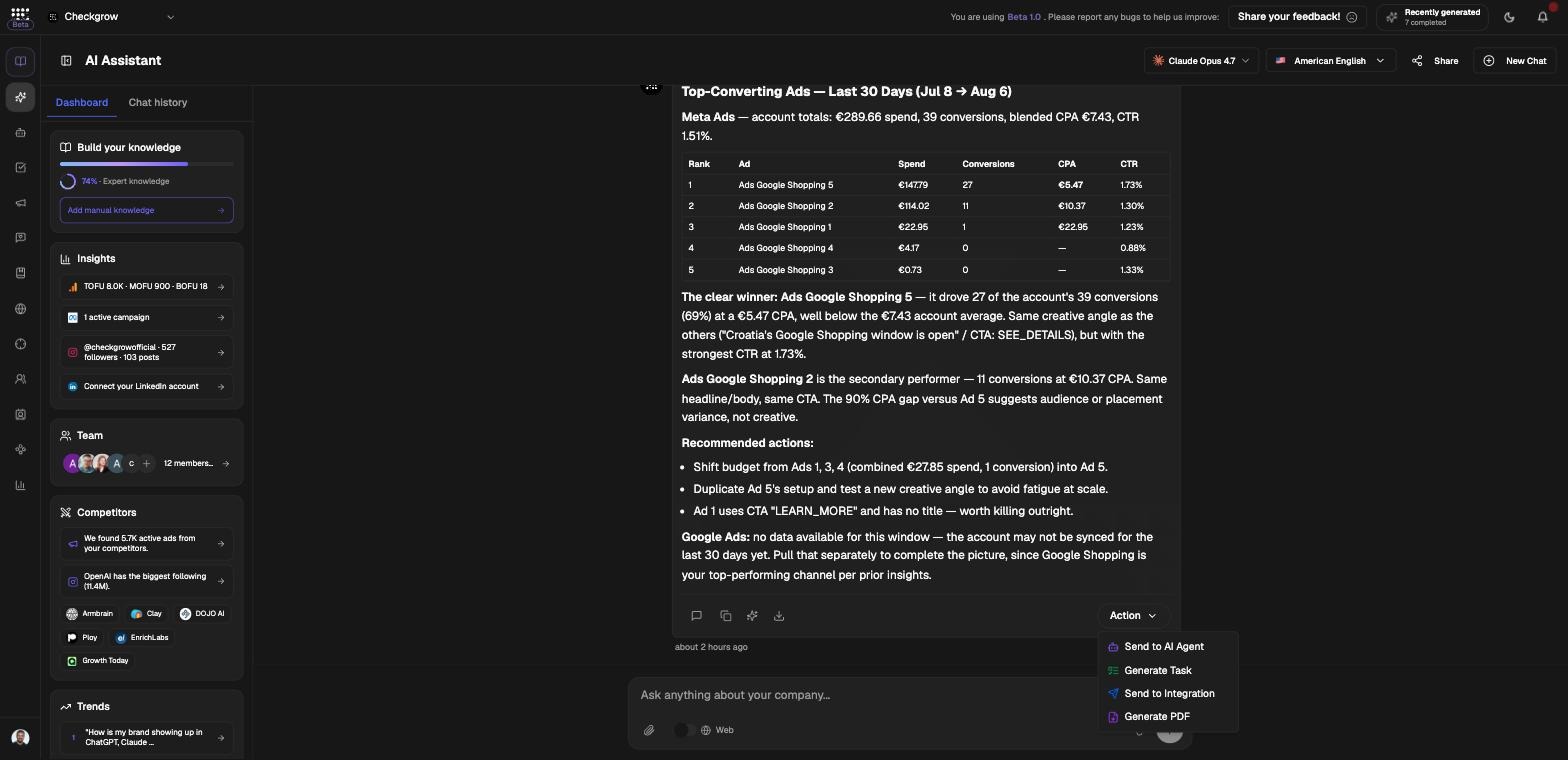
- Act on an answerUnder any answer, open the Action dropdown to choose Generate presentation (1920×1080), Generate A4 document, Generate Task, Send to Integration, or Generate PDF. A presentation or A4 document is designed in your brand from that answer and appears as a card under it. You can also copy the response, humanize it, or download it as a PDF.
Updating your Knowledge Center from chat
The Assistant can read and update the Knowledge Center — from single fields in your Company Profile to whole documents, all connected through the Knowledge Graph. Updates are always proposed first, never applied silently.
- Upload a documentAttach a file — a pitch deck, product sheet, or notes — and ask the Assistant to update your knowledge with it.
- Review the proposed updatesThe Assistant shows a card titled Proposed Knowledge Center updates (n) with a pre-checked list of changes. Untick anything you don't want.
- Apply what you approveClick Apply selected (n) to write only the checked updates. For single changes, the confirm card offers Apply or Cancel.
Chat tools in detail
Everything else the chat interface offers, at a glance.
Chat history and sharing
Per-answer actions
Running AI Agents from chat
Disambiguation and generation control
Related features
AI Agents — specialized workers the Assistant can find and run
Tasks — turn any answer into a task with Generate Task
Campaigns — create and edit campaigns from chat
Knowledge Graph — the connected knowledge the Assistant reads and updates